Reorganizing controls in a DataWindow object
This section describes the activities that help you change
the layout and appearance of the controls in a DataWindow object.
Displaying boundaries for controls in a DataWindow object
When reorganizing controls in the Design view, it is sometimes
helpful to see how large all the controls are. That way you can
easily check for overlapping controls and make sure that the spacing
around controls is what you want.
 To display control boundaries in a DataWindow object:
-
Select Design>Options from the
menu bar.The DataWindow Options dialog box displays.
-
Select the Show Edges checkbox.
PowerBuilder displays the boundaries of each control in the DataWindow object.
 Boundaries display only in the Design view The boundaries displayed for controls are for use only in
the Design view. They do not display in a running DataWindow object or
in a printed report.
Using the grid and the ruler in a DataWindow object
The DataWindow painter provides a grid and a ruler to help you align
controls.
To use the grid and the ruler:
-
Select Design>Options from the
menu bar.The DataWindow Options dialog box displays. The Alignment
Grid box contains the alignment grid options. -
Use the options as needed:
Option Meaning Snap to Grid Make controls snap to a grid position
when you place them or move themShow Grid Show or hide the grid when the workspace
displaysX Specify the size (width) of the grid
cellsY Specify the size (height) of the grid
cellsShow Ruler Show a ruler. The ruler uses the units
of measurement specified in the Style dialog boxSee “Changing the DataWindow object style”
Your choices for the grid and the ruler are saved and used
the next time you start PowerBuilder.
Deleting controls in a DataWindow object
To delete controls in a DataWindow object:
- Select the controls you want to delete.
- Select Edit>Delete from the menu bar.
Moving controls in a DataWindow object
In all presentation styles except Grid
In all presentation styles except Grid, you can move all the
controls (such as headings, labels, columns, graphs, and drawing
controls) anywhere you want.
To move controls in a DataWindow object:
- Select the controls you want to move.
-
Do one of the following:
- Drag the controls with the mouse.
- Press an arrow key to move the controls in one direction.
In grid DataWindow objects
You can reorder columns in a grid DataWindow object during execution.
See “Working in a grid DataWindow object”.
Copying controls in a DataWindow object
You can copy controls within a DataWindow object and to other DataWindow objects.
All properties of the controls are copied.
To copy a control in a DataWindow object:
- Select the control.
-
Select Edit>Copy from the menu bar.
The control is copied to a private PowerBuilder clipboard.
-
Copy (paste) the control to the same DataWindow object or
to another one:- To copy the
control within the same DataWindow object, select Edit>Paste from
the menu bar. - To copy the control to another DataWindow object, open
the desired DataWindow object and paste the control.
PowerBuilder pastes the control at the same location as in the
source DataWindow object (if you are pasting into the same DataWindow object, you
should move the pasted control so it doesn’t cover the
original control). PowerBuilder displays a message box if the control
you are pasting is not valid in the destination DataWindow object. - To copy the
Resizing controls in a DataWindow object
You can resize a control using the mouse or the keyboard.
Using the mouse
To resize a control using the mouse, select it, then grab
an edge and drag it with the mouse.
Using the keyboard
To resize a control using the keyboard, select it and then
do the following:
| To make the control | Press |
|---|---|
| Wider | shift+right arrow |
| Narrower | shift+left arrow |
| Taller | shift+down arrow |
| Shorter | shift+up arrow |
In grid DataWindow objects
You can resize columns in grid DataWindow objects.
To resize a column in a grid DataWindow object:
-
Position the mouse pointer at a column
boundary.The pointer changes to a 2-headed arrow.
-
Press and hold the left mouse button and drag
the mouse to move the boundary. -
Release the mouse button when the column is the
correct width.
Aligning controls in a DataWindow object
Often you want to align several controls or make them all
the same size. You can use the grid to align the controls or you
can have PowerBuilder align them for you.
To align controls in a DataWindow object:
-
Select the control whose position you want
to use to align the others.PowerBuilder displays handles around the selected control.
-
Extend the selection by pressing and holding the ctrl key
and clicking the controls you want to align with the first one.All the controls have handles on them.
- Select Format>Align from the menu bar.
-
From the cascading menu, select the dimension
along which you want to align the controls.For example, to align the controls along the left side, select
the first choice on the cascading menu.PowerBuilder moves all the selected controls to align with the
first one.
Equalizing the space between controls in a DataWindow object
If you have a series of controls and the spacing is fine between
two of them but the spacing is wrong for the rest, you can easily
equalize the spacing around all the controls.
To equalize the space between controls in a DataWindow object:
-
Select the two controls whose spacing is
correct.To do so, click one control, then press ctrl and
click the second control. -
Select the other controls whose spacing you want
to be the same as the first two controls by pressing ctrl and
clicking. - Select Format>Space from the menu bar.
-
From the cascading menu, select the dimension
whose spacing you want to equalize.
Equalizing the size of controls in a DataWindow object
Say you have several controls in a DataWindow object and want their
sizes to be the same. You can accomplish this manually or by using
the Format menu.
To equalize the size of controls in a DataWindow object:
- Select the control whose size is correct.
-
Select the other controls whose size you want
to match the first control by pressing ctrl and
clicking. - Select Format>Size from the menu bar.
-
From the cascading menu, select the dimension
whose size you want to equalize.
Sliding controls to remove blank space in a DataWindow object
You can specify that you want to eliminate blank lines or
spaces in a DataWindow object by sliding columns and other controls to
the left or up if there is blank space. You can use this feature
to remove blank lines in mailing labels or to remove extra spaces
between fields (such as first and last name).
Slide is used by default in nested reports PowerBuilder uses slide options automatically when you nest
a report to ensure that the reports are positioned properly.
To use sliding columns or controls in a DataWindow object:
-
Select Properties from the control’s
popup menu and then select the Position tab in the Properties view. -
Select the Slide options you want:
Option Description Slide Left Slide the column or control to the left
if there is nothing to the left. Be sure the control does not overlap
the control to the left. Sliding left will not work if the controls
overlapSlide Up – All Above Slide the column or control up if there
is nothing in the row above (the row above must be completely empty for
the column or control to slide up)Slide Up – Directly Above Slide the column or control up if there
is nothing directly above it
in the row above
If you are sliding columns up Even blank columns have height; if you want columns to slide
up, you need to specify as Autosize Height all columns above that
might be blank and that you want to slide other columns up through.
Example
In a mailing label that includes first and last names, as
well as address information, you can use sliding to combine the
columns appropriately.
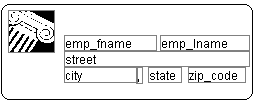
In the following label, emp_lname, the comma, state,
and zip_code are specified as slide left. Edges are shown
to indicate the spacing between the columns. Notice that there is
a small amount of space between controls. This space is necessary
for Slide Left to work properly:
When you preview (run) the report, the last name, comma, state,
and zip code slide left to remove the blank space: