Using the Preview view of a DataWindow object
You can use the Preview view of a DataWindow object to view it as
it will appear with data and test the processing that takes place
in it.
 To display the Preview view of a DataWindow object open
in the DataWindow painter:
-
Select View>Preview from the menu
bar.The Preview view displays. In the Preview view, the bars that
indicate the bands disappear, and by default PowerBuilder retrieves
all the rows from the database (you are prompted to supply arguments
if you defined retrieval arguments).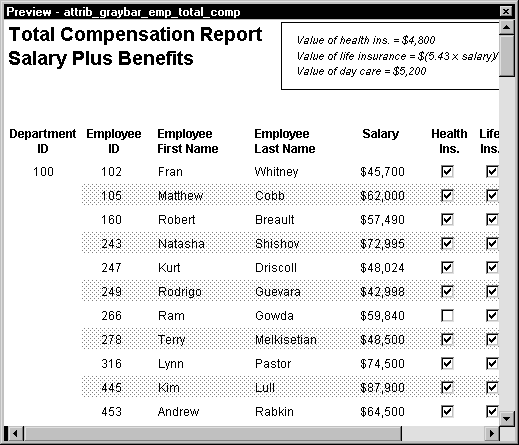
 In external DataWindow objects If the DataWindow object uses the External data source, no data is retrieved.
You can import data, as described in “Importing data into a DataWindow object”. In DataWindow objects that have stored data If the DataWindow object has stored data in it, no data is retrieved
from the database.As the rows are being retrieved, the Retrieve button in the
PainterBar changes to a Cancel button. You can click the Cancel
button to stop the retrieval. -
Test your DataWindow object.
For example, modify some data, update the database, re-retrieve
rows, and so on, as described below.
Retrieving data
Where PowerBuilder gets data
PowerBuilder follows this order of precedence to supply the
data in your DataWindow object:
- If you have saved data in the DataWindow object, PowerBuilder uses
the saved rows from the DataWindow object and does not retrieve data from the
database. - If data caching is on, PowerBuilder uses the data
in the cache (if there is any). Data caching is always on. - If there is no data in the cache yet, PowerBuilder retrieves
data from the database automatically, with one exception. If the
Retrieve on Preview option is off, you have to request retrieval
explicitly, as described next.
Previewing without retrieving data
If you do not want PowerBuilder to retrieve data from the database automatically
when the Preview view opens, you can set the Retrieve on Preview
option. Then the Preview view will show the DataWindow object without retrieving
data.
To be able to preview without retrieving data
automatically:
-
Select Design>Options from the
menu bar.The DataWindow Options property sheet displays.
- Select the General tab.
-
Deselect the Retrieve on Preview checkbox.
When this checkbox is unchecked, your request to preview the DataWindow object will
not result in automatic data retrieval from the database.
Retrieve on Preview checkbox is available in the DataWindow wizards During the initial creation of a DataWindow object, you can set the
Retrieve on Preview option.
PowerBuilder uses data caching
When PowerBuilder first retrieves data, it stores the data internally.
When PowerBuilder refreshes the Preview view, PowerBuilder displays
the stored data instead of retrieving rows from the database again.
This can save you a lot of time, since data retrieval can be time
consuming.
How using data from the cache affects you
Because PowerBuilder accesses the cache and does not automatically
retrieve data every time you preview, you may not have what you
want when you preview. The data you see in preview and the data
in the database can be out of sync.
For example, if you are working with live data that changes
frequently or with statistics based on changing data and you spend
time designing the DataWindow object, the data you are looking at may no
longer match the database. In this case, you may want to retrieve
again just before printing.
Explicitly retrieving data
You can explicitly request retrieval at any time.
To retrieve rows from the database:
-
Click the Retrieve button in the PainterBar.
or
Select Rows>Retrieve from the menu bar.
or
Select Retrieve from the Preview view’s popup
menu. Supplying argument values or criteria If the DataWindow object has retrieval arguments or is set up to
prompt for criteria, you will be prompted to supply values for the
arguments or to specify criteria.PowerBuilder retrieves the rows. As PowerBuilder retrieves, the
Retrieve button changes to a Cancel button. You can click the Cancel
button to stop the retrieval anytime.
Sharing data with the Data view
The Data view displays data that can be used to populate a
DataWindow. When the ShareData popup menu item in the Data view
is checked, changes you make in the Data view are reflected in the
Preview view and vice versa.
Other options that affect retrieval
These other options can affect retrieval:
- Retrieve Rows As Needed Lets you specify that only the rows needed to display the
current portion of the DataWindow object should be retrieved. When you
scroll downward, additional rows are retrieved. This can speed up
reporting in certain situations.
See “Retrieving rows as needed”. - Retrieve Rows to Disk Lets you specify that PowerBuilder should save retrieved data
on your hard disk in a temporary file rather than keep the data
in memory. When you preview your DataWindow object, PowerBuilder swaps rows
of data from the temporary file into memory as needed.
For information, see “Saving retrieved rows to
disk “.
Modifying data
You can add, modify, or delete rows in the Preview view. When
you have finished manipulating the data, you can apply the changes
to the database.
If looking at data from a view or from more than one
table By default, you cannot update data in a DataWindow object that contains
a view or more than one table.
For more about updating DataWindow objects,
see Chapter 19, “Controlling Updates in DataWindow Objects”
To modify existing data:
-
Tab to the field and enter a new value.
The Preview view uses validation rules, display formats, and
edit styles that you have defined for the columns, either in the
Database painter or in this particular DataWindow object.
To save the changes to the database, you must apply them,
as described below.
To add a row:
-
Click the Insert Row button.
PowerBuilder creates a blank row.
- Enter data for a row.
To save the changes to the database, you must apply them,
as described below.
Adding a row in an application Clicking the Insert Row button in the Preview view is equivalent
to calling the InsertRow function and then the ScrollToRow function
during execution.
To delete a row:
-
Click the Delete Row button.
PowerBuilder removes the row from the display.
To save the changes to the database, you must apply them,
as described below.
Deleting a row in an application Clicking the Delete Row button in the Preview view is equivalent
to calling the DeleteRow function during execution.
To apply changes to the database:
-
Click the Update Database button.
PowerBuilder updates the table with all the changes you have
made.
Applying changes in an application Clicking the Update Database button in the Preview view is
equivalent to calling the Update function during execution.
Viewing row information
You can display information about the data you have retrieved.
To display the row information:
-
Select Rows>Described from the
menu bar.The Describe Rows dialog box displays showing the number of:
- Rows that have been deleted
in the painter but not yet deleted from the database - Rows displayed in the Preview view
- Rows that have been filtered
- Rows that have been modified in the painter but
not yet modified in the database
- Rows that have been deleted
All row counts are zero until you retrieve the data from the
database or add a new row. The count changes when you modify the
displayed data or test filter criteria.
Importing data into a DataWindow object
You can import and display data from an external source. Then
you can save the imported data in the database.
To import data into a DataWindow object:
-
Select Rows>Import from the menu
bar. -
Specify the file from which you want to import
the data.The types of files that you can import into the painter display
in the List Files of Type dropdown listbox. -
Click Open.
PowerBuilder reads the data from the file into the painter. You
can then click the Update Database button in the PainterBar to add
the new rows to the database.
Data from file must match retrieved columns When importing data from a file, the data must match all the
columns in the retrieved data (typically, the columns specified
in the SELECT statement), not just the columns that are displayed
in the DataWindow object.
Using print preview
You can print the data displayed in the Preview view. Before
printing, you can preview the output on the screen. Your computer must
have a default printer specified.
To preview printed output before printing:
-
Be sure the Preview view is selected (current)
and then select File>Print Preview from the menu bar.Print Preview displays the DataWindow object as it will print.
Using the IntelliMouse pointing device Using the IntelliMouse pointing device, users can scroll
a DataWindow object by rotating the wheel. Users can also zoom a DataWindow object larger
or smaller by holding down the ctrl key while
rotating the wheel.
Controlling the display of rulers
You can choose whether to display rulers around page borders.
To control the display of rulers in Print Preview:
-
Select/deselect File>Print
Preview Rulers from the menu bar.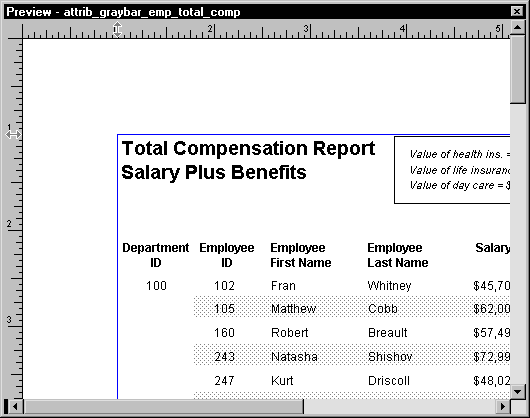
Changing margins
You can dynamically change margins while previewing a DataWindow object.
To change the margins in Print Preview:
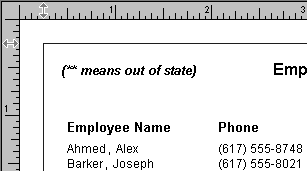
- Drag the margin boundaries on the rulers.
The following picture shows the left and top margin boundaries.
There are also boundaries for the right and bottom margins.
Changing margins during execution Using the Modify function, you can display a DataWindow object in
print preview during execution. While in print preview your users
can also change margins by dragging boundaries. A user event in
the DataWindow control (pbm_dwnprintmarginchange) is triggered
when print margins are changed. Changing margins can affect the
page count. So if you use the Describe function to display the page
count in your application (for example, in MicroHelp), you should
code a script for the user event to recalculate the page count.
Zooming the page
You can reduce or enlarge the amount of the page that displays
in the Print Preview view. This does not affect the printed output.
To zoom the page on the display screen:
-
Select File>Print Preview Zoom
from the menu bar. -
Select the magnification you want and click OK.
The display of the page zooms in or out as appropriate. The
size of the contents of the page changes proportionately as you
zoom. This type of zooming affects your display but does not affect
printing.
Zooming the contents
In addition to zooming the display on the screen, you can
also zoom the contents, affecting the amount of material that prints
on a page.
To zoom the contents of a DataWindow object with respect
to the printed page:
-
Select Design>Zoom from the menu
bar. -
Select the magnification you want and click OK.
The contents of the page zooms in or out as appropriate. If
you enlarge the contents so they no longer fit, PowerBuilder creates
additional pages as needed.
Printing data
You can print your DataWindow object while the Preview view is displayed. You
can print all pages, a range of pages, only the current page, or
only odd or even pages. You can also specify whether you want multiple
copies, collated copies, and printing to a file.
Avoiding large rows
To avoid multiple blank pages and other anomalies in printed
reports, no row in the DataWindow object should be larger than the size
of the target page. The page boundary is often reached in long text
columns with AutoSizeHeight on. It can also be reached when detail
rows are combined with page and group headers and trailers, or when
they contain multiple nested DataWindow objects or a column that has been
resized to be larger than the page.
When a row contains large multi-line edit columns, it can
be broken into a series of rows each containing one text line. These
text lines become the source for a nested DataWindow object. The nested
DataWindow object determines how many of its rows fit in the remaining
page space. A WordWrap utility, obtainable from Sybase, can be used
to parse the text into single lines.
Page break before last row
The summary band in a report is always printed on the same
page as the last row of data. This means that you will
sometimes find that there is a page break before the last row of data
even if there is sufficient space to print the row. If you want
the last row to print on the same page as the preceding
rows, the summary band must be made small enough to fit on the page
as well.
To change printers or settings before printing
You can choose File>Printer Setup from the menu bar.
To print a DataWindow object:
-
Select File>Print Report from
the menu bar to display the Print dialog box. - Specify the number of copies to print.
-
Specify the pages: select All or Current Page,
or type page numbers and/or page ranges in the Pages box. -
Specify all pages, even pages, or odd pages in
the Print dropdown listbox. -
If you want to print to a file rather than to
the printer, select the Print to File checkbox. -
If you want to change the collating option, deselect
or select the Collate Copies checkbox and click OK.If you specified print to file, the Print to File dialog box
displays. -
Enter a filename and click OK.
The extension PRN identifies it as a file prepared for the
printer. Change drive and/or directory if you want.
Saving data in an external file
While previewing, you can save the data retrieved in an external
file. Note that the data and headers (if specified) are saved. Information
in the footer or summary bands is not saved unless you are saving
in the file format named Powersoft report.
For more information about the Powersoft report
file format, see “Working with PSR files”.
To save the data in a DataWindow object in an external
file:
-
Select File>Save Rows As from
the menu bar.The Save As dialog box displays.
-
Choose a format for the file from the Save As
Type dropdown listbox.If you want the column headers saved in the file, select a
file format that includes headers (such as Excel With Headers).
When you select a with headers
format, the
names of the database columns (not the column labels) will also
be saved in the file.When you choose a format, PowerBuilder supplies the appropriate
file extension on platforms that require them. Saving the data as a Powersoft report or HTML Table You can choose Powersoft report in the Save As dialog box
to save a Powersoft PSR file. You can choose HTML Table to save
the data in HTML Table format. -
Name the file and click Save.
PowerBuilder saves all displayed rows in the file; all columns
in the displayed rows are saved. Filtered rows are not saved.
Saving the data in HTML Table format
One of the formats you can choose to save data in is HTML
Table format. When you save in HTML Table format, PowerBuilder saves
a style sheet along with the data. If you use this format, you can
open the saved file in a browser such as Netscape. Once you have
the file in HTML Table format, you can continue to enhance the file
in HTML.
About the results
Some presentation styles translate better into HTML than others.
The Tabular, Group, Freeform, Crosstab, and Grid presentation styles
produce good results. The Composite, RichText, Graph, and OLE 2.0 presentation
styles and nested reports produce HTML tables based on the result
set (data) only and not on the presentation style. DataWindow Objects with
overlapping controls in them may not produce the results you want.
An example
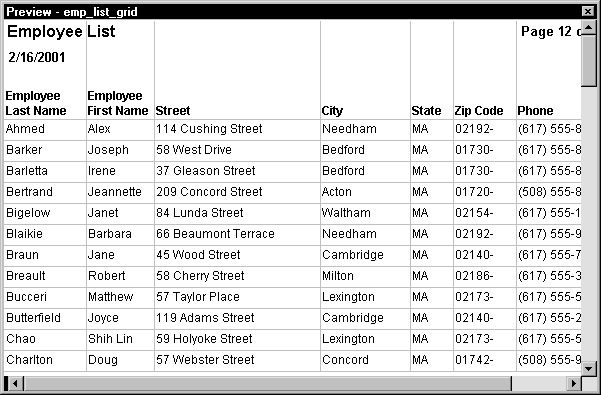
The example shows a report in the Preview view and the file
saved in HTML Table format in Netscape.
These are the steps you would follow to recreate this example:
- Open a DataWindow or report.
- Preview it:
- Select File>Save Rows As from the menu
bar. - Choose the HTML Table format for the file from the
Save As Type dropdown listbox. - Name the file.
PowerBuilder creates a file using the name you supplied and
the extension htm
. - Open a browser such as Netscape or Internet Explorer.
- Use the browser’s file open command to
open the HTML file.
This screen shows the file opened in Netscape: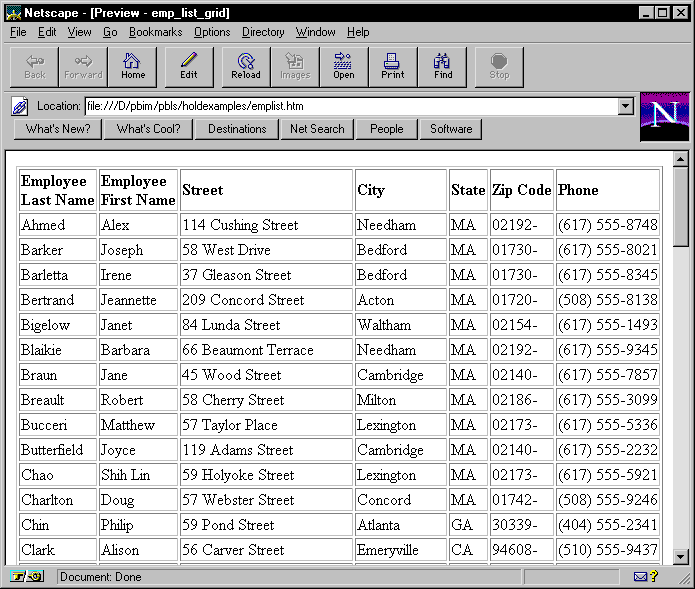
Working with PSR files
A PSR file is a special file with the extension PSR created
by PowerBuilder, InfoMaker, or DataWindow Builder. PSR stands for Powersoft
report.
Windows and PSR files When PowerBuilder is installed, the Powersoft report file type
is registered with Windows.
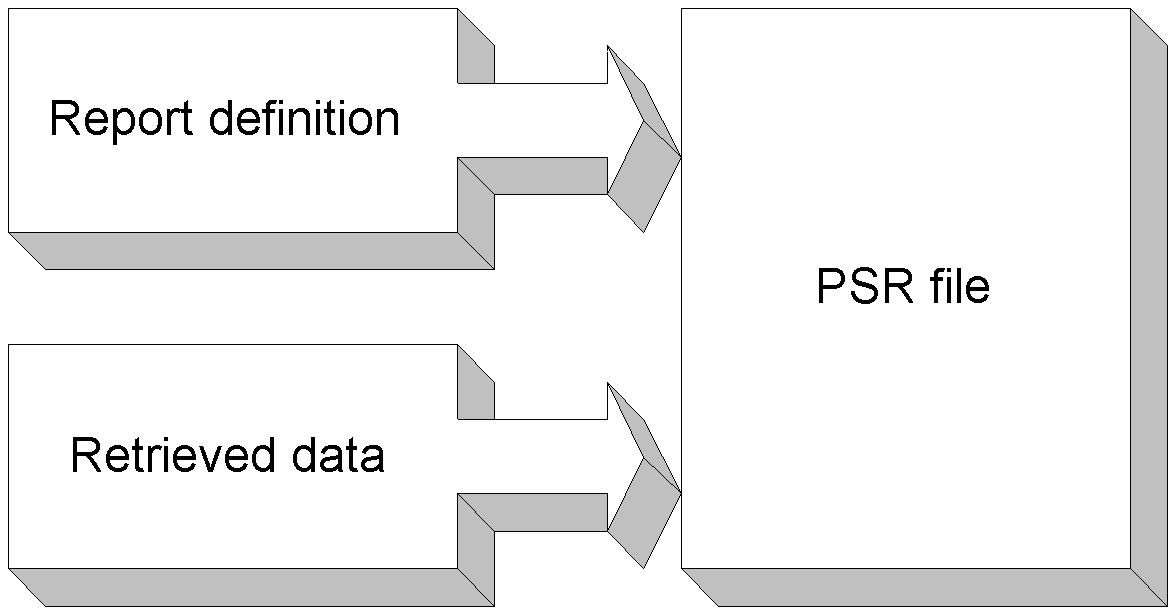
A PSR file contains a report definition (source and object)
as well as the data contained in the report when the PSR file was
created.
About reports A report is the same as a nonupdatable DataWindow object.
For more information, see “About reports”.
You can use a PSR file to save a complete report (report design
and data). This can be especially important if you need to keep
a snapshot of data taken against a database that changes frequently.
PowerBuilder creates a PSR file when you save data in the Powersoft
report file format. See “Saving data in an external
file”. PSR files are used primarily
by InfoMaker, a reporting tool. When an InfoMaker user opens a
PSR file, InfoMaker displays the report in the Report painter.
If InfoMaker is not already running, opening a PSR file automatically
starts InfoMaker.
Working in a grid DataWindow object
If you are viewing a grid-style DataWindow object in the Preview
view, you can make the following changes. Whatever you do in the
Preview view is reflected in the Design view:
- Resize columns
- Reorder columns
- Split the display into two horizontal scrolling
regions–you can use this feature to keep one or more columns
stationary on the screen while scrolling through other columns. - Copy data to the clipboard
These features are also available to your users Users of your application can also manipulate columns in these
ways in a grid DataWindow object during execution.
To resize a column in a grid DataWindow object:
-
Position the mouse pointer
at a column boundary in the header.The pointer changes to a two-headed arrow.
-
Press and hold the left mouse button and drag
the mouse to move the boundary. -
Release the mouse button when the column is the
correct width.
To reorder columns in a grid DataWindow object:
-
Press and hold the left mouse button on
a column heading.PowerBuilder selects the column and displays a line representing
the column border. - Drag the mouse left or right to move the column.
- Release the mouse button.
To use split horizontal scrolling in a grid DataWindow object:
-
To divide the grid into two regions that
can scroll independently of each other, position the mouse pointer
at the left end of the horizontal scrollbar.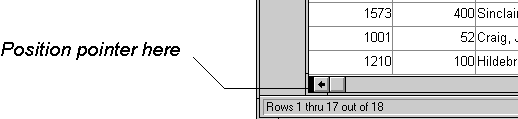
The pointer changes to a two-headed arrow.
-
Press and hold the left mouse button and drag
the mouse to the right to create a new horizontal scrolling border. -
Release the mouse button.
You now have two independently scrolling regions in the grid DataWindow object.
To copy data to the clipboard from a grid DataWindow object:
-
Select the cells whose data you want to
copy to the clipboard:- To select an entire column, click its header. To
select neighboring columns, press and hold shift,
then click the headers. To select non-neighboring columns, press
and hold ctrl, then click the headers. - To select cells, press the left mouse button on
the bottom border of a cell and drag the mouse.
Selected cells are highlighted.
- To select an entire column, click its header. To
-
Select Edit>Copy from the menu bar.
The contents of the selected cells are copied to the clipboard.
If you copied the contents of more than one column, the data is
separated by tabs.