Modifying general DataWindow object properties
This section describes the general DataWindow object properties that
you can modify.
Changing the DataWindow object style
The general style properties for a DataWindow object include:
- The unit of measure used in the DataWindow object
- A timer interval for events in the DataWindow object
- A background color for the DataWindow object
PowerBuilder assigns defaults when it generates the basic DataWindow object. You
can change the defaults.
 To change the default style properties:
-
Position the pointer in the background
of the DataWindow object, display the popup menu, and select Properties.The Properties view displays with the General property page
on top. -
Click the unit of measure you want to use to specify
distances when working with the DataWindow object:- PowerBuilder units (PBUs)
- Pixels (smallest element on the display monitor)
- Thousandths of an inch
- Thousandths of a centimeter
 Choosing the unit of measure If you plan to print the contents of the DataWindow object during execution,
change the unit of measure to inches or centimeters to make it easier
to specify the margin measurements. -
Specify the number of milliseconds you want between
internal timer events in the DataWindow object.This value determines how often PowerBuilder updates the time
fields in the DataWindow object. (Enter 60,000 milliseconds to specify
one minute.) -
Select a background color from the Color dropdown
listbox. The default color is the window background color. - Click OK.
Setting colors in a DataWindow object
You can set different colors for each element of a DataWindow object to enhance
the display of information.
To set colors in a DataWindow object:
-
Do one of the following:
To set colors for Do this The DataWindow object’s background Position the mouse on an empty spot in
the DataWindow object, display the popup menu, then select Properties.
On the General property page of the DataWindow object’s Properties
view, select a color from the Color dropdown listboxA band Position the mouse pointer on the bar
that represents the band, display the popup menu, then select Properties.
On the General property page of the band’s Properties view, select
a color from the Color dropdown listbox. The choice you make here
overrides the background color for the DataWindow objectA control Position the mouse pointer on the control,
display the popup menu, then select Properties. For controls that
use text, you can set colors for background and text on the Font
property page of the Properties view. For drawing controls, you
can set colors on the General property page of the Properties view
Specifying properties of a grid DataWindow object
In grid DataWindow objects you can specify:
- When grid lines are displayed
- How users can interact with the DataWindow object during
execution
To specify basic grid DataWindow object properties:
-
Position the mouse pointer on the background
in a grid DataWindow object, display the popup menu, and select Properties. -
Select the options you want in the Grid section
on the General property page in the Properties view:Option Result On Grid lines always display Off Grid lines never display (users cannot
resize columns during execution)Display Only Grid lines display only when the DataWindow object displays
onlinePrint Only Grid lines display only when the contents
of the DataWindow object are printedColumn Moving Columns can be moved during execution Mouse Selection Data can be selected during execution
(and, for example, copied to the clipboard)Row Resize Rows can be resized during execution
Specifying pointers for a DataWindow object
Just as with colors, you can specify different pointers to
use when the mouse is over a particular area of the DataWindow object. For
example, you might want to change the pointer when the mouse is
over a column whose data cannot be changed.
To change the mouse pointer used during execution:
-
Position the mouse over the element of
the DataWindow object whose pointer you want to define, display the popup
menu, and select Properties to display the appropriate Properties
view.You can set a pointer for the entire DataWindow object, specific
bands, and specific controls. - Select the Pointer tab.
-
Choose the pointer either from the Stock Pointers
list or, if you have a file containing pointer definitions (CUR
files), enter a pointer filename.You can use the Browse button to search for the file.
- Click OK.
Defining print specifications for a DataWindow object
When you are satisfied with the look of the DataWindow object, you
can define the print specifications for the DataWindow object.
To define print specifications for a DataWindow object:
-
In the DataWindow painter, select Properties from
the DataWindow object’s popup menu to display the DataWindow object’s
Properties view. -
In the Units box on the General property page,
select a unit of measure.It is easier to specify the margins when the unit of measure
is inches or centimeters. -
Select the Print Specifications tab.
The Print Specifications property page uses the units of measure
you specified on the General property page. -
Specify a name in the Document Name box.
This is the name that will be used in the print queue to identify
the report. -
Specify the margins for the report.
You can also change margins in the Preview view while you
are actually looking at data. If you change margins in the Preview
view, the changes are recorded here on the Print Specifications
page. -
Select the paper’s orientation, size,
and source from the dropdown listboxes.For orientation, choose from the following:
Setting Result Default Uses the default printer setup Portrait Prints the contents of the DataWindow object across
the width of the paperLandscape Prints the contents of the DataWindow object across
the length of the paper -
If you want to prompt for print setup before printing during
execution, select the Prompt Before Printing checkbox.PowerBuilder will display the standard Print Setup dialog box
each time users make a print request. -
If you want a multiple-column report where the
data fills one column on a page, then the second, and so on, as
in a newspaper, select the number and width of the columns in the
Newspaper Columns box.
Printing with newspaper-stylecolumns
When you define a DataWindow object, you can specify that it print
in multiple columns across the page, like a newspaper. A typical
use of newspaper-style columns is a phone list, where you want to
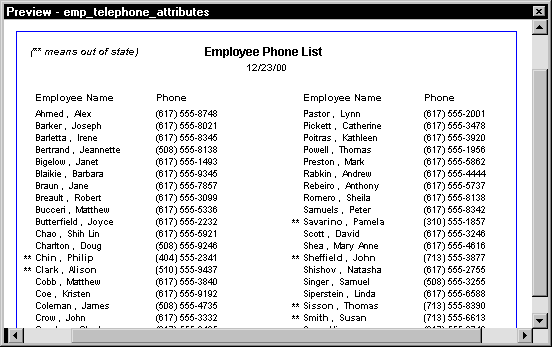
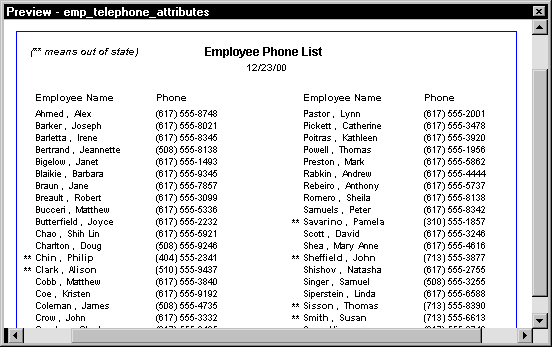
have more than one column of names on a printed page. The following DataWindow object has
two newspaper-style columns:
To define newspaper-style columns for a DataWindow object:
-
Build a tabular DataWindow object with the data
you want. -
Select Properties from the DataWindow object’s
popup menu. - Select the Print Specifications tab.
-
Specify the number of columns across the page
and the width of columns in the Newspaper Columns Across and Newspaper
Columns Width properties. -
For each control in the DataWindow object that you do not
want
to appear multiple times on the page (such as headers), select Properties
from the control’s popup menu. Then select the HideSnaked
checkbox on the General page in the Properties view.
Example
This example describes how you would create a newspaper-style DataWindow object.
First create a tabular DataWindow object with the last name, first
name, and phone number columns. Then add a title, page number, and
date.
The DataWindow object looks like this in the Design view:
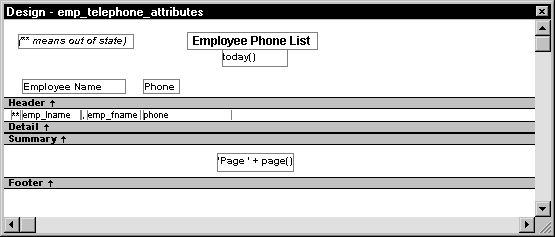
Sliding columns The Emp_Fname column and the text control holding
a comma are defined as Slide Left so they display just to the right
of the Emp_Lname column.
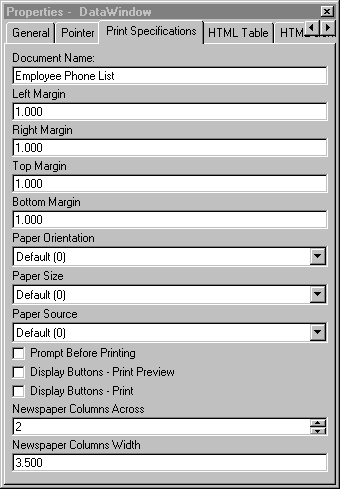
Next you specify two columns across and a column width of
3.5 inches in the Newspaper Columns box in the Print Specifications
page of the DataWindow object’s Properties view:
Use Print Preview to see the printed output Newspaper-style columns are used only when the DataWindow object is printed.
They do not appear when a DataWindow object executes (or in Preview). Therefore,
to see them in PowerBuilder, use Print Preview in the DataWindow painter.
In the Preview view with Print Preview turned on, the DataWindow object displays
the result set in two columns. Everything above the column headers (which
includes page number, title, and date) also shows twice because
of the 2-column specification. This information should appear only
once per page.
To specify that page number, title, and date should appear
only once on the page, you need to suppress printing after the first
column. For each of these controls, select Properties from the control’s
popup menu. Then select the HideSnaked checkbox:
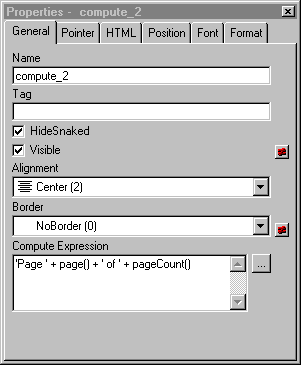
The finished DataWindow object looks like this, with one set of page
heading information and two columns of column header and detail
information:
Modifying text in a DataWindow object
When PowerBuilder initially generates the basic DataWindow object,
it uses the following:
- For the text and alignment
of column headings and labels, PowerBuilder uses the extended column
attributes made in the Database painter. - For fonts, PowerBuilder uses the definitions made
in the Database painter for the table. If you didn’t specify
fonts for the table, PowerBuilder uses the defaults set in the Application
painter.
You can override any of these defaults in a particular DataWindow object.
To change text in a DataWindow object:
-
Select the text.
The first box in the StyleBar is now active.
-
Type the new text.
Use ~n~r to embed a newline character in the text.
To change the text properties for a text control
in a DataWindow object:
- Select the text control.
-
Do one of the following:
- Change the text properties in the StyleBar.
- Select the Font property page in the control’s
Properties view and change the properties there.
Defining the tab order in a DataWindow object
When PowerBuilder generates the basic DataWindow object, it assigns columns
a default tab order, the default sequence
in which focus moves from column to column when a user presses the tab key
during execution. PowerBuilder assigns tab values in increments of
10 in left-to-right and top-to-bottom order.
Tab order is not used in the Design view Tab order is used when a DataWindow object is executed, but it is
not used in the DataWindow painter Design view. In the Design view, the tab key
moves to the controls in the DataWindow object in the order in which the
controls were placed in the Design view.
If the DataWindow object contains columns from more than
one table
If you are defining a DataWindow object with more than one table, PowerBuilder assigns
each column a tab value of 0, meaning the user cannot tab to the
column. This is because, by default, multitable DataWindow objects are
not updatable–users cannot modify data in them. You can
change the tab values to nonzero values to allow tabbing in these DataWindow objects.
For more about controlling updates in a DataWindow object,
see Chapter 19, “Controlling Updates in DataWindow Objects”
Tab order changes have no effect in grid DataWindow objects In a grid DataWindow object, the tab sequence is always left to right
(except on right-to-left operating systems). Changing the tab value
to any number other than 0 has no effect.
To change the tab order:
-
Select Format>Tab Order from the
menu bar.The current tab order displays.
-
Use the mouse or the tab key
to move the pointer to the tab value you want to change. -
Enter a new tab value (0-9999).
0 removes the column from the tab order (the user cannot tab
to the column). It doesn’t matter exactly what value you
use (other than 0); all that matters is relative value. For example,
if you want the user to tab to column B after column A but before
column C, set the tab value for column B so it is between the value
for column A and the value for column C. -
Repeat the procedure until you have the tab order
you want. -
Select Format>Tab Order from the menu
bar again.PowerBuilder saves the tab order.
Each time you select Tab Order, PowerBuilder reassigns tab values
to include any columns that have been added to the DataWindow object and
to allow space to insert new columns in the tab order.
Changing tab order during execution To change tab order programmatically in a script, use the
SetTabOrder function.
For more information about the SetTabOrder
function, see the PowerScript Reference
.
Naming controls in a DataWindow object
You use names to identify columns and other controls in validation
rules, filters, PowerScript functions, and DataWindow expression functions.
The DataWindow painter automatically generates names for all controls
in a DataWindow object. To name columns, labels, and headings, the DataWindow painter uses
database and extended attribute information. To name all other controls,
it uses a system of prefixes. You can control the prefixes used
for automatic name generation and you can specify the name of any
control explicitly.
To specify prefixes for naming controls systematically
in a DataWindow object:
-
Select Design>Options from the
menu bar and then select the Prefixes tab. - Change prefixes as desired and click OK.

To specify a name of a control in a DataWindow object:
-
Select Properties from the control’s
popup menu and then select the General tab in the Properties view. - Type the name in the Name box.
Using borders in a DataWindow object
You can place borders around text, columns, graphs, and crosstabs
to enhance their appearance. PowerBuilder provides six types of borders:
Underline, Box, ResizeBorder, ShadowBox, Raised, and Lowered:

Border appearance varies Changing the border style may not have the same effect on
all Windows platforms.
To add a border to a control in a DataWindow object:
- Select one or more controls.
-
Select the border you want from the Border dropdown
toolbar in the PainterBar.PowerBuilder places the border around the selected controls.
You can also specify a border for one or more controls in
the Properties view on the General property page.
Specifying variable-height detail bands in a DataWindow object
Sometimes DataWindow objects contain columns whose data is of variable length.
For example, a Memo column in a table might be a character column that
can take up to several thousand characters. You don’t want
to reserve space for that much information for the column in the
detail band, since it would make the detail band’s height
very large, meaning the users could see few rows at a time.
Instead, you want the detail band to resize based on the data
in the Memo column. If the Memo column has only one line of text,
you want the detail band to be one line. If the Memo column has
20 lines of text, you want the detail band to be 20 lines high.
To provide a detail band that resizes as needed, you specify
that the variable-length columns and the band have Autosize Height.
To create a resizable detail band in a DataWindow object:
-
Select Properties from the popup menu of
a column that should resize based on the amount of data. -
Select the Autosize Height checkbox on the Position
property page. -
Clear the Auto Horz Scroll checkbox on the Edit
property page.PowerBuilder will wrap text in the Preview view instead of displaying
text on one scrollable line. -
Repeat steps 1 to 3 for any other columns that
should resize. -
Select Properties from the detail band’s
popup menu. -
Select the Autosize Height checkbox on the General
property page.In the Preview view, the detail band will resize based on
the contents of the columns you defined as having Autosize Height.
Clipping columns You can have Autosize Height columns without an Autosize Height
detail band. If such a column expands beyond the size of the detail
band in the Preview view, it will be clipped.
Modifying the data source of a DataWindow object
When modifying a DataWindow object, you might realize that you haven’t included
all the columns you need. Or you might need to define retrieval arguments.
You can modify the data source from the DataWindow painter. How you do it
depends on the data source.
Modifying SQL SELECT statements
If the data source is SQL (such as Quick Select, SQL Select,
or Query), you can graphically modify the SQL SELECT statement.
To modify a SQL data source:
-
Select Design>Data Source from
the menu bar.PowerBuilder returns you to the Select painter. (If you used
Quick Select to define the data source, this might be the first
time you have seen the Select painter.) -
Modify the SELECT statement graphically using
the same techniques as when creating it.For more information, see “Using SQL Select”.
Modifying the statement syntactically Select Design>Convert to Syntax from the menu bar
to modify the SELECT statement syntactically. - Click the Return button to return to the painter.
Some changes you make (such as adding or removing columns)
require PowerBuilder to modify the update capabilities of the DataWindow object.
For more information about controlling updates
in a DataWindow object, see Chapter 19, “Controlling Updates in DataWindow Objects”
Changing the table If you change the table referenced in the SELECT statement, PowerBuilder maintains
the columns in the Design view (now from a different table) only
if they match the data types and order of the columns in the original
table.
Modifying the retrieval arguments
You can add, modify, or delete retrieval arguments when modifying
your data source.
To modify the retrieval arguments:
-
In the Select painter, select Design>Retrieval
Arguments from the menu bar.The Specify Retrieval Arguments dialog box displays listing
the existing arguments. - Add, modify, or delete the arguments.
-
Click OK.
You return to the Select painter, or to the text window displaying
the SELECT statement if you are modifying the SQL syntactically. -
Reference any new arguments in the WHERE or HAVING clause
of the SELECT statement.
For more information about retrieval arguments,
see Chapter 17, “Defining DataWindow Objects “.
Modifying the result set
If the data source is External or Stored Procedure, you can
modify the result set description.
To modify a result set:
-
If the Column Specification view is not open,
select View>Column Specifications from the menu bar. - Review the specifications and make any necessary changes.
If the data source is a stored procedure
If you are modifying the result set for a DataWindow object whose
data source is a stored procedure, the popup menu for the Column
Specification view contains the menu item Stored Procedure.
Select Stored Procedure from the Column Specification view’s
popup menu to edit the Execute statement, select another stored
procedure, or add retrieval arguments:
