Creating runtime libraries
If you want your deployed target to use dynamic runtime libraries,
you can create them in the Library painter.
For information about using runtime libraries,
see Chapter 30, “Creating Executables and Components”. That
chapter also describes the Project painter, which you can use to
automatically create dynamic runtime libraries.
 To create a runtime library:
-
Select the library you want to use to build
a runtime library. -
Select Entry>Library>Build Runtime
Library from the menu bar.or
Select Build Runtime Library from the library’s
popup menu.The Build Runtime Library dialog box displays listing the
name of the selected library.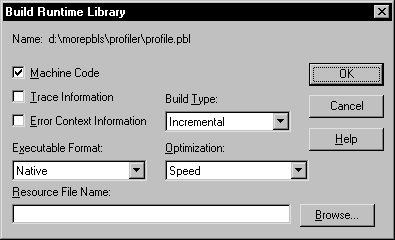
-
If any of the objects in the source library use
resources, specify a PowerBuilder resource file in the Resource File
Name box (see “Including additional
resources”). -
Select other options as appropriate.
Most options are only available if you select
Machine Code, which creates a DLL file. The default is Pcode, which
creates a PBD file. For more information about build options, see “Executable application project
options”. -
Click OK.
PowerBuilder closes the dialog box and creates a runtime library
with the same name as the selected library and the extension .dll
or .pbd.
Including additional resources
When building a runtime library, PowerBuilder does not inspect
the objects; it simply removes the source form of the objects. Therefore,
if any of the objects in the library use resources (pictures, icons,
and pointers)–either specified in a painter or
assigned dynamically in a script
–and you don’t
want to provide these resources separately, you must list the resources
in a PowerBuilder resource file (PBR file). Doing so enables PowerBuilder to
include the resources in the runtime library when it builds it.
For more on resource files, see “Using PowerBuilder
resource files”.
After you have defined the resource file, specify it in the
Resource File Name box to include the named resources in the runtime
library.