Regenerating library entries
Occasionally you may need to update library entries. For example:
- When you modify an
ancestor object, you can regenerate
descendants
so they pick up the revisions to their ancestor. - When you make extensive changes to a target, you
can rebuild
entire libraries so objects are
regenerated sequentially based on interdependence. - When you upgrade to a new version of PowerBuilder,
you need to migrate
your targets.
When you regenerate an entry, PowerBuilder recompiles the source
form stored in the library and replaces the existing compiled form
with the recompiled form.
 To regenerate library entries:
- Select the entries you want to regenerate.
-
Click the Regenerate button.
or
Select Entry>Library Item>Regenerate
from the menu bar.PowerBuilder uses the source to regenerate the library entry
and replaces the current compiled object with the regenerated object.
The compilation date and size are updated.
Regenerating descendants
You can use the Browser to easily regenerate all descendants
of a changed ancestor object.
To regenerate descendants:
-
Click the Browser button in the PowerBar.
The Browser displays.
-
Select the tab for the object type you want to
regenerate.For example, if you want to regenerate all descendants of
window w_frame, click the Window tab. -
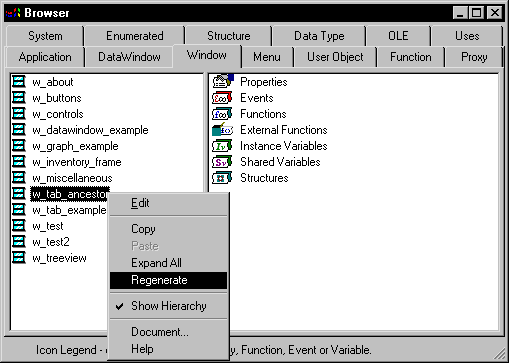
Select the ancestor object and choose Show Hierarchy
from its popup menu.The Regenerate button displays on the popup menu.
-
Click the Regenerate button.
PowerBuilder regenerates all descendants of the selected ancestor.
For more about the Browser, see “Browsing the class
hierarchy”.
 Regenerate limitations If you regenerate a group of objects, PowerBuilder will regenerate
them in the order they appear in the library, which may cause an
error if an object is generated before its ancestor. For this reason,
you should use a full or incremental build to update more than one
object at a time.
Rebuilding workspaces and targets
When you make modifications to a target and need to update
one or more libraries, you should use a rebuild option to update
all the library objects in the correct sequence.
Working with targets To see the popup menu that lets you perform operations on
a target such as search, build, and migrate, you must set the root
of the System Tree or the view in the Library painter to the current
workspace.
There are two methods to use when you rebuild a workspace
or target:
- Incremental
rebuild Updates all the objects and libraries referenced by any objects
that have been changed since the last time you built the workspace
or target - Full rebuild Updates all the objects and libraries in your workspace or target
To rebuild a workspace:
-
Select Incremental Build Workspace or Full
Build Workspace from the PowerBar.or
Select the Workspace in the System Tree or Library painter
and select Incremental Build or Full Build from the popup menu.
To rebuild a target:
-
Select the target in the Library painter
and select Entry>Target>Incremental Build or Entry>Target>Full
Build from the menu bar.or
Select the target in the System Tree or Library painter
and select Incremental Build or Full Build from the popup menu.
Migrating
targets
When you upgrade to a new version of PowerBuilder, your existing
targets need to be migrated to the new version. Typically when you
open a workspace that contains targets that need to be migrated,
or add a target that needs to be migrated to your workspace, PowerBuilder
prompts you to migrate the targets. However, there are some situations
when you need to migrate a target manually. For example, if you
add a library that has not been migrated to a target’s
library list, you will not be able to open objects in that library
until the target has been migrated.
You cannot migrate a target that is not in your current workspace.
Working with targets To rebuild, migrate, or search a target, you must set the
root of the System Tree or the view in the Library painter to the
current workspace.
Before you migrate a target, you should make backup copies
of the target and libraries. You should also check the release notes
for migration issues.
Make sure PBLs are writable If you make copies of your target’s libraries before
you migrate to a new version of PowerBuilder, make sure that the libraries
you will migrate are writable.
To migrate a target in the Library painter:
- Select the target you want to migrate.
-
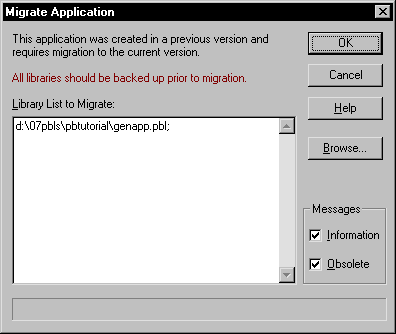
Select Entry>Target>Migrate
from the menu bar.The Migrate Application dialog box displays.
-
Select OK.
PowerBuilder migrates all objects and libraries in the target’s
path to the current version.
Using the System Tree
You can also migrate a target from the Workspace tab of the
System Tree by selecting Migrate from the popup menu for the target.