Working with validation rules
When users enter data in a DataWindow object, you want to be
sure the data is valid before using it to update the database. One
way to do this is through validation rules.
You usually define validation rules in the Database painter.
To use a validation rule, you associate it with a column in the
Database painter or DataWindow painter.
 Another technique You can also perform data validation through code tables,
which are implemented through a column’s edit style.
For more information, see “Working with edit styles “.
Understanding validation rules
Validation rules are criteria that a DataWindow object uses to validate
data entered into a column by users. They are PowerBuilder-specific
and therefore not enforced by the DBMS.
Validation rules assigned in the Database painter are used
by default when you place columns in a DataWindow object. You can override
the default rules in the DataWindow painter.
A validation rule is an expression that evaluates to either
TRUE or FALSE. If the expression evaluates to TRUE for an entry
into a column, PowerBuilder accepts the entry. If the expression evaluates
to FALSE, the entry is not accepted and the ItemError event is triggered.
By default, PowerBuilder displays a message box to the user:
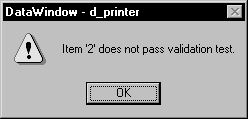
You can customize the message displayed when a value is rejected.
You can also code an ItemError script to cause different processing
to happen.
For more information, see the chapter on using DataWindow objects
in DataWindow Programmer’s Guide
.
During execution In scripts, you can use the GetValidate function to obtain
the validation rule for a column and the SetValidate function to
change the validation rule for a column.
For information about the GetValidate and SetValidate
functions, see the DataWindow Reference
.
Using validation rules
You work with validation rules in the Database painter and DataWindow painter.
What you do in the Database painter
In the Database painter, you can:
- Create, modify, and delete named validation rules
The validation rules are stored in the extended attribute
system tables. Once you define a validation rule, it can be used
by any column of the appropriate data type in the database. - Assign validation rules to columns and remove them
from columns
These rules are used by default when you place the column
in a DataWindow object in the DataWindow painter.
What you do in the DataWindow painter
In the DataWindow painter, you can:
- Accept the default validation rule assigned to a column in
the Database painter - Create an ad hoc, unnamed rule to use with one specific
column
Validation rules and the extended attribute system
tables
Once you have placed a column that has a validation rule from
the extended attribute system tables in a DataWindow object, there is no
longer any link to the named rule in the extended attribute system
tables.
If the definition of the validation rule later changes in
the extended attribute system tables, the rule for the column in
a DataWindow object will not change.
Defining a validation rule in the Database painter
Typically, you will define validation rules in the Database
painter, because validation rules are properties of the data itself.
Once defined in the Database painter, the rules are used by default
each time the column is placed in a DataWindow object.
This section describes the ways you can manipulate validation
rules in the Database painter.
 To create a new validation rule
-
In the Database painter, select Object>Insert>Validation
Rule from the menu bar.The Validation Rule view displays in the Properties view.
-
Assign a name to the rule, select the data type
of the columns to which it applies, and customize the error message
(if desired).For information, see “Customizing the error message”.
-
Click the definition tab and define the expression
for the rule.For information, see “Defining the expression”.
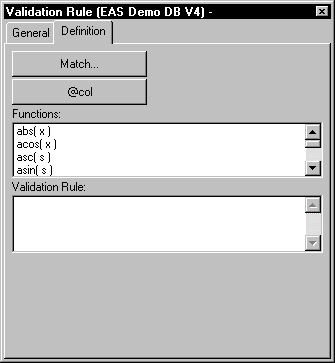
You can use this rule with any column of the appropriate data
type in the database.
To modify a validation rule:
-
In the Database painter, open the Extended
Attributes view. -
In the Extended Attributes view, open the list
of validation rules. -
Position the pointer on the validation rule you
want to modify, display the pop-up menu, and select Properties. -
In the Validation Rule view, modify the validation
rule as desired.For information, see “Defining the expression” and “Customizing the error message”.
To associate a validation rule with a column in
the Database painter:
-
In the Database painter (Objects view),
position the pointer on the column, select Properties from the column’s
pop-up menu, and select the Validation tab. -
Select a validation rule from the Validation Rule
dropdown list.The column now has the selected validation rule associated
with it in the extended attribute system tables. Whenever you use
this column in a DataWindow object, it will use this validation rule unless
you override it in the DataWindow painter.
To remove a validation rule from a column in the
Database painter:
-
In the Database painter (Objects view),
position the pointer on the column, select Properties from its pop-up
menu, and select the Validation tab in the Properties view. -
Select (None) from the list in the Validation
Rule dropdown list.The validation rule is no longer associated with the column.
Defining the expression
A validation rule is a boolean expression. PowerBuilder applies
the boolean expression to an entered value. If the expression returns
TRUE, the value is accepted. Otherwise, the value is not accepted
and an ItemError event is triggered.
What expressions can contain
You can use any valid DataWindow expression in validation rules.
Validation rules can include most DataWindow expression functions. A DataWindow object that
will be used in PowerBuilder can also include user-defined functions. DataWindow expression function functions
are displayed in the Functions list and can be pasted into the definition.
For information about these functions, see the DataWindow
Reference
.
Use the notation @placeholder
(where placeholder
is
any group of characters) to indicate the current column in the rule.
When you define a validation rule in the Database painter, PowerBuilder stores
it in the extended attribute system tables with the placeholder
name. During execution, PowerBuilder substitutes the value of the
column for placeholder
.
Pasting the placeholder
The @col can be easily used as the placeholder. A
button in the Paste area is labeled with @col. You can
click the button to paste the @col into the validation
rule.
An example
For example, to make sure that both Age and Salary are greater
than zero using a single validation rule, define the validation
rule as follows:
|
1 |
@col > 0 |
Then associate the validation rule with both the Age and Salary
columns. At execution time, PowerBuilder substitutes the appropriate
values for the column data when the rule is applied.
Using match values for charactercolumns
If you are defining the validation rule for a character column,
you can use the Match button on the Definition page of the Validation
Rule view. This button lets you define a match pattern for matching
the contents of a column to a specified text pattern (for example,
^[0-9]+$ for all numbers and
^[A-Za-z]+$ for all letters).
To specify a match pattern for character columns:
-
Click the Match button on the Definition
page of the Validation Rule view.The Match Pattern dialog box displays.
-
Enter the text pattern you want to match the column
to.or
Select a displayed pattern.
-
(Optional) Enter a test value and click the Test
button to test the pattern. -
Click OK when you are satisfied that the pattern
is correct.
For more on the Match function and text patterns,
see the DataWindow Reference
.
Customizing the error message
When you define a validation rule, PowerBuilder automatically
creates the error message that displays by default when users enter
an invalid value:
|
1 |
'Item ~'' + @<i>Col</i> + '~' does not pass validation test.' |
You can edit the string expression to create a custom error
message.
Different syntax in the DataWindow painter If you are working in the DataWindow painter, you can enter
a string expression for the message, but you do not use the @ sign
for placeholders. For example, this is the default message:
|
1 |
'Item ~'' + <i>ColumnName</i> + '~' does not pass validation test.' |
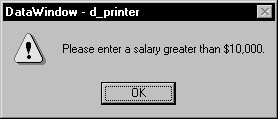
A validation rule for the Salary column in the Employee table
might have the following custom error message associated with it:
|
1 |
Please enter a salary greater than $10,000.' |
If users enter a salary less than or equal to $10,000,
the custom error message displays:
Specifying initial values
As part of defining a validation rule, you can supply an initial
value for a column.
To specify an initial value for a column in the
Database painter:
-
Select Properties from the column’s
pop-up menu and select the Validation tab. - Specify a value in the Initial Value box.
Defining a validation rule in the DataWindow painter
Validation rules you assign to a column in the Database painter
are used by default when you place the column in a DataWindow object. You
can override the validation rule in the DataWindow painter by defining
an ad hoc rule for one specific column.
To specify a validation rule for a column in the
DataWindow painter:
-
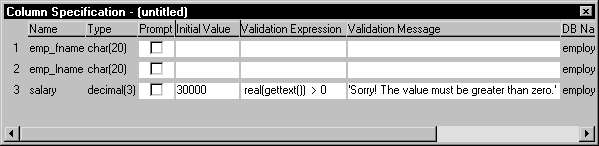
In the DataWindow painter, select View>Column
Specifications from the menu bar.The Column Specification view displays.
-
Create or modify the validation expression. To
display the Modify Expression dialog box, display the pop-up menu
for the box in which you want to enter a Validation Expression and
select Expression. Follow the directions in “Specifying the expression”. -
(Optional) Enter a string or string expression
to customize the validation error message.For more information, see “Customizing the error message”.
-
(Optional) Enter an initial value.
Used for current column only If you create a validation rule here, it is used only for
the current column and is not saved in the extended attribute system
tables.
Specifying the expression
Since a user might just have entered a value in the column,
validation rules refer to the current data value, which you can
obtain through the GetText function.
Using GetText ensures that the most recent data entered in
the current column is evaluated.
PowerBuilder does the conversion for you If you have associated a validation rule for a column in the
Database painter, PowerBuilder automatically converts the syntax to
use GetText when you place the column in a DataWindow object.
GetText returns a string. Be sure to use a data conversion
function (such as Integer or Real) if you want to compare the entered
value with a data type other than string.
For more on the GetText function and text
patterns, see the DataWindow Reference
.
Referring to other columns
You can refer to the values in other columns by specifying
their names in the validation rule. You can paste the column names
in the rule using the Columns box.
Examples
Here are some examples of validation rules.
Example 1 To check that the data entered in the current column is a
positive integer, use this validation rule:
|
1 |
Integer(GetText( )) > 0 |
Example 2 If the current column contains the discounted price and the column
named Full_Price contains the full price, you could use
the following validation rule to evaluate the contents of the column
using the Full_Price column:
|
1 |
Match(GetText( ),"^[0-9]+$") AND<br /> Real(GetText( )) < Full_Price |
To pass the validation rule, the data must be all digits (must
match the text pattern ^[0-9]+$)
and must be less than the amount in the Full_Price column.
Notice that to compare the numeric value in the column with
the numeric value in the Full_Price column, the Real function
was used to convert the text to a number.
Example 3 In your company, a product price and a sales commission are related
in the following way:
- If
the price is greater than or equal to $1000, the commission
is between 10 percent and 20 percent - If the price is less than $1000, the commission
is between 4 percent and 9 percent
The Sales table has two columns, Price and Commission. The
validation rule for the Commission column is:
|
1 |
(Number(GetText( )) >= If(price >= 1000, .10, .04))<br /> AND<br /> (Number(GetText( )) <= If(price >= 1000, .20, .09)) |
A customized error message for the Commission column is:
|
1 |
"Price is " + if(price >= 1000,<br /> "greater than or equal to","less than") +<br /> " 1000. Commission must be between " +<br /> If(price >= 1000,".10", ".04") + " and " +<br /> If(price >= 1000, ".20.", ".09.") |