Working with tools
PowerBuilder provides you with a variety of tools to help you
with your development work.
Opening a tool
There are several ways
to open tools.
 To open a tool:
-
Click a button in the PowerBar for the
tool you want.or
Select the tool from the Tools menu.
You can also open
a tool by opening the New dialog box and on the Tool tab page, selecting
the tool you want.
Tool summary
These tools are available in
the PowerBar. Some of them are also listed on the Tools menu:
| Tool | What you use the tool for |
|---|---|
| To-Do List | Keep track of development tasks you need to do for the current target and create links to quickly get you to the place where you need to complete the tasksFor information, see “Using the To-Do List” |
| Browser | View information about system objects and objects in your PowerScript target, such as properties, events, functions, and global variables, and copy, export, or print the informationFor information, see “Browsing the class hierarchy” |
| Library painter | Manage libraries, create a new library, build dynamic libraries, and use source control |
| Database profiles | Define and use named sets of parameters to connect to a particular databaseFor information, see Connecting to Your Database |
| EAServer profiles | Define and use named sets of parameters to connect to a particular EAServer hostFor information, see Connecting to Your Database |
| Database painter | For information, see Chapter 15, “Managing the Database” |
| File Editor | Edit text files such as source, resource, and initialization filesFor information, see “Using the file editor” |
| Debugger | Set breakpoints and watch expressions, step through your application, examine and change variables during execution, and view the call stack and objects in memoryFor information, see Chapter 28, “Debugging and Running Applications “ |
The Tool tab page in the New dialog box has these additional
tools:
| Tool | What you use the tool for |
|---|---|
| Migration Assistant | Scans PowerBuilder libraries and highlights usage of obsolete functions and eventsFor information, see Migration Assistant online Help |
| DataWindow Syntax | Report on properties of DataWindow objects and the controls within DataWindow objectsFor information, see DataWindow Syntax online Help |
| Profiling Class View, Profiling Routine View, and Profiling Trace View |
Use trace information to create a profile of your applicationFor information, see Chapter 29, “Tracing and Profiling Applications “ |
| PFC Extender | Automatically create and populate an intermediate extension level of libraries (for example, to contain all of your site’s corporate-level extensions to PFC) between two existing levels (such as the PFC ancestor level and the PFC extension level)For information, see PFC Extender online Help and the PowerBuilder Foundation Class Library User’s Guide |
| Web DataWindow JavaScript Generator | Generate a JavaScript file that contains DataWindow methods you want to associate with a specific DataWindow object |
Using the To-Do List
Opening the To-Do List
The To-Do List displays
a list of development tasks you need to do. You can create tasks
for any target in the workspace or for the workspace itself. A dropdown
listbox at the top of the To-Do List lets you choose which tasks
to display.
To open the To-Do List:
-
Click the To-Do List button in the PowerBar.
or
Select Tools>To-Do List from the menu bar.
To-Do List entries
The entries on the
To-Do list are created:
- Automatically by most PowerBuilder wizards
to guide you through the continued development of objects of different
types that you will need to build the application or component specified
by the wizard - At any time by you when you are working in a painter
and want a link to a task that you want to remember to complete
Some To-Do List entries created by wizards are hot-linked
to quickly get you to the painter (and the specific object you need)
or to a wizard. You can also create an entry yourself that links
to the PowerBuilder painter where you are working so you can return
to the object or script (event/function and line) you were
working on when you made the entry.
When you move the pointer over entries on the To-Do list,
the pointer changes to a hand when it’s over a linked entry.
Here the linked entry will open the Project wizard you need.
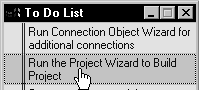
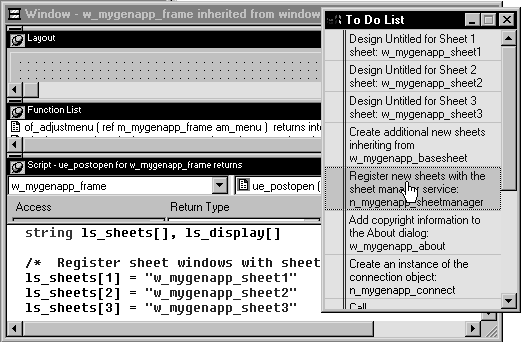
Notice the linked
entry on the To-Do List in the screen below. This entry and all
the others were generated by the Template Application wizard. The
entry reminds you to register new sheets with the sheet manager
service, which is a nonvisual user object created by the wizard.
Because the selected entry is linked, double-clicking it has automatically
opened the Window painter and taken you to the place in the Script
view where you will register new sheets.
Exporting and importing lists
You can export or import a To-Do List by selecting Export
or Import from the popup menu. Doing this is useful if you want
to move from one computer to another or you need to work with To-Do
Lists as part of some other system such as a project management
system.
 Linked entries If you import a list from another workspace or target, or
from a previous version of PowerBuilder, linked entries will display
in the list but the links will not be active.
Working with entries on the To-Do List
The following table
tells you how to work with entries on the To-Do List:
| To do this | Do this |
|---|---|
| See linked entries | Move the pointer over the entries. A hand displays when the entry you are over is linked |
| Use a linked entry to get to a painter or wizard |
Double-click the linked entry or select it and then select Go To Link from the popup menu |
| Add an entry with no link | Select Add from the popup menu |
| Add a linked entry to a painter that edits objects |
With the painter open, select Add Linked from the popup menu |
| Add an entry for a specific target | If the To-Do List is open, select the target from the dropdown listbox at the top of the To-Do List and add the entryIf the To-Do List is closed, select a target in the System Tree, open the To-Do List, and add the entry |
| Add an entry for the workspace | Select Current Workspace from the dropdown listbox at the top of the To-Do List and add the entry |
| Change the list that displays | Select a specific target or Current Workspace from the dropdown listbox at the top of the To-Do List. To display tasks for all targets and the workspace, select All Items |
| Change an entry’s position on the list |
Drag the entry to the position you want |
| Edit or delete an entry | Select Edit or Delete from the popup menu |
| Delete checked entries or all entries | Select Delete Checked or Delete All from the popup menu |
| Check or uncheck an entry | Click in the margin to the left of the entry or select an entry and then select Check/Uncheck from the popup menu |
| Export a To-Do List | Select Export from the popup menu, name the To-Do List text file, and click Save |
| Import a To-Do List | Select Import from the popup menu, navigate to an exported To-Do List text file, and click Open |
Using the file editor
One of the tools on the PowerBar and Tools menu is a text
editor that is always available. Using the editor, you can view
and modify text files (such as initialization files and tab-separated
files with data) without leaving PowerBuilder. Among the features the file editor provides
are find and replace, undo, importing and exporting text files,
and dragging and dropping text.
Setting file editing properties
The file editor has font properties and an indentation property
that you can change to make files easier to read. If you don’t
change any properties, files have black text on a white background
and a tab stop setting of 3 for indentation. Select Design>Options
from the menu bar to change the tab stop and font settings.
Editor properties apply elsewhere When you set properties for the file editor, the settings
also apply to the Function painter, the Script view, the Source
editor, the Interactive SQL view in the Database painter, and the
Debug window.
Dragging and dropping text
To move text, simply select it, drag it to its new location,
and drop it. To copy text, press the CTRL key while you drag and
drop the text.