Working with display formats
You can use display formats to customize the display of column
data in a DataWindow object. Display formats are masks in which certain
characters have special significance. For example, you can display
currency values preceded by a dollar sign, show dates with month
names spelled out, and use a special color for negative numbers. PowerBuilder comes
with many predefined display formats. You can use them as is or
define your own.
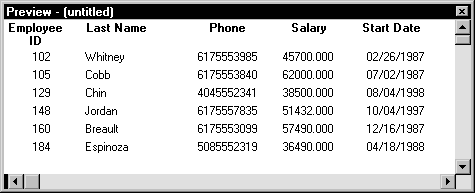
Here is a DataWindow object without any display formats; all values
display as they are stored in the database:
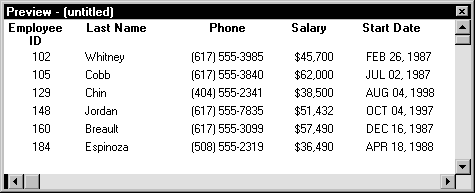
Here the Phone, Salary, and Start Date columns use display
formats so the data is easier to interpret:
 Display formats not used for data entry When users tab to a column containing a display format, PowerBuilder removes
the display format and displays the raw value for users to
edit.
If you want to provide formatting used for
data entry, you need to specify edit masks, as described in “Working with edit styles “.
Using display formats
You work with display formats in the Database painter and
the DataWindow painter.
What you do in the Database painter
In the Database painter, you can:
- Create, modify, and delete named display formats
The named display formats are stored in the extended attribute
system tables. Once you define a display format, it can be used
by any column of the appropriate data type in the database. - Assign display formats to columns and remove them
from columns
These formats are used by default when you place the column
in a DataWindow object in the DataWindow painter.
What you do in the DataWindow painter
In the DataWindow painter, you can:
- Accept the default display format assigned to a column in
the Database painter - Override the default display format with another
named format stored in the extended attribute system tables - Create an ad hoc, unnamed format to use with one
specific column
Display formats and the extended attribute system
tables
Once you have placed a column in a DataWindow object and have given
it a display format (either the default format from the assignment
made in the Database painter for the column or a format assigned
in the DataWindow painter), there is no longer any link to the named format
in the extended attribute system tables.
If the definition of the display format later changes in the
extended attribute system tables, the format for the column in a DataWindow object will
not change. If you want to use the modified format, you can reapply
it to the column in the DataWindow painter.
Working with displayformats in the Database painter
Typically, you define display formats and associate them with
columns in the Database painter, because display formats are properties
of the data itself. Once you have associated a display format with
a column in the Database painter, it is used by default each time
the column is placed in a DataWindow object.
Edit style takes precedence If a column has an associated edit style, the edit style takes
precedence over a display format unless you use an EditMask edit
style and check the Use Format box on the Format property page.
For more information, see “Working with edit styles “.
 To create a new display format:
-
In the Database painter, select Object>Insert>Display
Format from the menu bar.The Display Format view displays.
- Name the display format and specify a data type.
-
Define the display format using masks.
For information, see “Defining display formats”.
You can use this display format with any column of the appropriate
data type in the database.
To modify an existing display format:
-
In the Database painter, open the Extended
Attributes view. -
In the Extended Attributes view, open the list
of display formats. -
Position the pointer on the display format you
want to modify, display the pop-up menu, and select Properties. -
In the Display Format view, modify the display
format as desired.For information, see “Defining display formats”.
To associate a display format with a column in
the Database painter:
-
In the Database painter (Objects view),
position the pointer on the column, select Properties from the pop-up
menu, and select the Display tab in the Properties view. -
Select a format from the list in the Display Format
box.The column now has the selected format associated with it
in the extended attribute system tables.
To remove a display format from a column in the
Database painter:
-
In the Database painter (Objects view),
position the pointer on the column, select Properties from the pop-up
menu, and select the Display tab in the Properties view. -
Select (None) from the list in the Display Format
box.The display format is no longer associated with the column.
Working with display formats in the DataWindow painter
Display formats you assign to a column in the Database painter
are used by default when you place the column in a DataWindow object. You
can override the default format in the DataWindow painter by choosing another
format from the extended attribute system tables or defining an
ad hoc format for one specific column.
About computed fields You can assign display formats to computed fields using the
same techniques as for columns in a table.
To specify a display format for a column in the DataWindow painter:
-
In the DataWindow painter, move the pointer to
the column, select Properties from the column’s pop-up
menu, and then select the Format tab.Information appropriate to the data type of the selected column
displays. The currently used format displays in the Format box.
All formats for the data type defined in the extended attribute
system tables are listed in the pop-up list (displayed by clicking
the button). -
Do one of the following:
- Delete the display format.
- Select a format in the extended attribute system
tables from the pop-up list. - Create a format for the column by typing it in the
Format box. For more information, see “Defining display formats”.
Format not saved in the extended attribute system tables If you create a format here, it is used only for the current
column and is not saved in the extended attribute system tables.
Shortcuts To assign the Currency or Percent display format to a numeric
column in a report, select the column, then click the Currency or
Percent button in the PainterBar or select Format>Currency
or Format>Percent from the menu bar.
Customizing the toolbar
You can add buttons to the PainterBar that assign a specified
display format to selected columns in reports.
For more information, see “Customizing toolbars”.
Defining display formats
Display formats are represented through masks, where certain
characters have special significance. PowerBuilder supports four kinds
of display formats, each using different mask characters:
- Numbers
- Strings
- Dates
- Times
For example, in a string format mask, each @ represents
a character in the string and all other characters represent themselves.
So you can use the following mask to display phone numbers:
|
1 |
(@@@) @@@-@@@@ |
Combining formats
You can include different types of display format masks in
a single format; use a space to separate the masks. For example,
the following format section includes a date and time format:
|
1 |
mmmm/dd/yyyy h:mm |
Using sections
Each type of display format can have multiple sections, with
each section corresponding to a form of the number, string, date,
or time. Only one section is required; additional sections are optional
and should be separated with semicolons (;).
The following format specifies different displays for positive
and negative numbers (negative numbers will be displayed in parentheses):
|
1 |
$#,##0;($#,##0) |
Using keywords
Enclose display format keywords in square brackets. For example,
you can use the keyword [General] when you want PowerBuilder to
determine the appropriate format for a number.
Using colors
You can define a color for each display format section by
specifying a color keyword before the format. The color keyword
is the name of the color, or a number that represents the color,
enclosed in square brackets: [RED] or [255]. The
number is usually used only when a color is required that is not
provided by name.
The named color keywords are:
|
|
The formula for combining primary color values into a number
is:
|
1 |
256*256*<i>blue</i> + 256*<i>green</i> + <i>red</i><i>=</i><i>number</i> |
where the amount of each primary color is specified as a value
from 0 to 255. For example, to specify cyan, substitute 255 for
blue, 255 for green, and 0 for red. The result is 16776960.
The table below lists the blue, green, and red values you
can use in the formula to create other colors:
| Blue | Green | Red | Number | Color |
|---|---|---|---|---|
| 0 | 0 | 255 | 255 | Red |
| 0 | 255 | 0 | 65280 | Green |
| 0 | 128 | 0 | 32768 | Dark green |
| 255 | 0 | 0 | 16711680 | Blue |
| 0 | 255 | 255 | 65535 | Yellow |
| 0 | 128 | 128 | 32896 | Brown |
| 255 | 255 | 0 | 16776960 | Cyan |
| 192 | 192 | 192 | 12632256 | Light gray |
Using special characters
To include a character in a mask that has special meaning
in a display format, such as [, precede the character with
a backslash (). For example, to display a single quotation
mark, enter ”.
Setting display formats during execution
In scripts, you can use GetFormat to get the current format
for a column and SetFormat to change the format for a column during
execution.
For more about the GetFormat and SetFormat
functions, see the DataWindow Reference
.
Number display formats
A number display format can have up to four sections, with
only the first being required:
|
1 |
Positive-format;negative-format;zero-format;null-format |
Special characters
Characters that have special meaning in number display formats
are:
| Character | Meaning |
|---|---|
| # | A number |
| 0 | A required number; a number will display for every 0 in the mask |
Percent signs, decimal points, parentheses, and spaces display
as entered in the mask.
Use at least one 0 In general, a number display format should include at least
one 0. If users enter 0 in a field with the mask ###,
the field will appear to be blank (unless you provide a zero-format
section). If the mask is ###.##,
only the period displays. If you want two decimal places to display
even if both are 0, use the mask ##0.00.
Number keywords
You can use the following keywords as number display formats
when you want PowerBuilder to determine an appropriate format to use:
- [General]
- [Currency]
Note that [Currency(7)] and [Currency(n)] are
legal edit masks, but they are not
legal display
formats.
Number and currency settings
So that an application you build will run the same in whichever
country it is deployed, masks (used in display formats and edit
masks) and DataWindow expressions require U.S. notation for numbers. That is,
when you specify a number in a DataWindow expression or in a number mask, a
comma always represents the thousands delimiter and a period always
represents the decimal place. You should also always use the $ sign
to represent the symbol for currency.
At run time, the locally correct symbols are displayed for
numbers and currency. The comma and period are replaced by the delimiters
defined in the user’s Number settings in the Regional or
International Settings property sheet in the Control Panel. The $ sign
in the mask is replaced by the local currency symbol as defined
in the user’s Currency setting in the Control Panel. For example,
in countries where a comma represents the decimal place and a period represents
thousands, users will see numbers in those formats.
Percentages
You should use caution when defining an edit mask for a percentage.
When you enter a number in a column with a percent edit mask and
tab off the column, PowerBuilder divides the number by 100 and stores
the result in the buffer. For example, if you enter 23, PowerBuilder passes
.23 to the buffer. When you retrieve from the database, PowerBuilder multiplies
the number by 100 and, if the mask is ##0%,
displays 23%.
The data type for the column must be numeric or decimal to
handle the result of a division by 100. If the column has an integer
data type, a percentage entered as 333 is retrieved from the database
as 300, and 33 is retrieved as 0.
If you use an edit mask with decimals, such as ##0.00%,
the data type must have enough decimal places to handle the division.
For example, if you enter 33.33, the data type for the column must
have at least four decimal places because the result of the division
is .3333. If the data type has only three decimal places, the percentage
is retrieved as 33.30.
Examples
The following table shows how the values 5, -5, and
.5 display when different format masks are applied:
| Sample format | 5 | -5 | .5 |
|---|---|---|---|
| [General] | 5 | -5 | 0.5 |
| 0 | 5 | -5 | 1 |
| 0.00 | 5.00 | -5.00 | 0.50 |
| #,##0 | 5 | -5 | 1 |
| #,##0.00 | 5.00 | -5.00 | 0.50 |
| $#,##0;($#,##0) | $5 | ($5) | $1 |
| $#,##0;-$#,##0 | $5 | -$5 | $1 |
| $#,##0;[RED]($#,##0) | $5 | ($5) | $1 |
| [Currency] | $5.00 | ($5.00) | $0.50 |
| $#,##0.00;($#,##0.00) | $5.00 | ($5.00) | $0.50 |
| $#,##0.00;[RED]($#,##0.00) | $5.00 | ($5.00) | $0.50 |
| ##0% | 500% | -500% | 50% |
| ##0.00% | 500.00% | -500.00% | 50.00% |
| 0.00E+00 | 5.00E+00 | -5.00E+00 | 5.00E-01 |
String display formats
String display formats can have two sections. The first is
required and contains the format for strings; the second is optional
and specifies how to represent NULLs:
|
1 |
string-format;null-format |
In a string format mask, each at-sign (@) represents
a character in the string and all other characters represent themselves.
Example
This format mask:
|
1 |
[red](@@@) @@@-@@@@ |
displays the string 800YESCELT in red as:
|
1 |
(800) YES-CELT |
Date display formats
Date display formats can have two sections. The first is required
and contains the format for dates; the second is optional and specifies
how to represent NULLs:
|
1 |
date-format;null-format |
Special characters
Characters that have special meaning in date display formats
are:
| Character | Meaning | Example |
|---|---|---|
| d | Day number with no leading zero | 9 |
| dd | Day number with leading zero if appropriate | 09 |
| ddd | Day name abbreviation | Mon |
| dddd | Day name | Monday |
| m | Month number with no leading zero | 6 |
| mm | Month number with leading zero if appropriate | 06 |
| mmm | Month name abbreviation | Jun |
| mmmm | Month name | June |
| yy | Two-digit year | 97 |
| yyyy | Four-digit year | 1997 |
Colons, slashes, and spaces display as entered in the mask.
About 2-digit years If users specify a 2-digit year in a DataWindow object, PowerBuilder assumes the
date is the 20th century if the year is greater than or equal to
50. If the year is less than 50, PowerBuilder assumes the 21st century.
For example:
1/1/85 is interpreted as January
1, 1985.
1/1/40 is interpreted
as January 1, 2040.
Date keywords
You can use the following keywords as date display formats
when you want PowerBuilder to determine an appropriate format to use:
- [ShortDate]
- [LongDate]
The format used is determined by the regional settings for
date in the registry. Note that [Date] is not
a valid display format.
Examples
The following table shows how the date Friday, January 30,
1998, displays when different format masks are applied:
| Format | Displays |
|---|---|
| [red]m/d/yy | 1/30/98 in red |
| d-mmm-yy | 30-Jan-98 |
| dd-mmmm | 30-January |
| mmm-yy | Jan-98 |
| dddd, mmm d, yyyy | Friday, Jan 30, 1998 |
Time display formats
Time display formats can have two sections. The first is required
and contains the format for times; the second is optional and specifies
how to represent NULLs:
|
1 |
time-format;null-format |
Special characters
Characters that have special meaning in time display formats
are:
| Character | Meaning |
|---|---|
| h | Hour with no leading zero (for example, 1) |
| hh | Hour with leading zero if appropriate (for example, 01) |
| m | Minute with no leading zero (must follow h or hh) |
| mm | Minute with leading zero if appropriate (must follow h or hh) |
| s | Second with no leading zero (must follow m or mm) |
| ss | Second with leading zero (must follow m or mm) |
| ffffff | Microseconds with no leading zeros. You can enter one to six f’s; each f represents a fraction of a second (must follow s or ss) |
| AM/PM | Two-character, uppercase abbreviation (AM or PM as appropriate) |
| am/pm | Two-character, lowercase abbreviation (am or pm as appropriate) |
| A/P | One-character, uppercase abbreviation (A or P as appropriate) |
| a/p | One-character, lowercase abbreviation (a or p as appropriate) |
Colons, slashes, and spaces display as entered in the mask.
24-hour format is the default Times display in 24-hour format unless you specify AM/PM,
am/pm, A/P, or a/p.
Time keyword
You can use the following keyword as a time display format:
| Keyword | Meaning |
|---|---|
| [Time] | The time format specified in the Microsoft Windows Control Panel |
Examples
The following table shows how the time 9:45:33:234567 PM displays
when different format masks are applied:
| Format | Displays |
|---|---|
| h:mm AM/PM | 9:45 PM |
| hh:mm A/P | 09:45 P |
| h:mm:ss am/pm | 9:45:33 pm |
| h:mm | 21:45 |
| h:mm:ss | 21:45:33 |
| h:mm:ss:f | 21:45:33:2 |
| h:mm:ss:fff | 21:45:33:234 |
| h:mm:ss:ffffff | 21:45:33:234567 |
| m/d/yy h:mm | 1/30/98 21:45 |