Changing default layouts
You can change the layout of the PowerBuilder main window
in several ways. This section describes:
- Showing
or hiding the System Tree, Output, and Clip windows and changing
their locations - Showing or hiding views in painters and changing
their locations
You can also show or hide toolbars, change their locations,
and add custom buttons. See “Using toolbars”.
Arranging the System Tree, Output, and Clip windows
Hiding windows
The System Tree, Output, and Clip windows can all be hidden
at any time by clicking their buttons on the PowerBar.
Moving windows
You can dock the System Tree, Output, and Clip windows at
the top, bottom, left, or right of the PowerBuilder main window
by dragging the double bar at the top or side of the windows.
Using the full width or height of the main window
Windows docked at the top or bottom of the main window occupy
the full width of the frame. You can change this default by clearing
the Horizontal Dock Windows Dominate checkbox on the General page
System Options dialog box. Here the Clip and Output windows are
docked at the bottom of the window, and the Horizontal Dock Windows
Dominate checkbox has been cleared so that the System Tree occupies
the full height of the window:

Using views in painters
Most of the PowerBuilder painters
have views. A painter window usually contains several views. Each
provides a specific way of viewing or modifying the object you are
creating or a specific kind of information related to that object.
Having all these views available in a painter window means you can work
on more than one task at a time. In the Window painter, for example,
you can select a control and modify its properties, and double-click
the control to edit its scripts.
Here the Layout view shows a window’s layout, and
the Properties view shows the properties for the window:
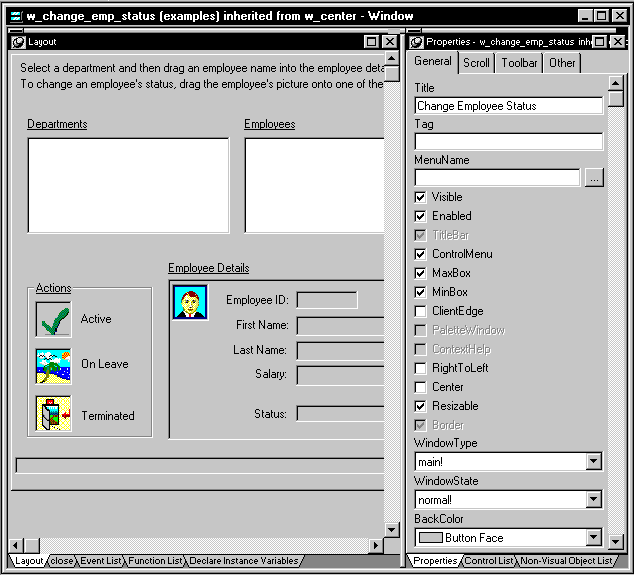
At the bottom of each pane there are several tabs. Clicking
the tab for a view pops that view to the top of the stack. This
is the way the views in the Window painter display when you first
open a window, but you can display the views you choose in as many
panes as you want to.
 To open a view:
-
Select View from the menu bar and then
select the view you want to open.
You can only open one instance of some views, but you can
open as many instances as you need of others, such as the Script
view.
To close a view:
-
If the view’s title bar is not
displayed, display it by placing the pointer on the splitter bar
at the top of the pane. - Click the Close button on the title bar.
When a painter first opens, the default views display in one
or more panes. In some painters, several
views are overlapped and have tabs you can click to pop the view
to the top of the stack. For some painters, all available views
are included in the default layout; for others, only a few views
are included.
Each pane has:
- A title bar you can
display temporarily or permanently - A handle in the top-left corner you can use to drag
the pane to a new location - Splitter bars between the pane and each adjacent
pane
You can change the layout of the views in a painter window
to suit your needs, and you can save different layouts for different
tasks.
Displaying the title bar
For most views a title
bar does not permanently display at the top of a pane (because it’s
often unnecessary). But you can display a title bar for any pane either
temporarily or permanently.
To display a title bar:
-
Place the pointer on the splitter bar at
the top of the pane.The title bar displays.
-
(Optional) Click the pushpin at the left of the
title bar.or
Select Pinned from the title bar’s popup menu.
The title bar remains visible when you move the pointer. Click
the pushpin again or select Pinned again on the popup menu to hide
the title bar.
After you display a title bar either temporarily or permanently,
you can use the title bar’s popup menu.
To maximize a pane to fill the workspace:
-
Select Maximize from the title bar’s
popup menu.or
Click the Maximize button on the title bar.
To restore a pane to its original size:
-
Select Restore from the title bar’s
popup menu.or
Click the Restore button on the title bar.
Moving and resizing panesand views
You can move a pane or a view to any
location in the painter window. You may find it takes a while to
get used to moving panes and views around, but if you don’t
like a layout, you can always revert to the default layout and start
again. To restore the default layout, select View>Layouts>Default.
Moving views in a stack
To move a pane, you select and drag the title bar of the view
that is at the top of the stack. If the pane contains tabbed views, all
views
in the stack move together. To move one of the views out of the
stack, you drag the tab for the view you want to move.
To move a pane:
-
Place the pointer anywhere on the pane’s
title bar, hold down the left mouse button, and start moving the
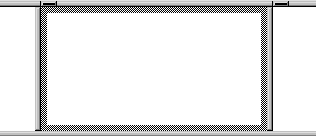
pane.A gray outline appears in the pane:
-
Drag the outline to the new location.
The outline changes size as you drag it. When the pointer
is over the middle of a pane, the outline fills the pane. As you
drag the pointer toward any border, the outline becomes a narrow
rectangle adjacent to that border. When the pointer is over a splitter
bar between two panes, rows, or columns, the outline straddles the
splitter bar: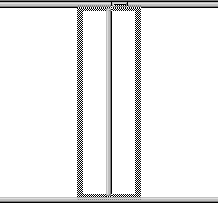
 When you move the pointer to a corner When you move the pointer to a corner, you’ll find
that you have many places where you can drop the outline. To see
your options, move the pointer around in all directions in the corner
and see where the outline displays as you move it. -
Release the mouse button to drop the outline in
the new location:To move a pane here Drop the outline here Between two panes On the splitter bar between the panes Between a border and a pane At the side of the pane nearest the border Into a new row On the splitter bar between two rows
or at the top or bottom of the painter windowInto a new column On the splitter bar between two columns
or at the left or right edge of the painter windowOnto a stack of panes On the middle of the pane (if the pane
was not already tabbed, tabs are created)
To move a view in a tabbed pane:
-
Place the pointer anywhere on the view’s
tab, hold down the left mouse button, and start moving the view.You can now move the view as in the previous procedure. If
you want to rearrange the views in a pane, you can drag the view
to the left or right within the same pane.
To resize a pane:
- Drag the splitter bars between panes.
Floating and docking panes
Panes are docked by default within a
painter window. But a particular task may be easier if you float
a pane. A floating pane can be moved outside the painter’s window
or even outside the PowerBuilder window.
You can float and dock panes using the title bar or while
moving a pane.
To float a docked pane:
-
Select Float from the title bar’s
popup menu.or
While moving the pane, press shift or ctrl.
When you open another painter If you have a floating pane in a painter and then open another
painter, the floating pane temporarily disappears. It will reappear
when the original painter is selected.
To dock a floating pane:
-
Select Dock from the title bar’s
popup menu.or
While moving the pane, press shift or ctrl.
Floating and docking a tabbed pane In a tabbed pane, select Float or Dock from the tab’s
popup menu.
Adding and removing panes
You may want to add additional views to the painter window.
For example, you may want more than one Script view. If there are
some views you rarely use, you can move them into an overlapped
stack or remove them.
To add a new pane to the painter window:
-
Select View from the menu bar and then
select the view you want to add.The new pane displays as a new row.
-
Move the pane where you want it.
For how to move panes, see “Moving and resizing panes
and views”.
To remove a pane from the painter window:
-
Display the pane’s title bar if
it is not already visible and select Close from the popup menu (or
click the Close button).or
For a tab in a stack of tabbed panes, select Close from
the popup menu.
Closing tabbed panes Selecting Close
in the title bar of a stack of tabbed panes closes all
the
panes.
Saving a layout
When you have rearranged panes
in the painter window, PowerBuilder saves the layout in the registry.
The next time you open the painter window, your last layout displays.
You can also save customized layouts so that you can switch from
one to another for different kinds of activities.
To save customized layouts for a painter window:
-
Select View>Layouts>Manage
from the menu bar.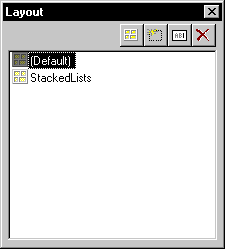
-
Click the New Layout button (second from the left
at the top of the dialog box). -
Type an appropriate name in the text box and click
OK.
Restoring the default layout You can restore the default
layout at any time by selecting Views>Layout>Default.