Using the extension in PowerBuilder
To use the PowerBuilder native class in a PowerBuilder application,
import the object descriptions in the PBX file into a library in
your application.
 To import the extension into an application:
-
Copy the PBX (or DLL) file to a directory
on your application’s path. -
In PowerBuilder, create a new workspace.
-
On the Target page of the New dialog box, select
the Application icon to create a new target, library, and application
object. -
In the System Tree, expand the new target, right-click
the library, and select Import PB Extension from the pop-up menu.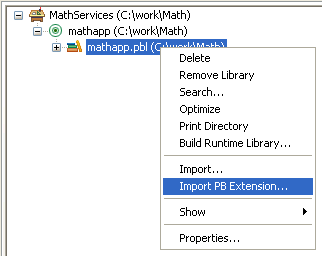
-
Navigate to the location of the pbadd.pbx file
and click Open.
To invoke the f_add function in PowerBuilder:
-
Create a new window called w_add,
and add three single-line edit boxes and a command button to it. -
Declare an instance variable called mypbadd for
the pbadd native class, and then add this script to the button’s
Clicked event:1TRY<br>   mypbadd = CREATE pbadd<br>   sle_3.text = string (mypbadd.f_add( &<br>      integer(sle_1.text), integer(sle_2.text)))<br>CATCH (runtimeerror re)<br>   MessageBox("Error", &<br>      "pbadd native class could not be created: " + &<br>      re.getmessage() )<br>END TRYThe pbadd class displays in the System Tree. As shown in the
following screen shot, you can expand its function list: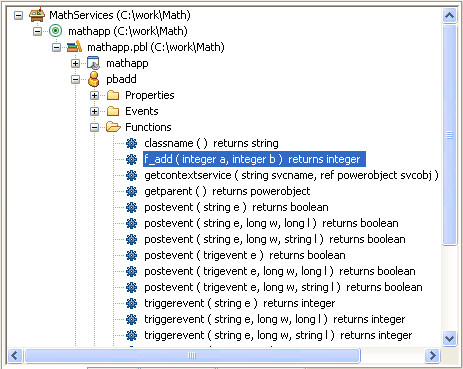
-
Add
open(w_add)to
the application’s Open event. -
Run the application.
The application runs just as it would if you had created a
custom class user object in PowerBuilder with an f_add function.
If PowerBuilder cannot find pbadd.pbx, the
runtime error in the Clicked event script will be triggered and
caught. Put pbadd.pbx in the same directory
as the executable or the PowerBuilder runtime DLLs to make sure
it can be found.