Using the Database painter
To open the Database painter, click the Database button in
the PowerBar.
About the painter
Like the other PowerBuilder painters, the Database painter contains
a menu bar, a customizable PainterBar, and several views. All database-related
tasks that you can do in PowerBuilder can be done in the Database
painter.
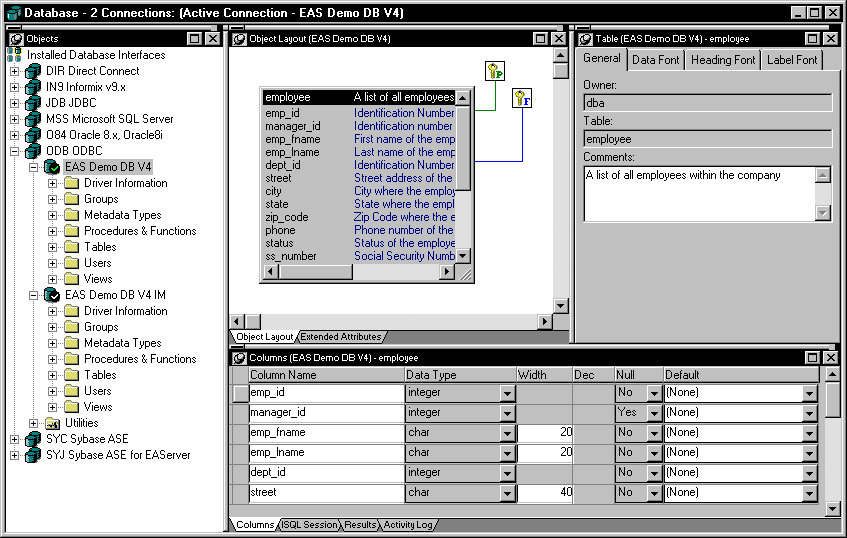
Views in the Database painter The views available in the Database painter are:
| View | Description |
|---|---|
| Activity Log | Displays the SQL syntax generated by the actions you execute |
| Columns | Used to create and/or modify a table’s columns (formerly done in the Table painter) |
| Extended Attributes | Lists the display formats, edit styles, and validation rules defined for the selected database connection |
| Interactive SQL | Used to build, execute or explain SQL (some of this functionality was formerly in the Database Administration painter) |
| Object Details | Displays an object’s properties. For some objects, its properties are read-only; for others, properties can be modified |
| Object Layout | Displays a graphical representation of tables |
| Objects | Lists the database interfaces and profiles. For an active database connection, may also list all or some of the following objects associated with that database: groups, metadata types, procedures and functions, tables, columns, primary and foreign keys, indexes, users, views, driver information, and utilities (the database components listed depends on the database and your user privileges) |
| Results | Displays data in a grid, table, or freeform format |
Dragging and dropping You can select certain database objects from the Objects view
and drag them to the Object Details, Object Layout, Columns, and/or
ISQL views. Just position the pointer on the database object’s
icon and drag it to the appropriate view.
| Object | Can be dragged to |
|---|---|
| Driver, group, metadata type, procedure or function, table, column, user, primary or foreign key, index |
Object Details view |
| Table or view | Object Layout view |
| Table or column | Columns view |
| Procedure or view | ISQL view |
Database painter tasks Here’s how to do some basic tasks in the Database painter.
Most of these tasks begin in the Objects view. Many can be accomplished
by dragging and dropping objects into different views. If you prefer,
you can use buttons or menu selections from the main bar or from
popup menus.
| To do this | Do this |
|---|---|
| Modify a database profile | Highlight a database profile and select Properties from the Object or popup menu or use the Properties button. Or use the Import and Export Profiles menu selections to copy profilesFor more information, see the section on importing and exporting database profiles in Connecting to Your Database |
| Connect to a database | Highlight a database profile and then select Connect from the File or popup menu or use the Connect button. With File>Recent Connections you can review and return to earlier connections. Database connections can also be made via the Database Profile button |
| Create new profiles, tables, views, columns, keys, indexes, or groups |
Highlight the database object and select New from the Object or popup menu or use the Create button |
| Modify database objects | Drag the object to the Object Details view |
| Graphically display tables | Drag the table icon from the list in the Objects view to the Object Layout view, or highlight the table and select Add To Layout from the Object or popup menu |
| Manipulate data | Highlight the table and select Grid, Tabular, or Freeform from the Object>Data menu or the popup menu Edit Data item, or use the appropriate Data Manipulation button |
| Build, execute or explain SQL | Use the ISQL view to build SQL statements. Use the Paste SQL button to paste SELECT, INSERT, UPDATE, and DELETE statements or type them directly into the view’s workspace. To execute or explain SQL, select Execute SQL and Explain SQL from the Design or popup menu |
| Define or modify extended attributes | Select from the Object>Insert menu the type of extended attribute you want to define or modify, or highlight the extended attribute from the list in the Extended Attributes view and select New or Properties from the popup menu |
| Specify extended attributes for a column | Drag the column to the Object Details view and select the Extended Attributes tab |
| Access database utilities | Double-click a utility in the Objects view to launch it |
| Log your work | Select Design>Start Log from the menu bar. To see the SQL syntax generated, display the Activity Log view |
Modifying database preferences
To modify database preferences, select Design>Options
from the menu bar. Some preferences are specific to the database
connection; others are specific to the Database painter.
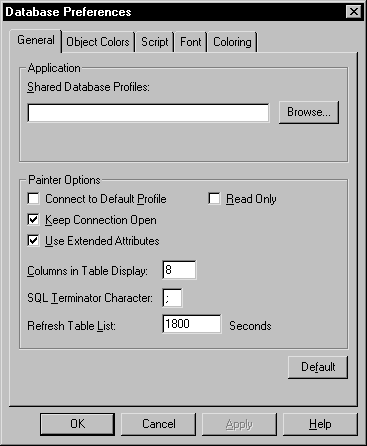
Preferences on the General property page The Connect To Default Profile, Shared Database Profiles,
Keep Connection Open, Use Extended Attributes, and Read Only preferences
are database-connection specific preferences
. For
information about modifying these preferences, see Connecting
to Your Database
.
The remaining preferences are specific to the Database
painter
:
| Database preference | What PowerBuilder does with the specified preference |
|---|---|
| Columns in the Table List | When PowerBuilder displays tables graphically, eight table columns display unless you change the number of columns |
| SQL Terminator Character | PowerBuilder uses the semicolon as the SQL statement terminator unless you enter a different terminator character in the textbox |
| Refresh Table List | When PowerBuilder first displays a table list, PowerBuilder retrieves the table list from the database and displays it. To save time, PowerBuilder saves this list internally to use again so very large table lists don’t have to be regenerated. The table list is refreshed every 30 minutes (1800 seconds) unless you specify a different refresh rate |
Preferences on the Object Colors property page You can set colors separately for each component of the Database
painter’s graphical table representation: the table header,
columns, indexes, primary key, foreign keys, and joins. Set a color
preference by selecting a color from a dropdown listbox.
You can design custom colors that you can use when you select
color preferences. To design custom colors, select Design>Custom
Colors from the menu bar and work in the Custom Colors dialog box.
Logging your work
As you work with your database, you will probably generate
SQL statements. As you define a new table, for example, PowerBuilder builds
a SQL CREATE TABLE statement internally. When you click the Create
button, PowerBuilder sends the SQL statement to the DBMS to create
the table. Similarly, when you add an index, PowerBuilder builds a
CREATE INDEX statement.
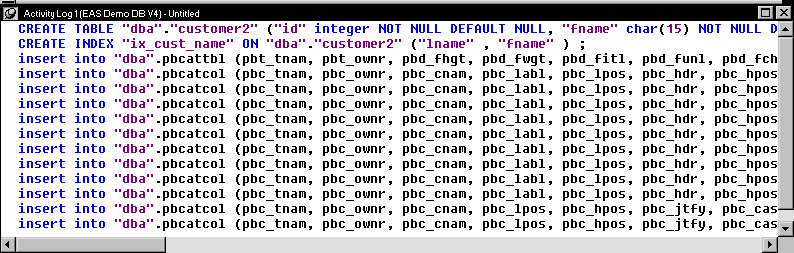
You can see all SQL generated in a Database painter session
in the Activity Log view. You can also save this information to
a file. This allows you to have a record of your work and makes
it easy to duplicate the work if you need to create the same or
similar tables in another database.
 To start logging your work:
- Open the Database painter.
-
Select Start Log from the Design menu or the popup
menu in the Activity Log view.PowerBuilder begins sending all generated syntax to the Activity
Log view.
To stop the log:
-
Select Stop Log from the Design menu or
the popup menu in the Activity Log view.PowerBuilder stops sending the generated syntax to the Activity
Log view. Your work will no longer be logged.
To save the log to a permanent text file:
-
Select Save or Save As from the File menu
or the popup menu in the Activity Log view. -
Name the file and click Save. The default file
extension is SQL, but you can change that if you want.
 Submitting the log to your DBMS You can open a saved log file and submit it to your DBMS in
the ISQL view. For more information, see “Building and executing SQL
statements”.