Correcting pipeline errors
If the pipeline cannot pipe certain rows to the destination
table for some reason, PowerBuilder displays the error rows:
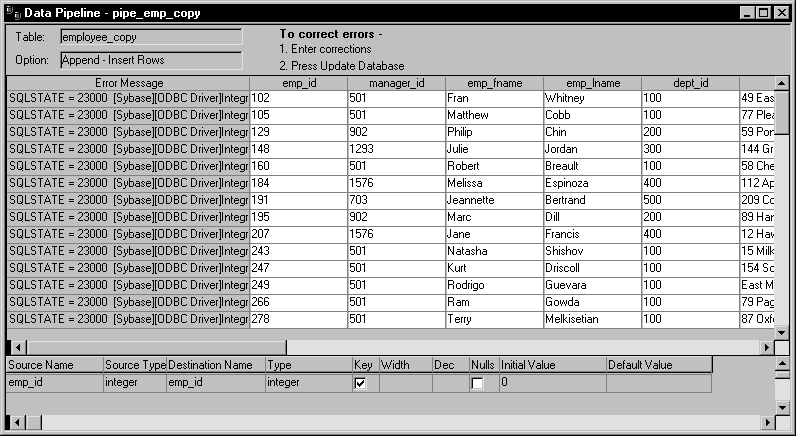
What you see
PowerBuilder shows:
- Name
of the table in the destination database - Pipeline operation you chose in the Option box
- Error messages to identify the problem with each
row - Data values in the error rows
- Source and destination column information
What you can do
You can correct the error rows by changing one or more of
their column values so the destination table will accept them; or
you can ignore the error rows and return to the Data Pipeline painter
workspace. If you return to the workspace, you cannot redisplay
the error rows without re-executing the pipeline.
 Before you return to the workspace You may want to print the list of errors or save them in a
file. Select File>Print or File>Save As from the
menu bar.
 To return to the Data Pipeline painter workspace
without correcting errors:
- Click the Design button.
To correct pipeline errors:
-
Change data values for the appropriate
columns in the error rows. -
Click the Update DB button.
or
Select Design>Update Database from the menu
bar.PowerBuilder pipes rows in which errors were corrected to the
destination table and displays any remaining errors. -
Repeat steps 1 and 2 until all errors are corrected.
The Data Pipeline painter workspace displays.
Viewing an error message
Sometimes you cannot see an entire error message because the
column isn’t wide enough.
To view an error message
-
Move the pointer to the error message and
press the right arrow key to scroll through it.or
Drag the Error Message column border to the width needed.
Making the error messages shorter For ODBC data sources, you can set the DBParm MsgTerse parameter
in the destination database profile to make the error messages shorter.
If you type MsgTerse = ‘Yes’,
then the SQLSTATE error number won’t appear.
For more information on the MsgTerse DBParm,
see the online Help.