Using graphs in DataWindow objects
Graphs are used most often in DataWindow objects—the data
for the graph comes from tables in the database.
Graphs in DataWindow objects are dynamic
Graphs in DataWindow objects are tied directly to the data that is
in the DataWindow object. As the data changes, the graph is automatically
updated to reflect the new values.
Two techniques
You can use graphs in DataWindow objects in two ways:
- By including a graph as a
control in a DataWindow object
The graph enhances the display of information in a DataWindow object, such
as a tabular or freeform DataWindow object. This technique is described
in “Placing a graph in a DataWindow object”. - By using the Graph presentation style
The entire DataWindow object is a graph. The underlying data is not visible.
This technique is described in “Using the Graph presentation
style”.
Placing a graph in a DataWindow object
 To place a graph in a DataWindow object:
-
Open or create the DataWindow object that will
contain the graph. -
Select Insert>Control>Graph
from the menu bar. -
Click where you want the graph.
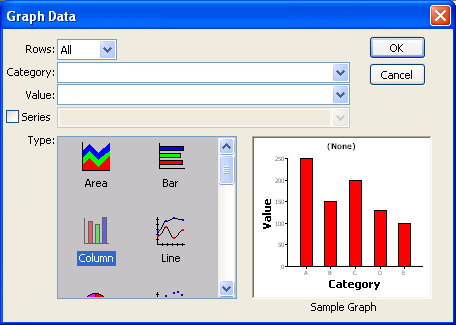
PowerBuilder displays the Graph Data dialog box:
-
Specify which columns contain the data and the
type of graph you want, and click OK.For more information, see “Associating
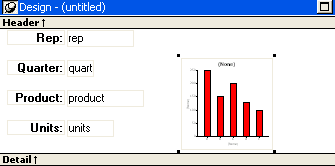
data with a graph”.The Design view now contains a representation of the graph:
-
Specify the graph’s properties in the Properties view.
Using the graph’s Properties view
A graph has a Properties view in which you can specify the
data as well as the other properties of the graph.
To display the graph’s Properties view:
-
Select Properties from the graph’s
pop-up menu.
The Properties view for a graph has several property pages
in which you specify information about the graph. Table 26-3 lists the property pages
that contain properties that are specific to graphs, and describes
what each property page specifies.
| Property page | What it specifies |
|---|---|
| Axis | Labels, scale, information about major and minor divisions for the category axes. |
| Data | Where to get the graph’s data. |
| General | Various general graph properties, including border, graph colors, whether to size the graph to the full screen display, suppression in newspaper columns. Graph type, title, legend location. For 3D graphs, perspective, rotation, elevation, and render3D. For bar graphs, overlap, spacing and depth of bars. |
| Pointer | The pointer to use when the mouse is positioned over the graph. |
| Position | The x,y location of the upper left corner of the graph, its width and height, sliding options, the layer in which the graph is to be positioned. Whether the graph can be resized and moved at runtime. |
| Text | Text properties for text controls that display on the graph, including title, axis text, axis label, and legend. Text properties include font, font style, font size, alignment, rotation, |
| Other | Descriptions and label for use by assistive technology tools. |
Changing a graph’s
position and size
When you first place a graph in a DataWindow object, it is in the
foreground—it sits above the bands in the DataWindow object. Unless
you change this setting, the graph displays in front of any retrieved
data.
The initial graph is also moveable and resizable, so users have
complete flexibility as to the size and location of a graph at runtime.
You can change these properties.
To specify a graph’s position and size:
-
Select Properties from the graph’s
pop-up menu and then select the Position page or the General page in
the Properties view. -
Select the settings for the following options on
the Position property page:Table 26-4: Settings on the Position property page for graphs Setting Meaning Layer Background — The
graph displays behind other elements in the DataWindow object.Band — The graph displays in
one particular band. If you choose this setting, you should resize
the band to fit the graph. Often you will want to place a graph
in the Footer band. As users scroll through rows in the DataWindow object,
the graph remains at the bottom of the screen as part of the footer.Foreground — (Default) The graph
displays above all other elements in the DataWindow object. Typically,
if you choose this setting, you also make the graph movable so it
will not obscure data while users display the DataWindow object.Moveable The graph can be moved in the Preview
view and at runtime.Resizable The graph can be resized in the Preview
view and at runtime.Slide Left, Slide Up The graph slides to the left or up to
remove extra white space. For more information, see “Sliding controls to remove
blank space in a DataWindow object”.X, Y The location of the upper-left corner
of the graph.Width, Height The width and height of the graph. -
Select the settings for the following options on
the General property page:Table 26-5: Size and position settings on the General property page Setting Meaning Size To Display The graph fills the DataWindow object and resizes
when users resize the DataWindow object. This setting is used with the
Graph presentation style.HideSnaked Do not repeat graph after the first column
in a DataWindow object using newspaper-style columns.
Associating data with a graph
When using a graph in a DataWindow object, you associate axes of
the graph with columns in the DataWindow object.
The only way to get data into a graph in a DataWindow object is through columns
in the DataWindow object. You cannot add, modify, or delete data in the
graph except by adding, modifying, or deleting data in the DataWindow object.
You can graph data from any columns retrieved into the DataWindow object. The
columns do not have to be displayed.
 About the examples The process of specifying data for a graph is illustrated below using the Printer table
in the EAS Demo DB.
To specify data for a graph:
-
If you are creating a new graph, the Graph
Data dialog box displays. Otherwise, select Properties from the
graph’s pop-up menu and select the Data page in the Properties view. -
Fill in the boxes as described in the sections
that follow, and click OK.
Specifying which rows to include
in a graph
The Rows drop-down list allows you to specify which rows of
data are graphed at any one time:
| Setting | Meaning |
|---|---|
| All | Graphs the data from all the rows that have been retrieved but not filtered or deleted (that is, the rows in the primary buffer of the DataWindow object) |
| Page | Graphs only the data from the rows that are currently displayed on the page |
| Group n | Graphs only the data in the specified group (in a grouped DataWindow object) |
If you select Group If you are graphing data in the current group in a grouped DataWindow object and
have several groups displayed at the same time, you should localize
the graph in a group-related band in the Design view. This makes
clear which group the graph represents. Usually, the group header
band is the most appropriate band.
Specifying the categories
Specify the column or expression whose values determine the
categories. In the Graph Data page in the Graph dialog box and on
the Data page in the Properties view, you can select a column name
from a drop-down list.
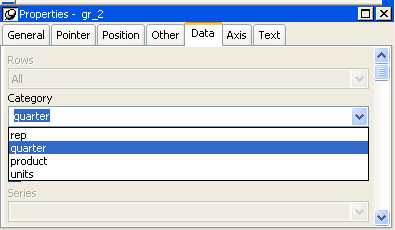
There is an entry along the Category axis for each different
value of the column or expression you specify.
Using display values of data If you are graphing columns that use code tables, when data
is stored with a data value but displayed to users with more
meaningful display values, by default the graph uses the column’s
data values. To have the graph use a column’s display values,
use the LookupDisplay DataWindow expression function when specifying
Category or Series. LookupDisplay returns a string that
matches the display value for a column:
|
1 |
LookupDisplay ( <i>column</i> ) |
For more about code tables, see “Defining a code table”. For more about LookupDisplay,
see the DataWindow Reference
.
Specifying the values
PowerBuilder populates the Value drop-down list. The list includes
the names of all the retrieved columns as well as the following
aggregate functions:
- Count for all non-numeric columns
- Sum for all numeric columns
Select an item from the drop-down list or type an expression
(in the Properties view). For example, if you want to graph the
sum of units sold, you can specify:
|
1 |
sum(units for graph) |
To graph 110 percent of the sum of units sold, you can specify:
|
1 |
sum(units*1.1 for graph) |
Specifying the series
Graphs can have one or more series.
Single-series graphs
If you want only one series (that is, if you want to graph
all retrieved rows as one series of values), leave the Series box
empty.
Multiple-series graphs
If you want to graph more than one series, select the Series
check box and specify the column that will provide the series values. You can select column names
from the drop-down list.
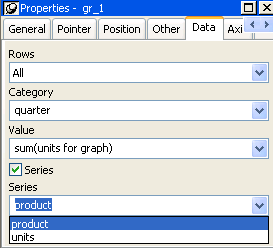
There is a set of data points for each different value of
the column you specify here. For example, if you specify a column
that has 10 values, then your graph will have 10 series: one set
of data points for each different value of the column.
Using expressions
You can also specify expressions for Series (on the Data page of
the Properties view). For example, you could specify the following
for Series:
|
1 |
Units / 1000 |
In this case, if a table had unit values of 10,000, 20,000,
and 30,000, the graph would show series values of 10, 20, and 30.
Specifying multiple entries
You can specify more than one of the retrieved columns to
serve as series. Separate multiple entries by commas.
You must specify the same number of entries in the Value box
as you do in the Series box. The first value in the Value box corresponds
to the first series identified in the Series box, the second value
corresponds to the second series, and so on. The example about graphing
actual and projected sales in “Examples” illustrates this technique.
Examples
This section shows how to specify the data for several different
graphs of the data in the Printer table in
the EAS Demo DB. The table records quarterly unit sales of three
printers by three sales representatives.
| Rep | Quarter | Product | Units |
|---|---|---|---|
| Simpson | Q1 | Stellar | 12 |
| Jones | Q1 | Stellar | 18 |
| Perez | Q1 | Stellar | 15 |
| Simpson | Q1 | Cosmic | 33 |
| Jones | Q1 | Cosmic | 5 |
| Perez | Q1 | Cosmic | 26 |
| Simpson | Q1 | Galactic | 6 |
| Jones | Q1 | Galactic | 2 |
| Perez | Q1 | Galactic | 1 |
| … | … | … | … |
| Simpson | Q4 | Stellar | 30 |
| Jones | Q4 | Stellar | 24 |
| Perez | Q4 | Stellar | 36 |
| Simpson | Q4 | Cosmic | 60 |
| Jones | Q4 | Cosmic | 52 |
| Perez | Q4 | Cosmic | 48 |
| Simpson | Q4 | Galactic | 3 |
| Jones | Q4 | Galactic | 3 |
| Perez | Q4 | Galactic | 6 |
Graphing total sales
To graph total sales of printers in each quarter, retrieve
all the columns into a DataWindow object and create a graph with the following
settings on the Data page in the Properties view:
- Set Rows
to All - Set Category to quarter
- Set Value to sum(units for graph)
Leave the Series check box and text box empty.
The Quarter column serves as the category.
Because the Quarter column has four values
(Q1, Q2, Q3, and Q4), there will be four categories along the Category
axis. You want only one series (total sales in each quarter), so
you can leave the Series box empty, or type a string literal to
identify the series in a legend. Setting Value to sum(units
for graph) graphs total sales in each quarter.
Here is the resulting column graph. PowerBuilder automatically
generates the category text based on the data in the table:
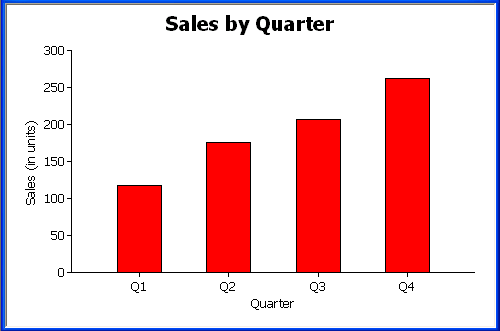
In the preceding graph, there is one set of data points (one
series) across four quarters (the category values).
The following is a pie graph, which has exactly the same properties
as the preceding column graph except for the type, which is Pie:
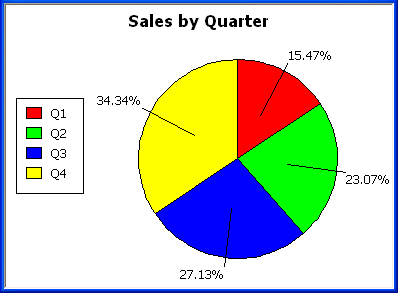
In pie graphs, categories are shown in the legend.
Graphing unit sales of each
printer
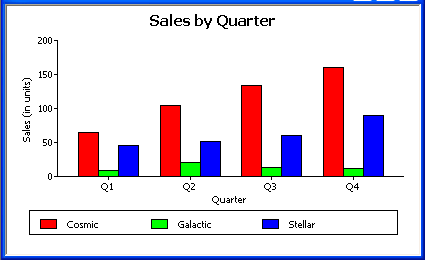
To graph total quarterly sales of each printer, retrieve all
the columns into a DataWindow object and create a graph with the following
settings on the Data page in the Properties view:
- Set Rows
to All - Set Category to quarter
- Set Value to sum(units for graph)
- Select the Series check box
- Set Series to product
You want a different series for each printer, so the column Product serves
as the series. Because the Product column has
three values (Cosmic, Galactic, and Stellar), there will be three
series in the graph. As in the first example, you want a value for
each quarter, so the Quarter column serves
as the category, and you want to graph total sales in each quarter,
so the Value box is specified as sum(units for
graph).
Here is the resulting graph. PowerBuilder automatically generates
the category and series labels based on the data in the table. The
series labels display in the graph’s legend:
Graphing unit sales by representative
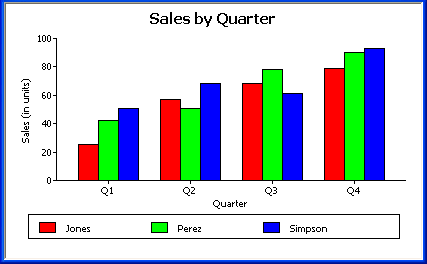
To graph quarterly sales made by each representative, create
a graph with the following settings on the Data page in the Properties view:
- Set Rows to All
- Set Category to quarter
- Set Value to sum(units for graph)
- Select the Series check box
- Set Series to rep
Here is the resulting graph:
Graphing unit sales by representative and total
sales
To graph quarterly sales made by each representative, plus
total sales for each printer, create a graph with the following
settings on the Data page in the Properties view:
- Set
Rows to All - Set Category to quarter, “Total”
- Set Value to sum(units for graph),
sum(units for graph) - Select the Series check box
- Set Series to rep, rep
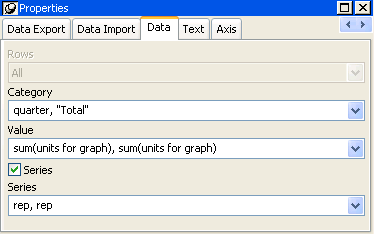
Here you have two types of categories: the first is Quarter,
which shows quarterly sales, as in the previous graph. You also
want a category for total sales. There is no corresponding column
in the DataWindow object, so you can simply type the literal “Total” to
identify the category. You separate multiple entries with a comma.
For each of these category types, you want to graph the sum
of units sold for each representative, so the Value and Series values
are repeated.
Here is the resulting graph:
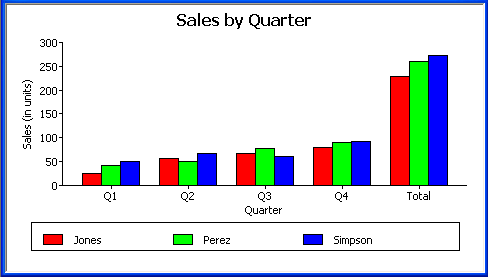
Notice that PowerBuilder uses the literal “Total” supplied
in the Category box in the Graph Data window as a value in the Category
axis.
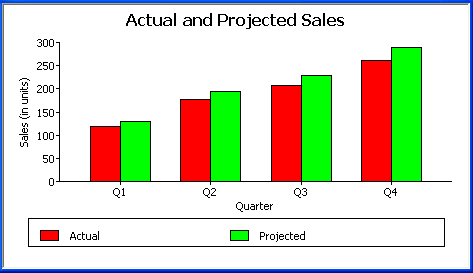
Graphing actual and projected
sales
To graph total quarterly sales of all printers and projected
sales for next year, create a graph with the following settings
on the Data page in the Properties view (you assume that sales will
increase by 10% next year):
- Set Rows
to All - Set Category to quarter
- Set Value to sum(units for graph),
sum(units*1.1 for graph) - Select the Series check box
- Set Series to ‘Actual’,’Projected’
You are using labels to identify two series, Actual and Projected.
Note the single quotation marks around the literals. For Values,
you enter the expressions that correspond to Actual and Projected
sales. For Actual, you use the same expression as in the examples
above, sum(units for graph).
For Projected sales, you multiply each unit sale by 1.1 to get the
10 percent increase. Therefore, the second expression is sum(units*1.1
for graph).
Here is the resulting graph. PowerBuilder uses the literals
you typed for the series as the series labels in the legend: