Sorting rows
You can use an ORDER BY clause in the SQL SELECT statement
for the DataWindow object to sort the data that is retrieved from the database.
If you do this, the DBMS itself does the sorting and the rows are
brought into PowerBuilder already sorted.
However, you might want to sort the rows after they are retrieved.
For example, you might want to:
- Offload the processing from
the DBMS - Sort on an expression, which might not be allowed
in the SELECT statement but is allowed in PowerBuilder
 To sort the rows:
-
Select Rows>Sort from the menu
bar.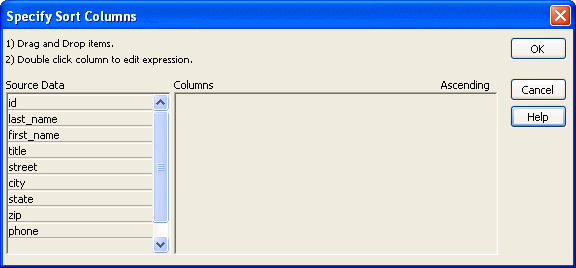
-
Drag to the Columns box the columns on which you
want to sort the rows, and specify whether you want to sort in ascending
or descending order.The order of the columns determines the precedence of the
sort. To reorder the columns, drag them up or down in the list.
To delete a column from the sort columns list, drag the column outside
the dialog box. -
You can also specify expressions to sort on: for
example, if you have two columns, Revenues and Expenses, you can
sort on the expression Revenues – Expenses.To specify an expression to sort on, double-click a column
name in the Columns box, modify the expression in the Modify Expression
dialog box, and click OK.You return to the Specify Sort Columns dialog box with the
expression displayed. If you change your mind You can remove a column or expression from the sorting specification
by simply dragging it and releasing it outside the Columns box. -
Click OK when you have specified all the sort
columns and expressions.
Suppressing repeating values
When you sort on a column, there might be several rows with
the same value in one column. You can choose to suppress the repeating
values in that column.
When you suppress a repeating value, the value displays at
the start of each new page and, if you are using groups, each time
a value changes in a higher group.
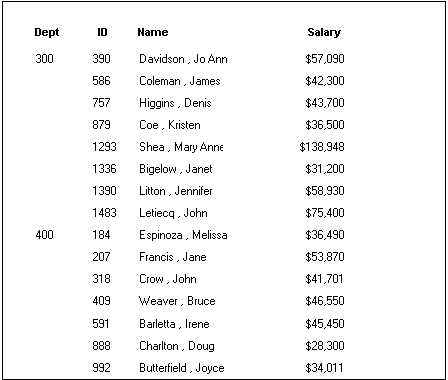
For example, if you have sorted employees by department ID,
you can suppress all but the first occurrence of each department
ID in the DataWindow object:
To suppress repeating values:
-
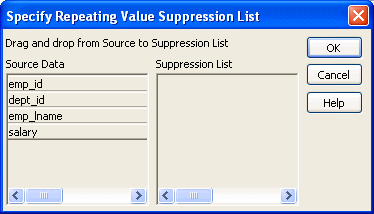
Select Rows>Suppress Repeating
Values from the menu bar.The Specify Repeating Value Suppression List dialog box displays:
-
Drag the columns whose repeated values you want
to suppress from the Source Data box to the Suppression List box,
and click OK. If you change your mind You can remove a column from the suppression list simply by
dragging it and releasing it outside the Suppression List box.