Setting up a connection profile
In
PowerBuilder you can set up a source control connection profile
at the workspace level only. Local and advanced connection options
can be defined differently on each computer for PowerBuilder workspaces
that contain the same targets.
Local connection options
Local connection options allow you to create a trace log to
record all source control activity for your current workspace session.
You can overwrite or preserve an existing log file for each session.
You can also make sure a comment is included for every file
checked into source control from your local computer. If you select
this connection option, the OK button on the Check In dialog box
is disabled until you type a comment for all the objects you are
checking in.
The following table lists the connection options you can use
for each local connection profile:
|
Select this option |
To do this |
|---|---|
|
Log All Source Management Activity (not |
Enable trace logging. By default the |
|
Append To Log File (default selection |
Append source control activity information to |
|
Overwrite Log File (not selected by default) |
Overwrite the named log file with source control |
|
Require Comments On Check In (not selected |
Disable the OK button on the Check In |
|
This Project Requires That I Sometimes |
Disable automatic connection to source control |
|
Delete PowerBuilder Generated Object |
Remove object files (such as SRDs) from |
|
Perform Diff On Status Update |
Permit display of out-of-sync icons for |
|
Suppress prompts to overwrite read–only |
Avoid message boxes warning that read-only files |
|
Show warning when opening objects not |
Avoid message boxes when opening objects that |
|
Status Refresh Rate (5 minutes by default) |
Specifies the minimum time elapsed before PowerBuilder |
Advanced connection options
Advanced
connection options depend on the source control system you are using
to store your workspace objects. Different options exist for different source
control systems.
 Applicability of advanced options
Some advanced options might not be implemented or might be
rendered inoperable by the PowerBuilder SCC API interface. For example,
if an advanced option allows you to make local files writable after
an Undo Check Out operation, PowerBuilder still creates read-only
files when reverting an object to the current version in source
control. (PowerBuilder might even delete these files if you selected
the Delete PowerBuilder Generated Object Files option.)
 To set up a connection profile:
-
Right-click the Workspace object in the
System Tree (or in the Tree view of the Library painter) and select
Properties from the pop-up menu. -
Select the Source Control tab from the Workspace
Properties dialog box. -
Select the system you want to use from the Source
Control System drop–down list.Only source control systems that are defined in your registry (HKEY_LOCAL_MACHINESOFTWARESourceCodeControlProvider
InstalledSCCProviders)
appear in the drop-down list. -
Type in your user name for the source control
system.Some source control systems use a login name from your registry
rather than the user name that you enter here. For these systems
(such as Perforce or PVCS), you can leave this field blank. -
Click the ellipsis button next to the Project
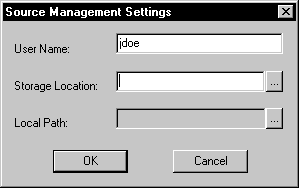
text box.A dialog box from your source control system displays. Typically
it allows you to select or create a source control project.The dialog box displayed for PBNative is shown below:
-
Fill in the information required by your source
control system and click OK.The Project field on the Source Control page of the Workspace
Properties dialog box is typically populated with the project name
from the source control system you selected. However, some source
control systems (such as Perforce or Vertical Sky) do not return
a project name. For these systems, you can leave this field blank. -
Type or select a path for the local root directory.
All the files that you check into and out of source control
must reside in this path or in a subdirectory of this path. -
(Option) Select the options you want for your
local workspace connection to the source control server. -
(Option) Click the Advanced button and make any
changes you want to have apply to advanced options defined for your
source control system.The Advanced button might be grayed if you are not first connected
to a source control server. If Advanced options are not supported
for your source control system, you see only a splash screen for
the system you selected and an OK button that you can click to return
to the Workspace Properties dialog box. -
Click Apply or click OK.