Retrieving data
In a DataWindow object, you can prompt for retrieval criteria, retrieve
rows as needed, and save retrieved rows to disk.
Prompting for retrieval criteria in a DataWindow object
You can define your DataWindow object so that it always prompts for
retrieval criteria just before it retrieves data. PowerBuilder allows
you to prompt for criteria when retrieving data for a DataWindow
control, but not for a DataStore object.
 To prompt for retrieval criteria in a DataWindow object:
-
Select View>Column Specifications
from the menu bar.The Column Specifications view displays listing all columns
in the DataWindow object. -
Select the Prompt checkbox next to each column
you want the user to be able to specify retrieval criteria for during
execution.
What happens
When you specify prompting for criteria, PowerBuilder displays
the following dialog box just before a retrieval is to be done (it
is the last thing that happens before the SQLPreview event):
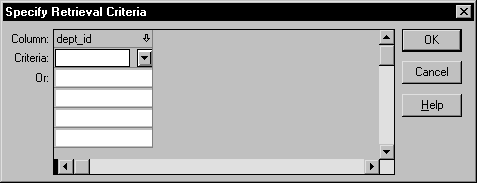
Each column you selected in the Column Specification view
displays in the grid. Users can specify criteria here exactly as
in the grid with the Quick Select data source.
Criteria specified here are added to the WHERE clause for
the SQL SELECT statement defined for the DataWindow object.
 Testing in PowerBuilder You can test the prompting for criteria by retrieving data
in the Preview view of the DataWindow object.
Using edit styles
If a column uses a code table or the RadioButton, CheckBox,
or DropDownListBox edit style, an arrow displays in the column header
and users can select a value from a dropdown listbox when specifying
criteria:
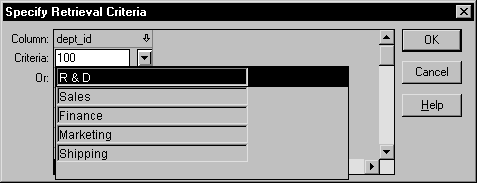
If you don’t want the dropdown listbox used for a
column for specifying retrieval criteria, select the Override Edit
checkbox on the General property page of the column’s Properties
view.
Forcing the entry of criteria
If you have specified prompting for criteria for a column,
you can force the entry of criteria for the column by selecting
the Equality Required checkbox on the General property page of the
column’s Properties view. PowerBuilder will underline the
column header in the grid during prompting. Selection criteria for the
specified column must be entered, and the = operator must
be used.
For more information
The section “Using Quick Select” describes in detail how you and your
users can specify selection criteria in the grid.
The chapter on dynamic DataWindow objects in DataWindow
Programmer’s Guide
describes how to write scripts
to dynamically allow users to specify retrieval criteria during
execution.
Retrieving rows as needed
If your DataWindow object retrieves hundreds of rows, there can be
a noticeable delay during execution while all the rows are retrieved and
before control returns to the user. In these DataWindow objects, you can
have PowerBuilder retrieve only as many rows as it has to before displaying
data and returning control to the user.
For example, if your DataWindow object displays only 10 rows at a
time, it might make sense to have PowerBuilder retrieve only a small
number of rows before presenting the data. Then as the user pages through
the data, PowerBuilder continues to retrieve what is necessary to
display the new information. There may be slight pauses while PowerBuilder retrieves
the additional rows, but the pauses may be worth it if users do
not need to wait a long time to start working with data.
To specify that a DataWindow object retrieve only as
many rows as it needs to:
-
Select Rows>Retrieve Options>Rows
As Needed from the menu bar.With this setting, PowerBuilder presents data and returns control
to the user when it has retrieved enough rows to display in the DataWindow object.
Retrieve Rows As Needed is overridden if you have specified
sorting or have used aggregate functions, such as Avg and Sum, in
the DataWindow object. This is because PowerBuilder must retrieve every row
before it can sort or perform aggregates.
In a multiuser situation, Retrieve Rows As Needed might lock
other people from the tables.
Saving retrieved rows to disk
If you want to maximize the amount of memory available to PowerBuilder and other
running applications, you can have PowerBuilder save retrieved data
on your hard disk in a temporary file rather than keep the data
in memory. PowerBuilder swaps rows of data from the temporary file
into memory as needed to display data.
To maximize available memory by saving retrieved
rows to disk:
-
Select Rows>Retrieve Options>Rows
to Disk from the menu bar.With this setting, when displaying data, PowerBuilder swaps
rows of data from the temporary file into memory instead of keeping
all the retrieved rows of data in memory.