Pasting information into scripts
You can paste the names of variables, functions, objects,
controls, and other items directly into your scripts. (You can also
use AutoScript. See “Using AutoScript”.) If what you paste includes commented
text that you need to replace, such as function arguments or clauses
in a statement, you can use Edit>Go To>Next Marker
to move your cursor to the next commented item in the template.
|
To paste |
Use |
|---|---|
|
PowerBuilder objects and their properties, |
System Tree |
|
Properties, datatypes, functions, structures, |
Browser |
|
Contents of clipboard |
Edit>Paste |
|
Contents of Clipboard window |
Drag and drop |
|
Objects, controls, arguments, and global and |
Paste buttons on PainterBar |
|
PowerScript statements |
Paste Statement button |
|
SQL statements |
Paste SQL button |
|
Built-in, user-defined, and external functions |
Paste Function button |
|
Preprocessor statements |
Edit>Paste Special>Preprocessor |
|
Contents of text files |
Edit>Paste Special>From |
 Undoing a paste
If you paste information into your script by mistake, click
the Undo button or select Edit>Undo from the menu bar.
Some of these techniques are explained in the sections that
follow.
Using the System Tree
To paste the name of a PowerBuilder object or of any of its
properties, functions, or events, select the item you want to paste
on the Workspace tab of the System Tree and drag it into your script.
Using the Browser
You can use the Browser to paste the name of any property,
datatype, function, structure, variable, or object in the application.
Most tab pages in the Browser have two panes:
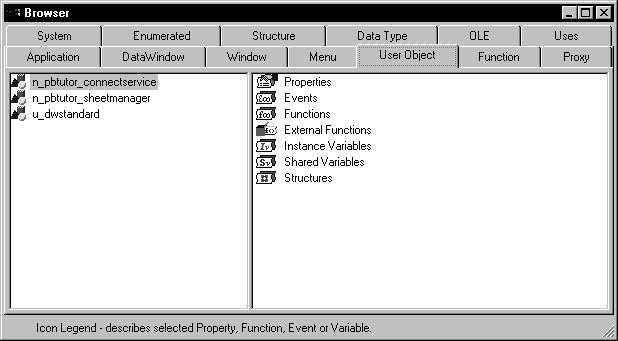
The left pane displays a single type of object, such as a
window or menu. The right pane displays the properties, events,
functions, external functions, instance variables, shared variables,
and structures associated with the object.
Getting context-sensitive Help in the Browser
To get context-sensitive Help for an object, control, or function,
select Help from its pop-up menu.
 To use the Browser to paste information into the
Script view:
-
Click the Browser button in the PowerBar,
or select Tools>Browser. -
Select the target you want to browse.
-
Select the appropriate tab and then select the
object in the left pane. -
Select the category of information you want to
display by expanding the appropriate folder in the right pane. -
Select the information and click Copy.
-
In the Script view, move the cursor where you
want to paste the information and select any text you want to replace
with the pasting. -
Select Paste from the pop-up menu.
PowerBuilder displays the information at the insertion point
in the script, replacing any selected text.
For information about using the Browser to
paste OLE object information into a script, see Application
Techniques.
Pasting statements
You can paste a template for all basic forms of the following
PowerScript statements:
-
IF…THEN
-
DO…LOOP
-
FOR…NEXT
-
CHOOSE CASE
-
TRY…CATCH… FINALLY
When you paste these statements into a script, prototype values
display in the syntax to indicate conditions or actions. By default, the statements
are pasted in lowercase. To paste statements in uppercase, add the
following line to the [PB] section of the PB.INI file:
|
1 |
PasteLowercase=0 |
This setting also affects AutoScript.
To paste a PowerScript statement into the script:
-
Place the insertion point where you want
to paste the statement in the script. -
Select the Paste Statement button from the PainterBar,
or select Edit>Paste Special>Statement from the
menu bar. -
Select the statement you want to paste from the
cascading menu.The statement prototype displays at the insertion point in
the script. -
Replace the prototype values with the conditions
you want to test and the actions you want to take based on the test
results.
For more about PowerScript statements, see
the PowerScript Reference.
Pasting SQL
You can paste a SQL statement
into your script instead of typing the statement.
To paste a SQL statement:
-
Place the insertion point where you want
to paste the SQL statement inthe script.
-
Click the Paste SQL button
in the PainterBar, or select Edit>Paste Special>SQL from the menu bar. -
Select the type of statement you want to insert
from the cascading menu by double-clicking the appropriate button.The appropriate dialog box displays so that you can create
the SQL statement. -
Create the statement, then return to the Script
view.The statement displays at the insertion point in the workspace.
For more about embedding SQL in
scripts, see the PowerScript Reference.
Pasting functions
You can paste any function into a script.
To paste a function into a script:
-
Place the insertion point where you want
to paste the function in the script. -
Click the Paste Function button in the PainterBar,
or select
Edit>Paste Special>Function
from the menu bar. -
Choose the type of function you want to paste:
built-in, user-defined, or external. -
Double-click the function you want from the list
that displays.PowerBuilder pastes the function into the script and places
the cursor within the parentheses so that you can define any needed
arguments.
For more about pasting user-defined functions, see “Pasting user-defined functions”. For more
about external and built-in functions, see Application
Techniques.
Pasting contents of files
If you have code that is common across different scripts,
you can keep that code in a text file, then paste it into new scripts
you write. For shorter snippets of code, you can also use the Clip
window. See “The Clip window”.
To import the contents of a file into the Script
view:
-
Place the insertion point where you want
the file contents pasted. -
Select Edit>Paste Special>From
File from the menu bar.The Paste From File dialog box displays, listing all files
with the extension SCR. If necessary, navigate to the directory
that contains the script you want to paste. -
Choose the file containing the code you want.
You can change the type of files displayed by changing the file
specification in the File Name box.PowerBuilder copies the file into the Script view at the insertion
point.
Saving a script to a file
To save all or part of a script to an external text file,
select the code you want to save and copy and paste it to the file
editor. Use the extension .SCR to identify
it as PowerScript code. You might want to use this technique to
save a backup copy before you make major changes or so that you
can use the code in other scripts.