Grouping rows
You can group related rows together and, optionally, calculate
statistics for each group separately. For example, you might want
to group employee information by department and get total salaries
for each department.
How groups are defined
Each group is defined by one or more DataWindow object columns. Each
time the value in a grouping column changes, a break occurs and
a new section begins.
For each group, you can:
-
Display
the rows in each section -
Specify the information you want to display at the
beginning and end of each section -
Specify page breaks after each break in the data
-
Reset the page number after each break
Grouping example
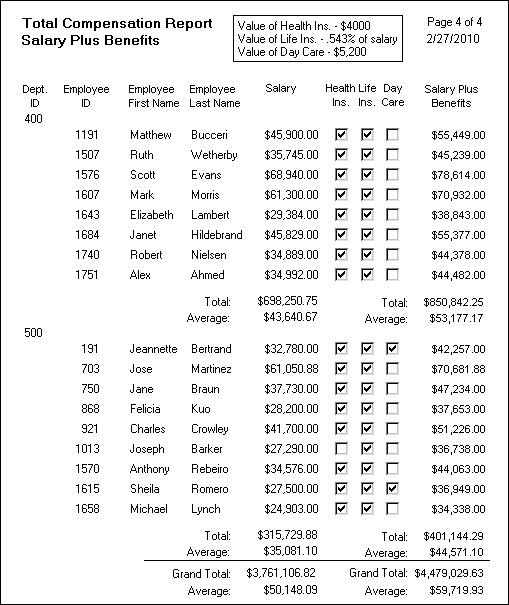
The following DataWindow object retrieves employee information. It
has one group defined, Dept_ID, so
it groups rows into sections according to the value in the Dept_ID column.
In addition, it displays:
-
Department
ID before the first row for that department -
Totals and averages for salary and salary plus benefits
(a computed column) for each department -
Grand totals for the company at the end
The following screenshot shows the DataWindow object.
How to do it
You can create a grouped DataWindow object in three ways:
-
Use the Group presentation style to create a grouped DataWindow object from
scratch (“Using the Group presentation
style”). -
Take an existing tabular DataWindow object and define grouping (“Defining groups in an existing DataWindow object”).
-
Use the TreeView presentation style (Chapter 28, “Working with TreeViews”).
Making the DataWindow control large enough
If a DataWindow object has grouped rows, each page contains all group headers
(including zero-height headers) at the top of the page. Your DataWindow
control must be large enough to accommodate all the group headers
that display on each page of the report.
The last row of a group displays on the same page as that
row’s group trailer and each applicable higher-level group
trailer. If the DataWindow object has a summary band, it displays on the
same page as the last row of the report. If the control is not large
enough, you might see anomalies when scrolling through the DataWindow object,
particularly in the last row of the report, which needs room to
display the report’s header band, all group headers, all
group trailers, the summary band, and the footer band.
If you cannot increase the height of the DataWindow control
so that it has room for all the headers and trailers, you can change
the design of the DataWindow object so that they require less space.
Scrolling through a grouped DataWindow
When you scroll through a grouped DataWindow object, you might see
the group header repeated where you do not expect it. This is because
the data is paginated in a fixed layout based on the size of the
DataWindow control. You can scroll to a point that shows the bottom
half of one page and the top of the next. When you use the arrow
keys to page through the data, you scroll one row at a time.