Filtering rows
You can use WHERE and HAVING clauses and retrieval arguments
in the SQL SELECT statement for the DataWindow object to limit the data
that is retrieved from the database. This reduces retrieval time
and space requirements during execution.
However, you may want to further limit the data that displays
in the DataWindow object. For example, you might want to:
- Retrieve many rows and initially
display only a subset (perhaps allowing the user to specify a different
subset of rows to display during execution) - Limit the data that is displayed using DataWindow expression functions
(such as If) that are not valid in the SELECT statement
Using filters
In the DataWindow painter, you can define filters, which will limit
the rows that display during execution. Filters can use most DataWindow expression functions or
user-defined functions.
 Filters don’t affect which rows are retrieved A filter operates against the retrieved data. It does not
re-execute the SELECT statement.
Defining a filter
 To define a filter:
-
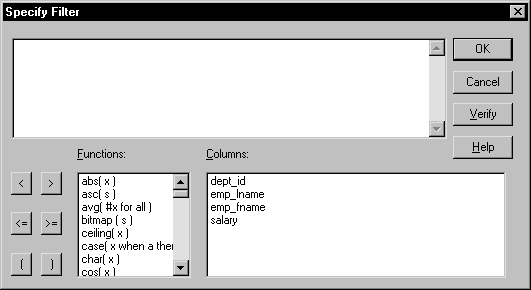
In the DataWindow painter, select Rows>Filter
from the menu bar.The Specify Filter dialog box displays:
-
In the Specify Filter dialog box, enter a boolean
expression that PowerBuilder will test against each retrieved row.If the expression evaluates to TRUE, the row will be displayed.
You can specify any valid expression in a filter. Filters can use
any non-object-level PowerScript function, including user-defined
functions. You can paste commonly used functions, names of columns,
computed fields, retrieval arguments, and operators into the filter. International considerations So that an application you build will run the same no matter
in which country it is deployed, filter expressions require U.S.
notation for numbers. That is, comma always represents the thousands
delimiter and period always represents the decimal place when you
specify expressions in the development environment.For information about expressions for filters,
see the DataWindow Reference
. -
(Optional) Click Verify to make sure the expression
is valid. -
Click OK.
Only rows meeting the filter criteria are displayed in the
Preview view. Filtered rows and updates Modifications of filtered rows are applied to the database
when you issue an update request.
Removing a filter
To remove a filter:
-
Select Rows>Filter from the menu
bar. -
Delete the filter expression from the Specify
Filter dialog box, then click OK.
Examples of filters
Assume that a DataWindow object retrieves employee rows. Three of
the columns are Salary, Status, and Emp_Lname:
| To display these rows | Use this filter | ||
|---|---|---|---|
| Employees with salaries over $50,000 |
|
||
| Active employees |
|
||
| Active employees with salaries over $50,000 |
|
||
| Employees whose last names begin with H |
|
Setting filters in a script
You can use the SetFilter and Filter functions in a script
to dynamically modify a filter that was set in the DataWindow painter.
For information about SetFilter and Filter,
see the DataWindow Reference
.