About crosstabs
Cross tabulation is a useful technique for analyzing data.
By presenting data in a spreadsheet-like grid, a crosstab lets users view
summary data instead of a long series of rows and columns. For example,
in a sales application you might want to summarize the quarterly
unit sales of each product.
In PowerBuilder, you create crosstabs by using the Crosstab
presentation style. When data is retrieved into the DataWindow object,
the crosstab processes all the data and presents the summary information
that you have defined for it.
An example
Crosstabs are easiest to understand through an example. Consider
the Printer table in the EAS Demo DB. It records quarterly unit sales
of printers made by sales representatives in one year (this is the
same data that was used to illustrate graphs in the preceding chapter):
| Rep | Quarter | Product | Units |
|---|---|---|---|
| Simpson | Q1 | Stellar | 12 |
| Jones | Q1 | Stellar | 18 |
| Perez | Q1 | Stellar | 15 |
| Simpson | Q1 | Cosmic | 33 |
| Jones | Q1 | Cosmic | 5 |
| Perez | Q1 | Cosmic | 26 |
| Simpson | Q1 | Galactic | 6 |
| Jones | Q1 | Galactic | 2 |
| Perez | Q1 | Galactic | 1 |
| . | . | . | . |
| . | . | . | . |
| . | . | . | . |
| Simpson | Q4 | Stellar | 30 |
| Jones | Q4 | Stellar | 24 |
| Perez | Q4 | Stellar | 36 |
| Simpson | Q4 | Cosmic | 60 |
| Jones | Q4 | Cosmic | 52 |
| Perez | Q4 | Cosmic | 48 |
| Simpson | Q4 | Galactic | 3 |
| Jones | Q4 | Galactic | 3 |
| Perez | Q4 | Galactic | 6 |
This information can be summarized in a crosstab. Here is
a crosstab that shows unit sales by printer for each quarter:
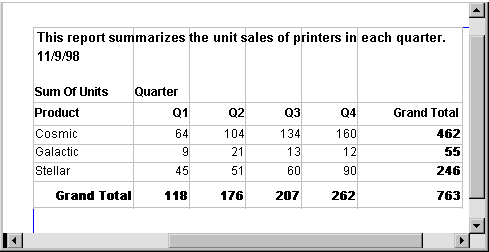
The first-quarter sales of Cosmic printers displays in the
first data cell (as you can see from the data in the Printer table
shown before the crosstab, in Q1 Simpson sold 33 units, Jones sold
5 units, and Perez sold 26 units–totaling 64 units). PowerBuilder calculates
each of the other data cells the same way.
To create this crosstab, all you have to do is tell PowerBuilder which
database columns contain the raw data for the crosstab and PowerBuilder does
all the data summarization automatically.
What crosstabs do
Crosstabs perform two-dimensional analysis:
- The first dimension is displayed as columns across
the crosstab.
In the preceding crosstab, it is the quarter, whose values
are in the Quarter column in the database table. - The second dimension is displayed as rows down the
crosstab.
In the preceding crosstab, it is the type of printer, whose
values are in the Product column in the database table.
Each cell in a crosstab is the intersection of a column (the
first dimension) and a row (the second dimension). The numbers that
appear in the cells are calculations based on both dimensions. In
the preceding crosstab, it is the sum of unit sales for the quarter
in the corresponding column and printer in the corresponding row.
Crosstabs also include summary statistics. The preceding crosstab
totals the sales for each quarter in the last row and the total
sales for each printer in the last column.
How crosstabs are implemented in PowerBuilder
Crosstabs in PowerBuilder are implemented as grid DataWindow objects. Because
crosstabs are grid DataWindow objects, users can resize and reorder columns
during execution (if you let them).
Two types of crosstabs
There are two types of crosstabs:
- Dynamic
- Static
Dynamic crosstabs
With dynamic crosstabs, PowerBuilder builds
all the columns and rows in the crosstab dynamically when you run
the crosstab. The number of columns and rows in the crosstab match
the data that exists at execution time.
Using the preceding crosstab as an example, if a new printer
was added to the database after the crosstab was saved, there would
be an additional row in the crosstab when it is run. Similarly,
if one of the quarter’s results was deleted from the database
after the crosstab was saved, there would be one less column in
the crosstab when it is run.
By default, crosstabs you build are dynamic.
Static crosstabs
Static crosstabs are quite different.
With static crosstabs, PowerBuilder establishes the columns
in the crosstab based on the data in the database when you define
the
crosstab (it does this by retrieving data from the database when
you initially define the crosstab). No matter what values are in
the database when you later run the crosstab, the crosstab will
always have the same columns as when you defined it.
Using the preceding crosstab as an example, if there were
four quarters in the database when you defined and saved the crosstab,
there would always be four columns (Q1, Q2, Q3, and Q4) in the crosstab
at execution time, even if the number of columns changed in the
database.
Advantages of dynamic crosstabs
In most cases, you will want to use dynamic crosstabs, for
the following reasons:
- You
can define dynamic crosstabs very quickly because no database access
is required at definition time. - Dynamic crosstabs always use the current data to
build the columns and rows in the crosstab. Static crosstabs show
a snapshot of columns as they were when the crosstab was defined. - Dynamic crosstabs are easy to modify: all properties
for the dynamically built columns are replicated during execution
automatically. With static crosstabs, you must work with one column
at a time.