Example 4: changing the size and location of controls
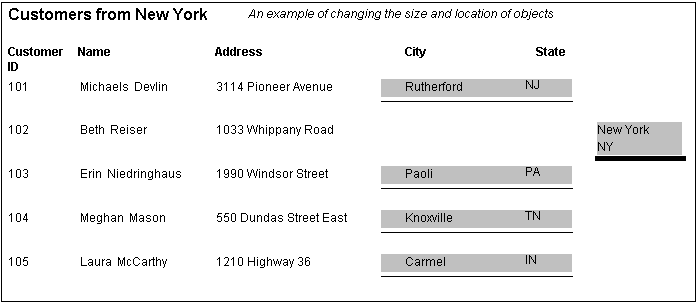
The following DataWindow object shows a rectangle and a line that
change size and location if the current row contains data for a
customer from the state of New York. The City and State columns
also change location, but the discussion will focus on the rectangle
and the line. The process for the columns is analogous:
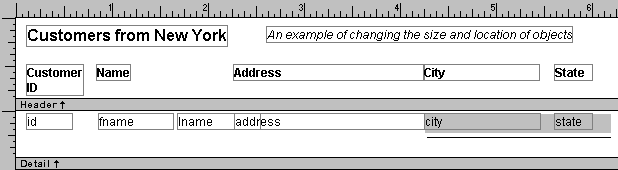
In the Design view, the rectangle and line display in one
location (and with a single set of dimensions):
To change properties of the rectangle and the line for rows
with the state column equal to New York, you would specify the following
If statement for every size or location property you wanted to change.
You would substitute the values appropriate to the property. All
of the values used in this example are in thousandths of inches,
the unit of measure used for the DataWindow object:
|
1 |
If ( state='NY', <i>true value, false value </i>) |
Changing properties of the rectangle
The width, height, and x coordinate properties of the rectangle
have the expressions shown in the following figure defined for them:
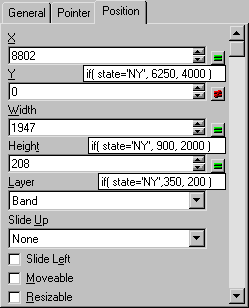
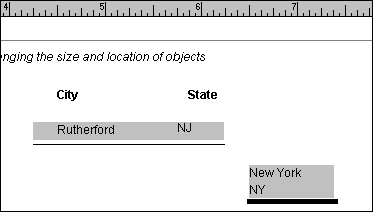
At execution time, the rectangle is one size and x location
if the state is NY, and another size and location if the state is
not NY. You may notice that the x values seem to be off by .25.
This is because the left margin is set to .25, which adds .25 to
each x value:
Changing properties of the line
For the line, the Expressions property page has entries for
two sets of x1 and x2 coordinates of the line, which define two
different line lengths and x positions. It also has y1 and y2 coordinates,
which define the two different y positions of the line. Finally,
it has an entry for pen width, which defines two different pen widths:
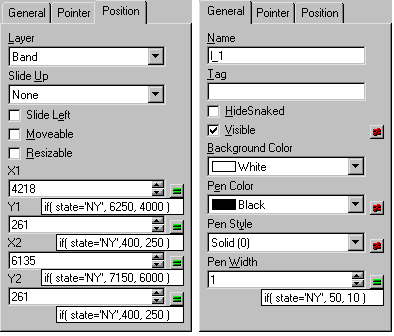
At execution time, the line changes length, x and y position,
and pen width depending on whether the state for the current row
of information is NY.