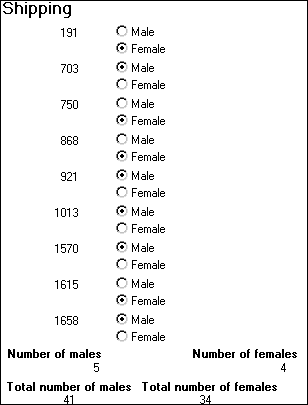
Example 2: counting male and female employees
Example 1 demonstrates the use of the Sum and Count functions. Sum and Count are
two examples of a class of functions called aggregate functions.
An aggregate function is a function that operates on a range
of values in a column. The aggregate functions are:
|
Avg |
Large |
Mode |
Sum |
|
Count |
Last |
Percent |
Var |
|
CumulativePercent |
Max |
Small |
VarP |
|
CumulativeSum |
Median |
StDev |
|
|
First |
Min |
StDevP |
 About crosstab functions
Although the crosstab functions (CrosstabAvg, CrosstabAvgDec, CrosstabCount, CrosstabMax, CrosstabMaxDec, CrosstabMin, CrosstabMinDec, CrosstabSum,
and CrosstabSumDec) behave like aggregate functions,
they are not included on the list because they are for crosstabs
only and are designed to work in the crosstab matrix.
A few restrictions apply to the use of aggregate functions.
You cannot use an aggregate function:
-
In a filter
-
In a validation rule
-
As an argument for another aggregate function
This example demonstrates the use of the Sum aggregate
function.
What you want to do
Using the employee table in the EAS Demo
DB as the data source, you create a DataWindow object using at least the Emp_id and
the Sex columns. You want the DataWindow object to
display the number of male employees and female employees in the
company.
How to do it
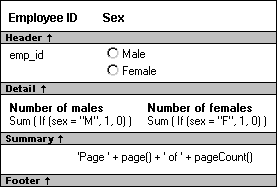
In the summary band in the workspace, add two computed fields
to the DataWindow object that use the Sum and If functions:
|
1 |
Sum(If(sex = "M", 1, 0)) |
counts the number of males in your company;
|
1 |
Sum(If(sex = "F", 1, 0)) |
counts the number of females in your company.
By clicking the Page computed field button, you can also add
a Page computed field in the footer band to display the page number
and total pages at the bottom of each page of the DataWindow object.
What you get
Here is what the design of the DataWindow object looks like.
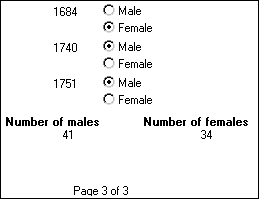
Here is the last page of the DataWindow object, with the total number
of males and females in the company displayed.
If you want more information
What if you decide that you also want to know the number of
males and females in each department in the company?
 To display the males and females in each department:
-
Select Design>Data Source from
the menu bar so that you can edit the data source. -
Select Design>Select tables from the
menu bar and open the Department table in the Select painter workspace,
which currently displays the Employee table with the Emp_id
and Sex columns selected. -
Select the department_dept_name
column to add it to your data source. -
Select Rows>Create Group from the menu
bar to create a group and group by department name. -
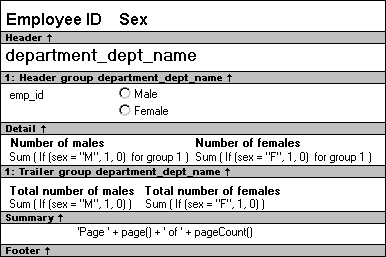
In the trailer group band, add two additional
computed fields:1Sum(If(sex = "M", 1, 0) for group 1)counts the number of males in each department;
1Sum(If(sex = "F", 1, 0) for group 1)counts the number of females in each department.
Here is what the design of the grouped DataWindow object looks like.
Here is the last page of the DataWindow object with the number of
males and females in the shipping department displayed, followed
by the total number of males and females in the company.