Editing XML templates
Contents
Using templates for data import
If you use a template created for data export, DataWindow
expressions, text, comments, and processing instructions are ignored
when data is imported. If you are creating a template specifically for
import, do not add any of these items. You need only map column names
to element and attribute names.
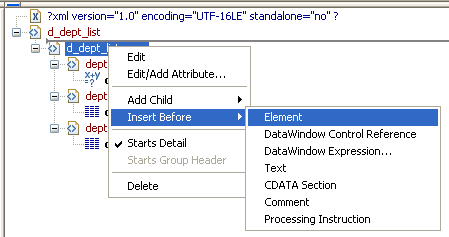
Every item in the Export/Import Template view has a pop-up menu
from which you can perform actions appropriate to that item, such as
editing or deleting the item, adding or editing attributes, adding child
elements or other items, and inserting elements, processing
instructions, CDATA sections, and so forth, before the current
item.
If an element has no attributes, you can edit its tag in the
Export/Import Template view by selecting it and left-clicking the tag or
pressing F2. Literal text nodes can be edited in the same way. You can
delete items (and their children) by pressing the Delete key.
The examples in this section show the delimiters used in the XML
document. When you edit the template in dialog boxes opened from the
Export/Import Template view for XML, you do not need to type these
delimiters in text boxes.
The rest of this section describes some of the items in the
template. For more information, see the XML specification at http://www.w3.org/TR/REC-xml.