Examining variable values
The debugger provides three different ways to examine the
values of variables: TipWatch, QuickWatch, and the Variables
view.
TipWatch
TipWatch is a quick way to get the current value of a variable
of a simple datatype. When execution stops at a breakpoint, you can
place the edit cursor over a variable in the Source view to display
a pop-up tip window that shows the current value of that variable.
You can also select a simple expression to display its current
value.
TipWatch has some limitations: if the variable you select is
an object type, the tip window shows only an internal identifier.
For array types, it shows {…} to indicate that more information is
available. To show complete information for object type and array
type variables, use QuickWatch instead.
TipWatch does not evaluate function, assignment, or variable
value modification expressions. If TipWatch cannot parse the string
you select, the pop-up window does not display.
Remote debugging
When you are debugging a remote component, Tip Watch does
not evaluate expressions or indirect variables.
QuickWatch
QuickWatch provides the current value of simple variables and
detailed information about object variables, including the values of
all fields in the variable. QuickWatch can also evaluate function
expressions, and you can use it to change the values of variables,
evaluate expressions, and add variables and expressions to the Watch
view.
Exercise caution when evaluating expressions
QuickWatch evaluates all kinds of expressions, including
functions, in local debugging. If you select a function and
activate QuickWatch, the function is executed. This may have
unexpected results. For example, if you select dw_1.print() and
activate QuickWatch, the DataWindow is printed.
To open the QuickWatch dialog box
-
When execution stops at a breakpoint, move the edit cursor
to a variable or select an expression in the Source view, and do
one of the following:-
Select QuickWatch from the Debug or pop-up menu
-
Press Shift+F9
-
To change the value of a variable from the QuickWatch
dialog box
-
Select an item in the tree view and do one of the
following:-
Click Change Value
-
Double-click the tree view item
-
-
In the Modify Variable dialog box, type a new value for
the variable in the New Value box, or select the Null check box
to set the value of the variable to null, and click OK. -
Close the QuickWatch dialog box and continue debugging the
application with the variable set to the new value.
To evaluate an expression in the QuickWatch dialog box and
add it to the Watch view
-
Change the variable or expression in the Expression
box. -
Click Reevaluate to display the new value in the tree
view. -
(Optional) Click Add Watch to add the expression to the
Watch view.Remote debugging
When you are debugging a remote component, expressions
and indirect variables are not evaluated, and you cannot
modify variable values.
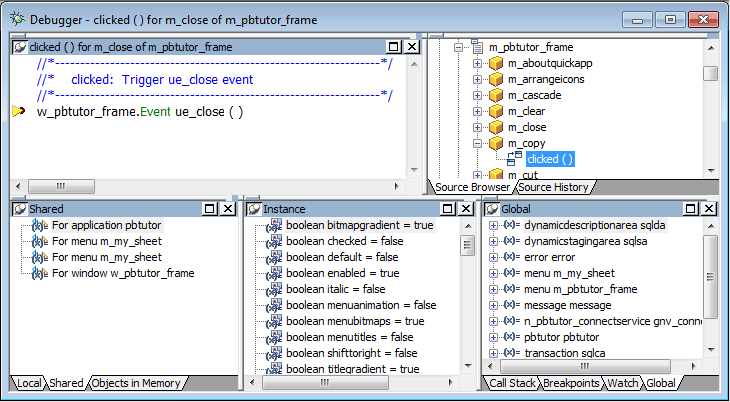
Using Variables views
Each Variables view shows one or more types of variables in an
expandable outline. Double-click the variable names or click on the
plus and minus signs next to them to expand and contract the
hierarchy. If you open a new Variables view, it shows all variable
types.
|
Variable type |
What the Variables view shows |
|---|---|
|
Local |
Values of variables that are local to the |
|
Global |
Values of all global variables defined for the |
|
Instance |
Properties of the current object instance (the |
|
Parent |
Properties of the parent of the current |
|
Shared |
Objects, such as application, window, and menu |
About Instance and Parent
variables
In the following illustration, an application has stopped at a
breakpoint in the script for the Clicked event for the Close menu
item on a frame’s File menu. The Instance Variables view shows the
properties of the current instance of the Close menu item. The
Parent Variables view shows the properties of its parent, an
instance of the File menu. Navigating through the hierarchy in the
Global Variables view shows the same objects.