Defining user-defined functions
Although you define global functions in the Function painter
and object-level functions in the painter for a specific object,
in both cases you define and code the function in a Script view.
When you add a new function, a Prototype window displays above
the script area in the Script view. The fields in the Prototype
window are in the same order as the function’s signature:
access level, return type, name; for each parameter, how it is passed,
its data type, and its name; and finally the exceptions it can throw,
if any.
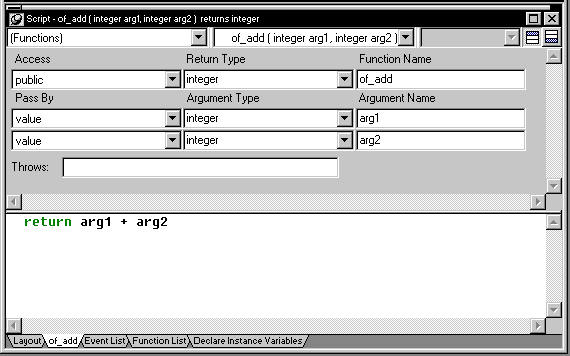
The following sections describe each of the steps required
to define and code a new function:
- Open a Prototype window to add a new function.
- For object-level functions, define an access level.
- Define a return type.
- Name the function.
- Define arguments for the function.
- Define a throws clause for the function (optional).
- Code the function.
- Compile and save the function.
Opening a Prototype window to add a new function
How you create a new function depends on whether you are defining
a global function or an object-level function.
 To create a new global function:
-
Select File>New from the menu
bar and select Function from the PB Object tab.The Function painter opens, displaying a Script view with
an open Prototype window in which you define the function.
To create a new object-level function:
-
Open the object for which you want to declare
a function.You can declare functions for windows, menus, user objects,
or applications. -
Select Insert>Function from the menu
bar.or
In the Function List view, select Add from the popup
menu.The Prototype window opens in a Script view, or, if no Script
view is open, in a new Script view.
Defining the access level
In the Prototype window, use the dropdown listbox labeled
Access to specify where you can call the function in the application.
For global functions
Global functions can always be called anywhere in the application.
In PowerBuilder terms, they are public. So
when you are defining a global function, you cannot modify the access
level; the field is read-only.
For object-level functions
You can restrict access to an object-level function by setting
its access level, as follows:
| Access | Means you can call the function |
|---|---|
| Public | In any script in the application |
| Private | Only in scripts for events in the object in which the function is defined. You cannot call the function from descendants of the object |
| Protected | Only in scripts for the object in which the function is defined and scripts for that object’s descendants |
If a function is only to be used internally within an object,
you should define its access as private or protected. That way,
you ensure that the function is never called inappropriately from
outside the object (in object-oriented terms, defining a function
as protected or private encapsulates the
function within the object).
 Transaction server components If you are defining functions for a custom class user object
that you will use as a Jaguar component, a COM/MTS component,
or a JavaBeans proxy, remember that only public functions can appear
in the interface for the component.
Defining a return type
Many functions perform some processing and then return a value.
That value can be the result of the processing or a value that indicates
whether the function executed successfully or not. To have your
function return a value, you need to define its return
type, which specifies the data type of the returned
value.
Later, you will code a RETURN statement in the function that
specifies the value to return (see “Returning a value”). When you call the function in
a script or another function, you can use an assignment statement to
assign the returned value to a variable in the calling script or
function. You can also use the returned value directly in an expression
in place of a variable of the same type.
To define a function’s return type:
-
Select the return type from the Return
Type dropdown listbox in the Prototype window.or
Type in the name of an object type you have defined.
You can specify any PowerBuilder data type, including the standard
data types, such as integer and string, as well as objects and controls,
such as DataStore or MultiLineEdit.You can also specify as the return type any object type that
you have defined. For example, if you defined a window named w_calculator
and want the function to process the window and return it, type w_calculator in
the Return Type listbox (you cannot select w_calculator
from the list, since the list only shows built-in data types).
To specify that a function does not return a value:
-
Select (None) from the Return Type list.
This tells PowerBuilder that the function does not return a
value (this is similar to defining a procedure in some programming
languages).
Examples of functions returning values
The following examples show the return type you would specify
for some different functions:
| If you are defining | Specify this return type |
|---|---|
| A mathematical function that does some processing and returns a real number |
real |
| A function that takes a string as an argument and returns the string in reverse order |
string |
| A function that is passed an instance of window w_calculator, does some processing (such as changing the window’s color), then returns the modified window |
w_calculator |
Naming the function
Name the function in the Function Name box. Function names
can have up to 40 characters. For valid characters, see the PowerScript
Reference
.
For object-level functions, the function is added to the Function
List view when you tab off the Function Name box. It is saved as
part of the object whenever you save the object.
It is a good idea to develop a naming convention for user-defined
functions so that you can recognize them easily and distinguish
them from built-in PowerScript functions.
For example, you could preface all global function names with
f_ and use the underscore character to delimit parts of
the name, such as:
|
1 |
f_calcf_get_result |
You could preface all object-level functions with of_.
For example:
|
1 |
of_refreshwindow<br /> of_checkparent |
Since built-in functions do not usually have underscores in
their names, this convention makes it easy for you to identify functions
as user-defined.
Defining arguments
Like built-in functions, user-defined functions can have any
number of arguments, including none. You declare the arguments and
their types when you define a function.
If the function takes no arguments Leave the initial argument shown in the Prototype window blank.
To define arguments:
-
Declare how you want the first argument
passed (see “Passing arguments”).The order in which you specify arguments here is the order
you use when calling the function. -
Declare the argument’s type. You can
specify any data type, including:- Built-in data types
(such as integer and real) - Object types (such as window) or specific objects
(such as w_emp) - User objects
- Controls (such as CommandButtons)
Array arguments You can also declare an argument as an array. When you pass
an array, you must include the square brackets in the array definition
(for example, price[ ] or price[50]),
and the data type of the array must be the data type of the argument.For information on arrays, see the PowerScript
Reference
. - Built-in data types
- Name the argument.
-
If you want to add another argument, press the
TAB key or select Add Parameter from the popup menu and repeat steps
1 to 3.
Passing arguments
In user-defined functions, you can pass arguments by reference,
by value, or read-only. You specify this for each argument in the
Pass By listbox.
By reference When you pass an argument by reference, the function has access
to the original argument and can change it directly.
By value When you pass by value, you are passing the function a temporary local
copy of the argument. The function can alter the value of the local
copy within the function, but the value of the argument is not changed
in the calling script or function.
Read-only When you pass as read-only, the variable’s value
is available to the function but it is treated as a constant. Read-only
provides a performance advantage over passing by value for strings,
blobs, date, time, and DateTime, because it does not create a copy
of the data.
Defining a THROWS clause
You can add a THROWS clause to any PowerBuilder function or
to any user event that is not defined by a pbm event ID. You add
an object of type Throwable to the THROWS clause of a function by dragging
and dropping an exception object from the System Tree to the Throws box
in the Prototype area, or by typing the name of the exception object
in the Throws box. If you type the names of multiple exception objects
in the Throws box, use a comma to separate the object names. When
you drag-and-drop multiple user objects, PowerBuilder automatically
adds the comma separators. The THROWS clause is not displayed
as part of the function prototype in the Browser, the Function List
view, or in the System Tree.The exceptions you add to the THROWS
clause are usually checked exceptions. The PowerBuilder compiler
checks whether a user-defined exception thrown on a function call
in a script matches an exception in the THROWS clause for that function
and prompts you if there is no matching exception in the THROWS
clause. You can either add the exception to the THROWS clause or
catch the exception in the script. PowerBuilder automatically adds
the RuntimeError object and its descendents to the THROWS clause
of all functions, so it is not necessary to add them yourself.
If you select a high-level exception or error type, such as corbasystemexception,
for the THROWS clause of a given function, you can throw any lower-level
exception or error in the function script, but in that case you
risk hiding any useful information obtainable from the lower-level exception
or error.
For more information about exception handling, see Application
Techniques
.
Coding the function
When you have finished defining the function prototype, you
specify the code for the function just as you specify the script
for an event in the Script view. For information about
using the Script view, see Chapter 6, “Writing Scripts “.
What functions can contain
User-defined functions can include PowerScript statements,
embedded SQL statements, and calls to built-in, user-defined, and
external functions.
You can type the statements in the Script view or use the
buttons in the PainterBar or items on the Edit>Paste Special
menu to insert them into the function. For more information, see “Pasting information
into scripts”.
Returning a value
If you specified a return type for your function in the Prototype
window, you must return a value in the body of the function.
To return a value in a function, use the RETURN statement:
|
1 |
<b>RETURN</b> <i>expression</i> |
where expression is the value you want
returned by the function. The data type of the expression must be
the data type you specified for the return value for the function.
Example The following function returns the result of dividing arg1
by arg2 if arg2 does not equal zero; it returns -1 if arg2
equals zero:
|
1 |
IF arg2 <> 0 THEN |
|
1 |
RETURN arg1 / arg2 |
|
1 |
ELSE |
|
1 |
RETURN -1 |
|
1 |
END IF |
Compiling and saving the function
When you finish building a function, compile it and save it
in a library. Then you can use it in scripts or other user-defined
functions in any application that includes the library containing
the function in its library search path. You compile the script
and handle errors as described in “Compiling the script “.