Compiling the script
Before you can execute a script, you must compile it.
 To compile a script:
-
Click the Compile button.
or
Select Edit>Compile from the menu bar.
PowerBuilder compiles the script and reports any problems it
finds, as described in “Handling problems”.
 PowerBuilder compiles automatically When you attempt to open a different script in a Script view, PowerBuilder compiles
the current script. When you save the object (such as the window containing
a control you wrote a script for), PowerBuilder recompiles all scripts
in the object to make sure they are still valid (for example, that
all objects that were referenced when you wrote the script still
exist).
Handling problems
If problems occur when a script is compiled, PowerBuilder displays
messages in a window below the script.
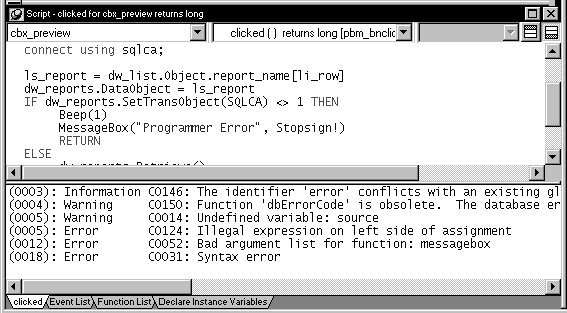
There are three kinds of messages:
- Errors
- Warnings
- Information messages
Understanding errors
Errors indicate serious problems that you must fix before
a script will compile and before you can close the Script view or
open another script in the same view. Errors are shown in the Message
window as:
|
1 |
<i> line number</i><i>:</i> Error <i>error number</i><i>:</i><i>message</i> |
Understanding warnings
Warnings indicate problems that you should be aware of but
that do not prevent a script from compiling.
There are three kinds of warnings.
Compiler warnings Compiler warnings inform you of syntactic problems, such as
undeclared variables. PowerBuilder lets you compile a script that contains
compiler warnings but you must fix the problem in the script before you
can save the object that the script is for, such as the window or
menu. Compiler warnings
are shown in the Message window as:
|
1 |
<i>line number</i><i>:</i> Warning <i>warning number</i><i>:</i><i>message</i> |
Obsolete warnings Obsolete warnings inform you when you use any obsolete functions
or syntax in your script. Obsolete functions, although they still
compile and run, have been replaced by more efficient functions
and will be discontinued in a future release of PowerBuilder. You
should replace all references to obsolete functions as soon as possible. Obsolete warnings are shown in the
Message window as:
|
1 |
<i>line number</i><i>:</i> Warning <i>warning number</i><i>:</i><i>message</i> |
Database warnings Database warnings come from the database manager you are connected
to. (PowerBuilder connects to the database manager when you compile
a script containing embedded SQL.) Typically, these warnings arise
because you are referencing a database you are not connected to. Database warnings are shown in the
Message window as:
|
1 |
<i>line number</i><i>:</i> Database <i>warning number</i><i>:</i><i>message</i> |
PowerBuilder lets you compile scripts with database warnings
and also lets you save the associated object. It does this because
it can’t know whether the problem will apply during execution
(because the execution environment may be different from the compile-time
environment).
You should study database warnings carefully to make sure
the problems will not occur during execution.
Understanding Information messages
Information messages are issued when there is a potential
problem. For example, you’ve used a global variable name
as a local variable, which could result in a conflict later.
Information messages are shown in the Message window as:
|
1 |
<i>line number</i><i>:</i> Information <i>number</i><i>:</i><i>message</i> |
Displaying warnings and messages
To specify which messages display when you compile, select
Design>Options to open the Options dialog box, select the
Script tab page, and check or clear the Display Compiler Warnings,
Display Obsolete Messages, Display Information Messages, and Display
Database Warnings checkboxes. The default is to display compiler
and database warning messages. (Error messages always display.)
Fixing problems
To fix a problem, click the message. The Script view scrolls
to display the statement that caused the message. After you fix
all the problems, compile the script again.
To save a script with errors Comment out the lines containing errors.