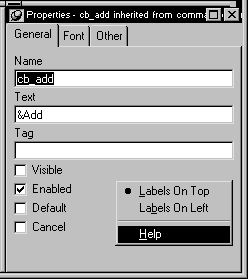
Defining a control’s properties
Just like the window object, each control has properties that
determine how the control looks and behaves during execution (the
control’s style).
You define a control’s properties by using the Properties
view for the control.
 To define a control’s properties:
-
Select the control.
The selected control’s properties display in the
Properties view. What the Properties view displays The Properties view dynamically changes the properties and
values displayed in the view when you change the selected object
or control. To see this, click the window background to display
the window properties in the Properties view and then click a control
in the window to display the control’s properties in the
Properties view. -
Use the tab pages in the Properties view to change
the control’s properties.
About the tab pages
The Properties view presents information in a consistent arrangement
of tab pages. For properties, these are sometimes called property
pages. You select items on the individual property pages to change
the control’s definition.
All controls have a General property page, which contains
much of the style information (such as the visibility of the control,
whether it is enabled, and so on) about the control. The General
property page is always the first page.
Getting Help on properties
You can get Help when you are defining properties.
To get Help on properties:
-
In any tab page, right-click on the background
and select Help from the popup menu.