About the Library painter
Views in the Library painter
The Library painter has two views, the Tree view and the List
view, that can display all the files in your file system, not just
PowerBuilder objects. You use the painter primarily for displaying
and working with workspaces, targets, library files (PBLs), and
the objects they contain.
The Tree and List views are available from the View menu.
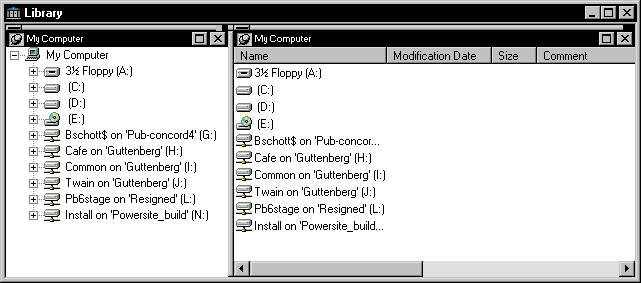
By default, the Library painter displays one Tree view (on the left)
and one List view (on the right). When the Library painter opens,
both the Tree view and the List view display all the drives on your
computer, including mapped network drives.
Using the System Tree
The Workspace tab page in the System Tree works like a Tree
view in the Library painter. You can perform most tasks in either
the System Tree or the Library painter Tree view, using the pop-up
menu in the System Tree and the pop-up menu, PainterBar, or menu
bar in the Library painter. When you have the System Tree and a
Library painter open at the same time, remember that the PainterBar
and menu bar apply only to the Library painter.
Each time you click the Library painter button on the PowerBar,
PowerBuilder opens a new instance of the Library painter. One advantage
of using the System Tree is that there is only one instance of it
that you can display or hide by clicking the System Tree button
on the PowerBar.
About
the Tree view
The Tree view in the Library painter displays the drives and
folders on the computer and the workspaces, targets, libraries,
objects, and files they contain. You can expand drives, folders,
and libraries to display their contents.
About the List view
The List view in the Library painter displays the contents
of a selected drive, folder, or library and has columns with headers
that provide extra information. For libraries, the comment column
displays any comment associated with the library. For objects in
libraries, the columns display the object name, modification date,
size, and any comment associated with the object. You can resize
columns by moving the splitter bar between columns, and you can
sort a column’s contents by clicking the column header.
 About sorting the Name column When you click the Name column header repeatedly to sort,
the sort happens in four ways: by object type and then name, in
both ascending and descending order, and by object name, in both
ascending and descending order. You might not easily observe the
four ways of sorting if all objects of the same type have names
that begin with the same character or set of characters.
Displaying items in the Tree view and the List view
Most of the time, you select a library in the Tree view and
display the objects in that library in the List view, but at any
time, you can set a new root or move back and forward in the history
of your actions in the List view and the Tree view to display libraries
or other items. For more information, see “Setting the root” and “Moving back, forward, and
up one level”.
Using custom layouts
You might find that having more than one Tree view or List
view makes your work easier. Using the View menu, you can display
as many Tree views and List views as you need.
The following screen shows the Library painter with one Tree
view and three List views.
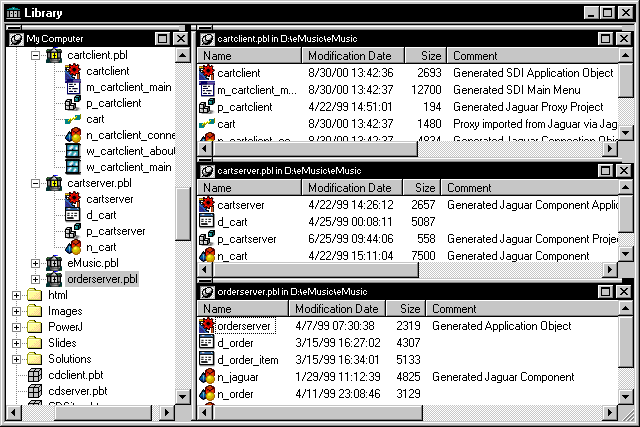
You can filter the objects in each of the List views so that
one List view shows menus, another windows, and another user objects.
For information about filtering objects in a view, see “Filtering the display of
objects”.
To get this layout in the Library painter, use the View menu
to display two more List views and then manipulate the views to
fit this layout. For information about opening and closing views,
manipulating views, returning to the default view layout, or saving
your favorite layouts, see “Using views in painters”.
View synchronization
Tree and List views are synchronized with each other. When
you are using more than one Tree view or List view, changes you
make in one type of view are reflected in the last view you touched
of the other type. For example, when an item is selected in a Tree
view, the contents of that item display in the List view that you
last touched. When you display new contents in a List view by double-clicking
an item, that item is selected in the Tree view you last touched (if
it can be done without resetting the root).
Each List view in the previous screen displays the contents
of a different library because three libraries were dragged from
the Tree view and dropped in different List views. For information
about drag and drop, see “Displaying libraries and
objects”.