Working with libraries
The Library painter is designed for working with PowerBuilder
libraries.
Displaying libraries and objects
What you see in the views
In the Tree view, you can expand items and see the folders,
libraries, or objects they contain. The List view displays the contents
of a selection in the Tree view.
 To expand or collapse an item in the Tree view:
-
Double-click the item.
If the item contains libraries or objects, they display in
the List view.
To display the contents of an item in the List
view:
-
Select the item in the Tree view or double-click
the item in the List view.
Using drag and drop to expand items
You can drag and drop items to expand them and see the contents.
If you drag an item from a Tree view or List view to a List
view, the List view sets the item as the root and displays its contents.
If you drag an item from a Tree view or List view to a Tree
view, the Tree view expands to display the dragged item.
For example, you can drag a library from the Tree view and
drop it in the List view to quickly display the objects the library
contains in the List view. If you are using one Tree view and multiple
List views, you can drag a specific library from the Tree view to
each List view so each List view contains the contents of a specific
library.
For information about using drag and drop to copy or move
items, see “Copying, moving, and
deleting objects”.
Using
the pop-up menu
Like other painters, the Library painter has a pop-up menu
that provides options that apply to the selected item in the Tree
view or the List view. For example, from a library’s pop-up
menu, you can delete, optimize, or search the library, print the
directory, specify the objects that display in the library, and import
objects into it.
The actions available from an object’s pop-up menu
depend on the object type. For PowerBuilder objects that you can
work with in painters, you can edit the object in a painter or in
the Source editor, copy, move, or delete the object, export it to
a text file, search it, regenerate it, or send it to a printer.
You can also preview and inherit from some objects. For most of
these actions, the object must be in a library in your current workspace.
Actions available from the pop-up menus are also available
on the Entry menu on the menu bar.
Controlling columns that display in the List view
You can control whether to display the last modification date,
compilation date, size, SCC version number, and comments (if a comment
was created when an object or library was created) in the List view.
The version number column in the Library painter list view
remains blank if the source control system for your workspace does
not support the PowerBuilder extension to the SCC API. If your source
control system supports this extension and if you are connected
to source control, you can override the SCC version number of a
PowerScript object in the local copy directory through the property
sheet for that object.
For more information about listing the SCC version number
and overriding it through the PowerBuilder interface, see “Extension to the SCC API”.
To control the display of columns in the List
view:
-
Select Design>Options from the
menu bar. -
On the General tab page, select or clear these
display items: Modification Date, Compilation Date, Sizes, SCC Version
Number, and Comments.
Selecting objects
In the List view, you can select one or more libraries or
objects to act on.
To select multiple entries:
-
In the List view, use Ctrl+Click
(for individual entries) and Shift+Click (for a group of
entries).
To select all entries:
-
In the List view, select an object and
click the Select All button on the PainterBar.
Filtering the display of objects
You can change what objects display in expanded libraries.
 Settings are remembered PowerBuilder records your preferences in the Library section
of the PowerBuilder initialization file so that the next time you
open the Library painter, the same information is displayed.
Specifying which objects display in all libraries
In the Tree and List views, the Library painter displays all
objects in libraries that you expand, as well as targets, workspaces,
folders, and files. You can specify that the Library painter display
only specific kinds of objects and/or objects whose names
match a specific pattern. For example, you can limit the display
to only DataWindow objects, or limit the display to windows that
begin with w_emp.
To restrict which objects are displayed:
-
Select Design>Options from the
menu bar and select the Include tab. -
Specify the display criteria:
- To limit the display
to entries that contain specific text in their names, enter the
text in the Name box. You can use the wildcard characters question
mark (?) and asterisk (*) in the string. The ? represents
one character; an * represents any string of characters.
The default is all entries of the selected types. - To limit the display to specific entry types, clear
the check boxes for the entry types that you do not want to display.
The default is all entries.
- To limit the display
-
Click OK.
The Options dialog box closes.
-
In the Tree view, expand libraries or select a
library to display the objects that meet the criteria.
Overriding the choices you made for a specific
view
In either the Tree view or the List view, you can override
your choice of objects that display in all libraries by selecting
a library, displaying the library’s pop-up menu,
and then clearing or selecting items on the list of objects.
Creating and deleting libraries
A library is created automatically when you create a new PowerScript
target, but you can create as many libraries as you need for your
project in the Library painter.
To create a library:
-
Click the Create button or select Entry>Library>Create
from the menu bar.The Create Library dialog box displays showing the current
directory and listing the libraries it contains. -
Enter the name of the library you are creating
and specify the directory in which you want to store it.The file is given the extension .PBL.
-
Click Save.
The library properties dialog box displays.
-
Enter any comments you want to associate with
the library.Adding comments to describe the purpose of a library is important
if you are working on a large project with other developers. -
Click OK.
PowerBuilder creates the library.
To delete a library:
-
In either the Tree view or the List view,
select the library you want to delete. -
Select Entry>Delete from the menu bar
or select Delete from the pop-up menu. Restriction You cannot delete a library that is in the current target’s
library search path.The Delete Library dialog box displays showing the library
you selected. -
Click Yes to delete the library.
The library and all its entries are deleted from the file
system.
Creating and deleting libraries during execution You can use the LibraryCreate and LibraryDelete functions
in scripts to create and delete libraries. For information about
these functions, see the PowerScript Reference
.
Filtering the display of libraries and folders
In either the Tree view or the List view, you can control
what displays when you expand a drive or folder. An expanded drive
or folder can display folders, workspaces, targets, files, and libraries.
To control display of the contents of drives and
folders:
-
In either the Tree or List view, select
a drive or folder, select Show from the pop-up menu, and select
or clear items from the cascading menu.
Working in the current library
In PowerBuilder,
the current library is the library that contains the object most recently
opened or edited. That library becomes the default for Open and Inherit.
If you click the Open or Inherit button in the PowerBar, the current library
is the one selected in the Libraries list.
You can display the current library in the Library painter.
To display objects in the current library:
-
Click in the Tree view or the List view.
-
Click the Display Most Recent Object button on
the PainterBar or select Most Recent Object from the View menu.The library that contains the object you opened or edited
last displays in the view you selected with the object highlighted.
Opening and previewing objects
You can open and preview objects in the current workspace.
Opening PowerBuilder objects
PowerBuilder objects, such as windows and menus, are opened
only if they are in a PBL in the current workspace.
To open an object:
-
In either the Tree view or the List view,
double-click the object, or select Edit from the object’s
pop-up menu.PowerBuilder takes you to the painter for that object and
opens the object. You can work on the object and save it as you
work. When you close it, you return to the Library painter.
Opening other objects
The Library painter allows you to open most of the different
file types it displays. When you double-click on an object, PowerBuilder
attempts to open it using the following algorithm:
- PowerBuilder determines if the object can be opened
in the File editor. For example, files with the extensions .txt,
.ini, and .sr* open
in the File editor. - PowerBuilder determines if the object can be opened
in a painter or HTML editor. - PowerBuilder checks to see if the object is associated
with a program in the HKEY_CLASSES_ROOT section
of the Windows registry and, if so, launches the application.
Previewing PowerBuilder objects
You can run windows and preview DataWindow objects from the
Library painter.
To preview an object in the Library painter:
-
Select Run/Preview from the object’s
pop-up menu.
Copying, moving, and deleting objects
As the needs of your target change, you can rearrange the
objects in libraries. You can copy and move objects between libraries
or delete objects that you no longer need.
To copy objects using drag and drop:
-
In the Tree view or the List view, select
the objects you want to copy. -
Drag the objects to a library in either view.
If the contents of a library are displaying in the List view, you
can drop it there.PowerBuilder copies the objects. If an object with the same
name already exists, PowerBuilder prompts you and if you allow it,
replaces it with the copied object.
To move objects using drag and drop:
-
In the Tree view or the List view, select
the objects you want to move. -
Press and hold Shift and drag the objects to a
library in either view. If the contents of a library are displaying
in the List view, you can drop it there.PowerBuilder moves the objects and deletes them from the source
library. If an object with the same name already exists, PowerBuilder
prompts you and if you allow it, replaces it with the moved object.
To copy or move objects using a button or menu
item:
-
Select the objects you want to copy or
move to another library. -
Do one of the following:
- Click
the Copy button or the Move button. - Select Copy or Move from the pop-up menu.
- Select Entry>Library Item>Copy
or Entry>Library Item>Move from the menu bar.
The Select Library dialog box displays.
- Click
-
Select the library to which you want to copy or
move the objects and click OK.
To delete objects:
-
Select the objects you want to delete.
-
Do one of the following:
- Click
the Delete button. - Select Delete from the pop-up menu.
- Select Entry>Delete from the menu bar.
You are asked to confirm the first deletion.
Being asked for confirmation By default, PowerBuilder asks you to confirm each deletion.
If you don’t want to have to confirm deletions, select
Design>Options to open the Options dialog box for the Library
painter and clear the Confirm on Delete check box in the General
tab page.PowerBuilder records this preference as the DeletePrompt variable
in the Library section of the PowerBuilder initialization file. - Click
-
Click Yes to delete the entry or Yes To All to
delete all entries. Click No to skip the current entry and go on
to the next selected entry.
Setting the root
In either the Tree view or the List view, you can set the
root location of the view.
To set the root of the current view:
-
In either view, select View>Set
Root from the menu bar or select Set Root from the pop-up menu to
display the Set Root dialog box.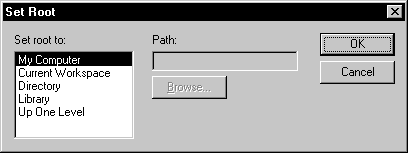
-
If you want the root to be a directory or library,
type the path or browse to the path.
Setting the root to the current workspace
In the System Tree, the default root is the current workspace.
If you prefer to work in the Library painter, you may find it convenient
to set the root to the current workspace. Using the current workspace
as your root is particularly helpful if you are using many libraries
in various locations (such as PFC libraries and libraries you created),
because they are all displayed in the same tree.
Moving back, forward, and up one level
You can also set a new root by moving back to where you were
before, moving forward to where you just were, or for the List view,
moving up a level.
To move back, forward, or up one level:
-
Do one of the following:
- Select
View>Back, View>Forward, or View>Up One
Level from the menu bar. - Select Back, Forward, or Up One Level from the pop-up
menu.
The name of the location you are moving back to or forward
to is appended to Back and Forward. - Select
Modifying comments
You can use comments to document your objects and libraries.
For example, you might use comments to describe how a window is
used, specify the differences between descendent objects, or identify
a PowerBuilder library.
You can associate comments with an object or library when
you first save it in a painter and add or modify comments in the
System Tree or Library painter. If you want to modify comments for
a set of objects, you can do so quickly in the List view.
To modify comments for multiple objects:
-
In the List view, select the objects you
want. -
Select Entry>Properties from the menu
bar or select Properties from the pop-up menu.PowerBuilder displays the Properties dialog box. The information
that displays is for one of the objects you selected. You can change
existing comments, or, if there are no comments, you can enter new
descriptive text. -
Click OK when you have finished editing comments
for this object.If you do not want to change the comments for an object, click
OK. The next object displays. -
Enter comments and click OK for each object until
you have finished.If you want to stop working on comments before you finish
with the objects you selected, click Cancel. The comments you have
entered until the most recent OK are retained and display in the
List view.
To modify comments for a library:
-
Select the library you want.
-
Click the Properties button or select Library
from the pop-up menu. -
Add or modify the comments.