Working with objects
In PowerScript targets, you can:
- Create
new objects - Create new objects using inheritance
- Open existing objects
- Run or preview objects
After you create or open an object, the object displays in
its painter and you work on it there.
Creating new objects
To create new
objects, you use the New dialog box.
 To create a new object:
-
Click the New button in the PowerBar.
or
Select File>New from the menu bar.
or
On the Workspace tab of the System Tree, right-click
on a workspace or target name and select New from the popup menu. -
In the New dialog box, select the appropriate
tab page for the object you want to create.You use icons on the PB Object tab page for creating new user
objects, windows, menus, structures, and functions. - Select an icon and click OK.
Creating new objects using inheritance
One
of the most powerful features of PowerBuilder is inheritance. With inheritance,
you can create a new window, user object, or menu (a descendent object)
from an existing object (the ancestor object).
To create a new object by inheriting it from an
existing object:
-
Click the Inherit button in the PowerBar.
or
Select File>Inherit from the menu bar.
-
In the Inherit From Object dialog box, select
the object type (menu, user object, or window) from the Object Type
dropdown listbox. Then select the target as well as the library
or libraries you want to look in. Finally select the object from
which you want to inherit the new object.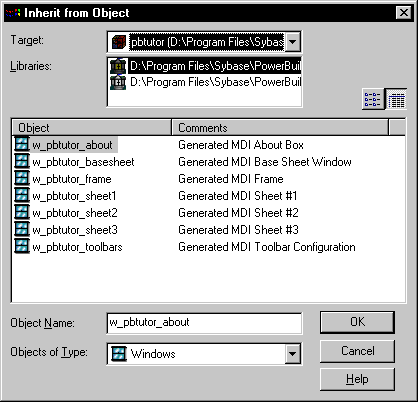
 Displaying objects from many libraries To find an object more easily, you can select more than one
library in the Libraries listbox. Use ctrl+click to
select additional libraries and shift+click to
select a range. -
Click OK.
The new object, which is a descendant of the object you chose
to inherit from, opens in the appropriate painter.
For more information about inheritance, see Chapter 12, “Understanding Inheritance “.
Opening existing objects
You can open existing objects using the Open dialog box or
directly from the System Tree.
To open existing objects:
-
Click the Open button in the PowerBar.
or
Select File>Open from the menu bar.
When using the System Tree You can also open an existing object directly from the System
Tree. Either double-click on the object name or select Edit from
the popup menu. -
In the
Open dialog box, select the object type from the Object Type dropdown
listbox. Then select the target as well as the library or libraries you
want to look in. Finally select the object you want to open.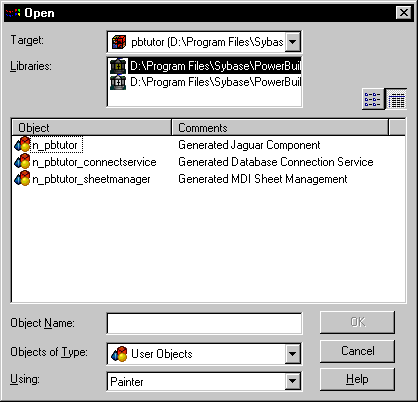 Displaying objects from many libraries To find an object more easily, you can select more than one
library in the Libraries listbox. Use ctrl+click to
select additional libraries and shift+click to
select a range. -
Click OK.
The object opens in the appropriate painter.
Accessing recently opened objects
You can quickly open
recently opened objects by selecting File>Recent Objects
from the menu bar. The Recent Objects list includes the eight most-recently-opened
objects, but you can include up to 36 objects on the list.
To modify the number of recent objects:
-
Select Tools>System Options from
the menu bar. -
In the System Options dialog box (General tab
page), modify the number for the recent objects list.
Running or previewing objects
To run a window or preview a DataWindow object, you use the
Run dialog box.
Using the System Tree You can also right-click the object in the System Tree and
select Run/Preview from the popup menu.
To run or preview an object:
-
Click the Run/Preview Object button
in the PowerBar.or
Select File>Run/Preview from the menu
bar. -
In
the Run dialog box, select the object type from the Object Type dropdown
listbox. Then select the target as well as the library or libraries you
want to look in. Finally select the object you want to run or preview.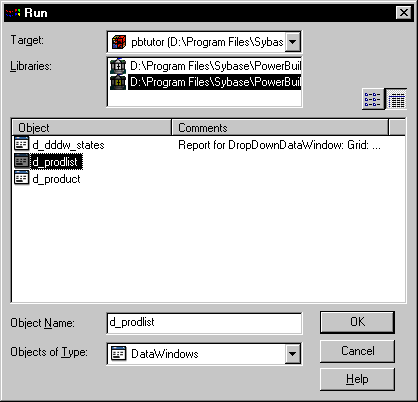
-
Click OK.
The object runs or is previewed.
For more specific information on running a window, see “Running a window”. For
information on using the DataWindow painter’s Preview view,
see Chapter 17, “Defining DataWindow Objects “.