Working with objects
In PowerScript targets, you can:
- Create
new objects - Create new objects using inheritance
- Open existing objects
- Run or preview objects
After you create or open an object, the object displays in
its painter and you work on it there.
Creating new objects
To create new
objects, you use the New dialog box.
 To create a new object:
-
Do one of the following:
- Click
the New button in the PowerBar. - Select File>New from the menu bar.
- On the Workspace tab of the System Tree, right-click
on a workspace or target name and select New from the pop-up menu.
- Click
-
In the New dialog box, select the appropriate
tab page for the object you want to create.You use icons on the PB Object tab page for creating new user
objects, windows, menus, structures, and functions. -
Select an icon and click OK.
Creating new objects using inheritance
One
of the most powerful features of PowerBuilder is inheritance. With inheritance,
you can create a new window, user object, or menu (a descendent object)
from an existing object (the ancestor object).
To create a new object by inheriting it from an
existing object:
-
Click the Inherit button in the PowerBar,
or select File>Inherit from the menu bar. -
In the Inherit From Object dialog box, select
the object type (menu, user object, or window) from the Object Type
drop-down list. Then select the target as well as the library or
libraries you want to look in. Finally, select the object from which
you want to inherit the new object.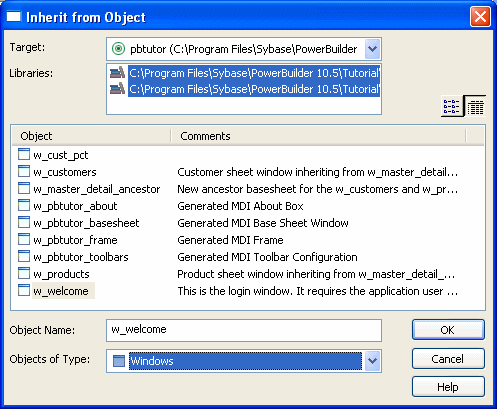
 Displaying objects from many libraries To find an object more easily, you can select more than one
library in the Libraries list. Use Ctrl+Click to select
additional libraries and Shift+Click to select a range. -
Click OK.
The new object, which is a descendant of the object you chose
to inherit from, opens in the appropriate painter.
For more information about inheritance, see Chapter 13, “Understanding Inheritance .”
Naming conventions
As you use PowerBuilder to develop your application, you create
many different components that require names. These components include
objects such as windows and menus, controls that go into your windows,
and variables for your event and function scripts.
You should devise a set of naming conventions and follow them
throughout your project. When you are working in a team, this is
critical to enforcing consistency and enabling others to understand
your code. This section provides tables of common naming conventions.
PowerBuilder does not require you to use these conventions, but
they are followed in many PowerBuilder books and examples.
All indentifiers in PowerBuilder can be up to 40 characters
long. The first few characters are typically used to specify a prefix
that identifies the kind of object or variable, followed by an underscore
character, followed by a string of characters that uniquely describes
this particular object or variable.
Object naming conventions
Table 5-2 shows common prefixes
for objects that you create in PowerBuilder.
| Prefix | Description |
|---|---|
| w_ | Window |
| m_ | Menu |
| d_ | DataWindow |
| pipe_ | Data Pipeline |
| q_ | Query |
| n_ or n_standardobject_ | Standard class user object, where standardobject represents the type of object; for example, n_trans |
| n_ or n_cst | Custom class user object |
| u_ or u_standardobject_ | Standard visual user object, where standardobject represents the type of object; for example, u_cb |
| u_ | Custom visual user object |
| f_ | Global function |
| of_ | Object-level function |
| s_ | Global structure |
| str_ | Object-level structure |
| ue_ | User event |
Variable naming conventions
The prefix for variables typically
combines a letter that represents the scope of the variable and
a letter or letters that represent its datatype. Table 5-3 lists the prefixes
used to indicate a variable’s scope. Table 5-4 lists the prefixes
for standard datatypes, such as integer or string.
The variable might also be a PowerBuilder object or control. Table 5-5 lists prefixes
for some common PowerBuilder system objects. For controls, you can use
the standard prefix that PowerBuilder uses when you add a control
to a window or visual user object. To see these prefixes, open the
Window painter, select Design>Options, and look at the
Prefixes 1 and Prefixes 2 pages.
| Prefix | Description |
|---|---|
| a | Argument to an event or function |
| g | Global variable |
| i | Instance variable |
| l | Local variable |
| s | Shared variable |
| Prefix | Description |
|---|---|
| a | Any |
| blb | Blob |
| b | Boolean |
| ch | Character |
| d | Date |
| dtm | DateTime |
| dc | Decimal |
| dbl | Double |
| e | Enumerated |
| i | Integer |
| l | Long |
| r | Real |
| s | String |
| tm | Time |
| ui | UnsignedInteger |
| ul | UnsignedLong |
| Prefix | Description |
|---|---|
| ds | DataStore |
| dw | DataWindow |
| dwc | DataWindowChild |
| dwo | DWobject |
| env | Environment |
| err | Error |
| gr | Graph |
| inet | Inet |
| ir | InternetResult |
| lvi | ListViewItem |
| mfd | MailFileDescription |
| mm | MailMessage |
| mr | MailRecipient |
| ms | MailSession |
| msg | Message |
| nvo | NonVisualObject |
| tr | Transaction |
| tvi | TreeViewItem |
Opening existing objects
You can open existing objects through the Open dialog box
or directly from the System Tree.
To open existing objects:
-
Click the Open button in the PowerBar or
select File>Open from the menu bar. When using the System Tree To open an existing object directly from the System Tree,
either double-click on the object name or select Edit from
the pop-up menu. -
In the
Open dialog box, select the object type from the Object Type drop-down
list. Then select the target as well as the library or libraries
you want to look in. Finally select the object you want to open.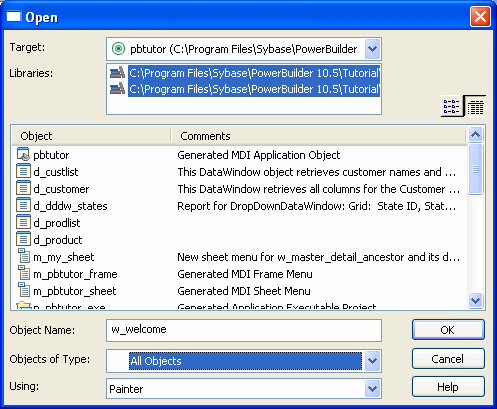 Displaying objects from many libraries To find an object more easily, you can select more than one
library in the Libraries list. Use Ctrl+Click to select
additional libraries and Shift+Click to select a range. -
Click OK.
The object opens in the appropriate painter.
Accessing recently opened objects
You can quickly open
recently opened objects by selecting File>Recent Objects
from the menu bar. The Recent Objects list includes the eight most recently
opened objects by default, but you can include up to 36 objects
on the list.
To modify the number of recent objects:
-
Select Tools>System Options from
the menu bar. -
On the General page of the System Options dialog
box, modify the number for the recent objects list.
Running or previewing objects
To run a window or preview a DataWindow object, you use the
Run dialog box.
Using the System Tree Instead of using the Run dialog box, you can right-click the
object in the System Tree and select Run/Preview from the
pop-up menu.
To run or preview an object:
-
Do one of the following:
- Click
the Run/Preview Object button in the PowerBar. - Select File>Run/Preview from the
menu bar.
- Click
-
In
the Run dialog box, select the object type from the Object Type
drop-down list. -
Select the target as well as the library or libraries
you want to look in. -
Select the object you want to run or preview and
click OK.The object runs or is previewed.
For more specific information on running a window, see “Running a window”. For
information on using the DataWindow painter’s Preview view,
see Chapter 18, “Defining DataWindow Objects .”