Working with keys
If your DBMS supports primary and foreign keys, you can work
with the keys in PowerBuilder.
Why you should use keys
If your DBMS supports them, you should use primary and foreign
keys to enforce the referential integrity of your database. That
way you can rely on the DBMS to make sure that only valid values
are entered for certain columns instead of having to write code
to enforce valid values.
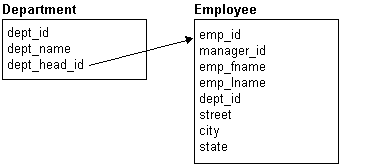
For example, say you have two tables called Department and
Employee. The Department table contains the column Dept_Head_ID,
which holds the ID of the department’s manager. You want
to make sure that only valid employee IDs are entered in this column.
The only valid values for Dept_Head_ID in the Department
table are values for Emp_ID in the Employee table.
To enforce this kind of relationship, you define a foreign
key for Dept_Head_ID that points to the Employee
table. With this key in place, the DBMS disallows any value for
Dept_Head_ID that does not match an Emp_ID in
the Employee table:
For more about primary and foreign keys, consult
a book about relational database design or your DBMS documentation.
What you can do in the Database painter
You can work with keys in the following ways:
- Look at existing primary and foreign keys
- Open all tables that depend on a particular primary
key - Open the table containing the primary key used by
a particular foreign key - Create, alter, and drop keys
For the most part, you work with keys the same way for each
DBMS that supports keys. But there are some DBMS-specific issues.
For complete information about using keys
with your DBMS, see your DBMS documentation.
Viewing keys
Keys can be viewed in several ways:
- In
the expanded tree view of a table in the Objects view - As icons connected by lines to a table in the Objects
Layout view
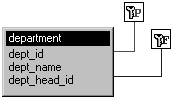
In the following picture, the Department table has two keys:
- A primary key (on dept_id)
- A foreign key (on dept_head_id)
 If you can’t see the lines If the color of your window background makes it hard to see
the lines for the keys and indexes, you can set the colors for each
component of the Database painter’s graphical table representation,
including keys and indexes.
For information, see “Modifying database preferences”.
Opening related tables
When working with tables containing keys, you can easily open
related tables.
 To open the table that a particular foreign key
references:
- Display the foreign key popup menu.
- Select Open Referenced Table.
To open all tables referencing a particular primary
key:
- Display the primary key popup menu.
-
Select Open Dependent Table(s).
PowerBuilder opens and expands all tables in the database containing foreign
keys that reference the selected primary key.
Defining primary keys
If your DBMS supports primary keys, you can define them in PowerBuilder.
To create a primary key:
-
Highlight the table for which you want
to create a primary key and click the Create Primary Key button.or
Select Object>Insert>Primary Key from
the Painter Bar menu or New>Primary Key from the popup
menu.or
Expand the table’s tree view, right click Primary
Key, and select New Primary Key from the popup menu.The Primary Key property sheet displays in the Object Details
view.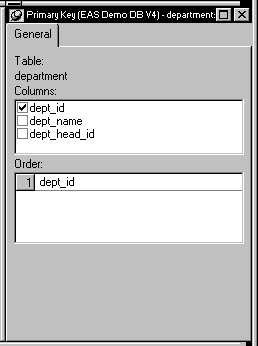
-
Select one or more columns for the primary key.
Columns that are allowed in a primary key Only a column that does not allow NULLs can be included as
a column in a primary key definition. If you choose a column that
allows NULLs, you get a DBMS error when you save the table. In DBMSs
that allow rollback for Data Definition Language (DDL), the table
definition is rolled back. In DBMSs that don’t allow rollback
for DDL, the painter is refreshed with the current definition of
the table. -
Specify any information required by your DBMS.
Naming a primary key Some DBMSs allow you to name a primary key and specify whether
it is clustered or not clustered. For these DBMSs, the Primary Key
property page has a way to specify these properties.For DBMS-specific information, see your DBMS
documentation. -
Right-click on the Object Details view and select
Save Changes from the popup menu.Any changes you’ve made in the property sheet are
immediately saved to the table definition.
Completing the primary key Some DBMSs automatically create a unique index when you define
a primary key so that you can immediately begin to add data to the
table. Others require you to separately create a unique index to
support the primary key before populating the table with data.
To find out what your DBMS does, see your
DBMS documentation.
Defining foreign keys
If your DBMS supports foreign keys, you can define them in PowerBuilder.
To create a foreign key:
-
Highlight the table and click the Create
Foreign Key button.or
Select Object>Insert>Foreign Key from
the Painter Bar menu or New>Foreign Key from the popup
menu.or
Expand the table’s tree view and right click
on Foreign Keys and select New Foreign Key from the popup menu.The Foreign Key property sheet displays in the Object Details
view. Some of the information is DBMS-specific.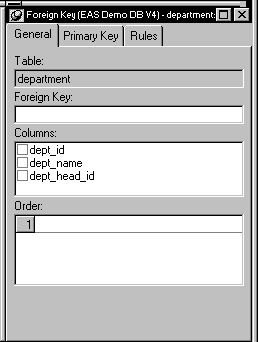
- Name the foreign key in the Foreign Key Name box.
- Select the columns for the foreign key.
-
On the Primary Key tab, select the table and column
containing the Primary key referenced by the foreign key you are
defining. Key definitions must match exactly The definition of the foreign key columns must match the primary
key columns, including datatype, precision (width), and scale (decimal specification). -
On the Rules tab, specify any information required
by your DBMS.For example, you may need to specify a delete rule by selecting
one of the rules listed for On Delete of Primary Table Row.For DBMS-specific information, see your DBMS
documentation. -
Right-click on the Object Details view and select
Save Changes from the popup menu.Any changes you’ve made in the property sheet are
immediately saved to the table definition.
Modifying keys
You can modify a primary key in PowerBuilder.
To modify a key:
-
Highlight the primary key listed in the
table’s expanded tree view and click the Properties button.or
Select Properties from the Object or popup menu.
or
Drag the primary key icon and drop it in the Object
Details view. - Select one or more columns for the primary key.
-
Right-click on the Object Details view and select
Save Changes from the popup menu.Any changes you’ve made in the property sheet are
immediately saved to the table definition.
Dropping a key
You can drop keys (remove them from the database) from within PowerBuilder.
To drop a key:
-
Highlight the key in the expanded tree
view for the table in the Objects view or right-click the key icon
for the table in the Object Layout view. -
Select Drop Primary Key or Drop Foreign Key from
the key’s popup menu. - Click Yes.