Working with files in a Web target
When building a Web application that uses EAServer components
and DataWindows, you can use the Web target environment to develop
these separate components in the same workspace. A Web target lists
and tracks all of the files and folders in your Web site. The target
identifies the root directory used to store source files and specifies
build and deploy options.
Types of files
A Web target can contain various types of files:
- HTML files
- JSP files
- Scripts
- Component files
- Accessory files, such as images and video files
HTML files
HTML files determine the presentation for your Web applications.
In Web site targets, HTML files provide the framework for adding
components to your Web pages. You can use HTML pages in JSP targets,
but you must import them as accessory files rather than create them
directly in the JSP target.
JSP files
You can use JSPs in many ways in Web-based applications that
you deploy to a JSP server. JSPs are invoked by a Web server in
the middle tier in response to HTTP requests from Web clients. As
part of the J2EE application model, JSPs can invoke, in turn, the
business methods of Enterprise JavaBeans (EJB) components on a transaction
server.
Scripts
Scripts drive application behavior both on the client side
and on the server side. You can write scripts in the Script editor
in a number of languages including JavaScript, DynaScript, JScript,
and VBScript, as well as server scripts in Java for JSP targets.
You can debug client-side and server-side scripts in PowerDynamo
targets.
 Debugging scripts in PowerDynamo targets You can debug only those scripts that are compatible with
DynaScript, the PowerDynamo scripting language. The PowerDynamo scripting
engine provides debugging capabilities for Web target client-side
and server-side scripts.
Client-side scripting Client-side scripts contain instructions that the browser
executes on the user’s local machine. Client-side scripts
can use syntax, functions, and objects supported by the major browsers.
Server-side scripting Server-side scripts contain instructions that an application
server or Web server executes before sending a Web page to a client browser.
These scripts provide a way to include conditional execution, looping, and
other programming structures in your Web pages. They can also provide access
to integrated server systems such as a DBMS or EAServer.
Server-side scripts can take advantage of the Web Target object
model, which uses a set of language structures and objects. Although
many of the objects and programming structures are common to a number
of application server technologies, a subset is specific to the EAServer environment.
The Web Target object model for Web site targets (with the
exception of the 4GL EAServer extensions) allows you to write server-side
logic that can be deployed to several server platforms from a single
source. The deployment engine converts the source to the appropriate
syntax for these target platforms:
- PowerDynamo dynamic
page server - Microsoft Internet Information Server (IIS) application
server using Active Server Pages
Components
You can include the following types of components in your
Web pages to deliver the content and functionality your site users
need:
- Web DataWindow DTCs
- EAServer components
- Java applet and JavaBean components
- Microsoft ActiveX controls
- Netscape plug-ins
- Custom tag libraries and their supporting classes
(JSP targets)
Accessory files
Web sites include several other types of files, such as images,
video files, and audio files. You can import accessory files into
a Web target from another location. See “Importing files
for an existing Web site”.
Adding content
After you create a Web target, you are ready to begin developing
content. You should probably start by setting up the folder structure
for your target.
Adding new folders
When you add content to a Web target, you use folders to set
up a logical directory structure for the content. When you deploy
a Web target, the deployment engine replicates the folder structure
on the server system. It also processes the content for the target
Web server and application server, and rewrites link information
to fit the directory structure.
 To add a new folder to a Web target:
-
On the Workspace tab of the System Tree,
right-click a Web target (or a folder under a Web target), then
select New Folder from the pop-up menu. -
Right-click the new folder that displays under
your Web target and select Rename from the pop-up menu. - Type in the name you want to give to your folder.
Adding new HTML or JSP files
With a folder structure in place, you can begin adding files
to those folders. The Web page of the New dialog box has wizards
for creating the various types of files you can edit in a Web target.
| Select this | To do this |
|---|---|
| Quick Web/JSP Page | Open a new, unnamed HTML (Web site targets) or JSP page (JSP targets) in the HTML editor |
| Web/JSP Page | Create a new HTML or JSP page, specify design settings such as background color for the page, and open the page in the HTML editor |
| 4GL Web/JSP Page | Create a new 4GL Web page, specify design settings such as the background for the page, select error reporting settings, page parameters, and EAServer components, and open the page in the HTML editor |
| Web/JSP DataWindow Page | Create a new HTML or JSP page that contains a Web DataWindow design-time control (DTC), specify design settings such as the background for the page and configuration information for the DTC, including the EAServer profile |
| Frameset Page | Create a new frame page for your HTML or JSP files |
| Script | Open a new, unnamed script file in the standalone Script editor |
| Cascading Style Sheet | Open a new external style sheet file (and optionally reference an existing style sheet) in the Style Sheet editor |
| JSP Web Service Proxy | Create a proxy object to use Web services |
To add new HTML or JSP files to a Web target:
-
Right-click a Web target, or a folder under
a Web target, then click New from the pop-up menu.The Web page of the New dialog box displays:
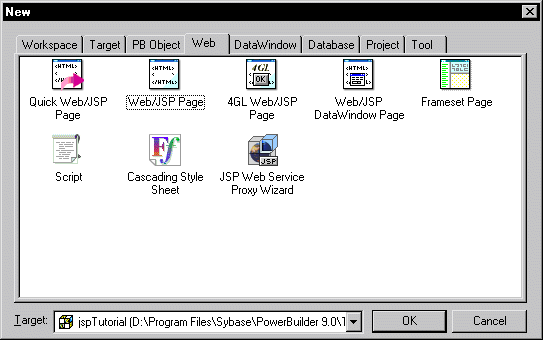
Selecting an item in the New dialog box launches a wizard
that helps you set up a new file.
Using the System Tree
The System Tree is an active resource for page development,
providing an organized framework for developing your targets, pages,
and components. Its four tab pages let you browse items available
to your Web pages.
You can view the properties for any item in the System Tree
by right-clicking the item, and selecting Properties from the pop-up
menu. On the Language, Components, and Page tab pages, you can view,
but not change, properties.
| System Tree tab page | Displays this content |
|---|---|
| Workspace | Workspace contents — including targets, folders, files, and libraries |
| Language | HTML tags, client- and server-side object models (listing object properties, methods, and events), and scripting language elements (including JavaScript, DynaScript, and VBScript syntax elements) |
| Components | ActiveX controls, plug-ins, Java applets, JavaBeans, EAServer components, and custom tag libraries available to your target |
| Page | The page components of the active page open in the HTML editor |
You can drag and drop HTML elements, scripting resources,
and other components from a System Tree tab page onto Web pages
open in the HTML editor.
Workspace tab
The Workspace tab lets you manage your targets. From it you
change target properties, add, remove, and rename files and folders,
and build, deploy, and run targets. The pop-up menu for a Web target
gives you access to these features:
| Web target pop-up menu item | Feature |
|---|---|
| New | Displays PowerBuilder New dialog box. |
| New Folder | Creates new folder in target. |
| Import Files | Allows you to select files to import to the target. |
| Import Folder | Allows you to select a folder to import to the target. |
| Incremental Build | Builds only files in the Web target that have changed since the previous build. |
| Full Build | Builds all files in the Web target. |
| Deploy | Deploys the target according to the deployment configurations selected in the Target Properties dialog box. |
| Debug | Debugs the target if it is deployed to PowerDynamo. This menu item is not available for JSP targets. |
| Run | Starts a browser that opens to the page you specify in the Start Page field on the Run (JSP targets) or Run/Debug (Web site targets) tab page of the Target Properties dialog box. |
| Remove Target | Deletes the target from the workspace. |
| Show | Toggles display of items in the System Tree. |
| Properties | Opens the Target Properties dialog box. |
Page tab
The Page tab shows the hierarchy of objects on the current
page in the HTML editor. The page tab also lists properties, methods,
and events for:
- Predefined Microsoft Internet
Explorer page objects - Predefined HTML objects
- Predefined JavaScript objects
- User-defined controls
- Server-side EAServer components placed on a 4GL
Web page
You can create script to refer to the object or its methods,
properties, and events by dragging it from the Page tab to the Source
view of the HTML editor, or to the integrated Script editor.
Language tab
The language tab provides quick access to:
- HTML elements and attributes The most commonly used HTML elements appear in this list.
The elements are organized alphabetically as well as by category
to make browsing easy. Elements appear in categories such as format,
headers, image, and multimedia. Attributes appear alphabetically
under elements.
You can drag an HTML element or attribute from the Language
tab to the Page view or the Source view in the HTML editor, or to
the Script editor. - Script language syntax The syntax elements for JavaScript, VBScript, and DynaScript.
You can drag a script syntax element from the Language tab
to the Source view in the HTML editor, or to the Script editor. - Object models The objects, and their methods, properties, and events, for
the Microsoft and Netscape client-side object models. Methods, properties,
and events are also listed for the Web Target, PowerDynamo, and
Active Server Pages server-side object models, as well as for JSP implicit
objects.
You can drag an object model from the Language tab to the
Source view in the HTML editor, or to the Script editor.
Components tab
The Components tab of the System Tree lists client-side and
server-side ActiveX controls, plug-ins, Java applets, and JavaBeans
installed on your system, and EAServer components accessible from
your system.
Information about installed components A Web target gets information about installed components from
the Windows registry, browser plug-in directories, MIME extensions
recognized by your primary browser, and user-specific folder lists.
It relies on the Java classpath, if set on your system, to find
Java applets and JavaBeans.
Custom tag libraries for JSP targets must be listed (or contained
in directories that are listed) on the JSP page of the System Options
dialog box. You must then make sure the classes for the custom tag
libraries are available to your JSP target.
The list of servers on the Components tab is populated from
the EAServer profiles configured for PowerBuilder. A profile must
be configured for a server for it to appear on the Components tab.
The server must be running for you to see the components available
in its repository.
To give a page access to a component listed on the Components
tab, drag the component from the Components tab to the Page view
or Source view in the HTML editor.
Drag and drop
You can drag files, HTML tags, objects, and methods from the
System Tree into the HTML or Script editors, or you can copy from
the System Tree and paste into an editor window. The result depends
on the item you drag or copy, on the System Tree tab, and on the
editor view:
| From | To | Item | Result |
|---|---|---|---|
| Workspace tab | Page view or Source view | Text file (such as HTM, JS, ASP, JSP) | Creates a hyperlink to a file from the current page. If the HTML editor is not already open, opens the item dragged or copied in the appropriate editor. |
| Page view or Source view | Image file (such as GIF, JPG, and so on) |
Creates image element <IMG> with link to image file in its SRC attribute. |
|
| Page tab | Source view or integrated Script editor | Object method, event, or property available on current page |
Inserts the appropriate dot notation to fully qualify the object method, event, or property name. |
| Language tab | Page view or Source view | HTML element (tag) that does not have an associated Web Target property sheet |
If no text is selected in the HTML editor, the element is inserted, but you must be in or switch to Source view to put the cursor between the start and end tags and add content. In Page view, the editor formats selected text according to the element you dragged. |
| Page view or Source view | HTML element (tag) that has a Web Target property sheet |
Web Target property sheet displays. You can fill in property sheet fields before the element (control) is added to the open page in the editor. |
|
| Page view, Source view, or Script editor | Object model method, event, or property | Inserts the appropriate dot notation with text in brackets that you must replace to fully qualify the method, event, or property. |
|
| Page view, Source view, or Script editor | Scripting language function, keyword, operator, or escape sequence |
Inserts the appropriate dot notation to fully qualify the scripting language syntax. |
|
| Component tab | 4GL page in Source view | EAServer component | Opens the Page properties dialog box to the EAServer page on which the control is associated with the page. |
| Script editors | EAServer component | Inserts the appropriate dot notation to fully qualify the component. |
|
| Page view or Source view | Custom Tag Library (JSP target), Plugin, or ActiveX, |
Opens the Web Target property sheet associated with object. (To add a custom tag library class, you must first add the tag library to the page.) |
|
| Script editors | Applet or JavaBean method, Plugin, or ActiveX |
Inserts the object name or identifier. |
Copying items
You can also copy items from the System Tree and paste them
to the Page view or Source view.
To copy items from the System Tree:
-
Right-click the item you want to copy and
select Copy from the pop-up menu. -
Right-click in the Page view or Source view, and
select Paste from the pop-up menu.