Working in a grid DataWindow object
If you are viewing a grid-style DataWindow object in the Preview
view, you can make the following changes. Whatever you do in the
Preview view is reflected in the Design view:
-
Resize columns
-
Reorder columns
-
Split the display into two horizontal scrolling
regionsYou can use this feature to keep one or more columns stationary
on the screen while scrolling through other columns. -
Copy data to the clipboard
 These features are also available to your users
Users of your application can also manipulate columns in these
ways in a grid DataWindow object at runtime.
 To resize a column in a grid DataWindow object:
-
Position the mouse pointer
at a column boundary in the header.The pointer changes to a two-headed arrow.
-
Press and hold the left mouse button and drag
the mouse to move the boundary. -
Release the mouse button when the column is the
correct width.
To reorder columns in a grid DataWindow object:
-
Press and hold the left mouse button on
a column heading.PowerBuilder selects the column and displays a line representing
the column border. -
Drag the mouse left or right to move the column.
-
Release the mouse button.
To use split horizontal scrolling in a grid DataWindow object:
-
To divide the grid into two regions that
can scroll independently of each other, position the mouse pointer
at the left end of the horizontal scroll bar.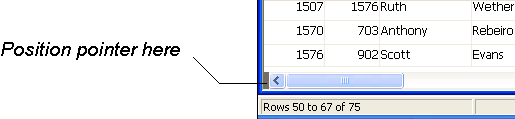
The pointer changes to a two-headed arrow.
-
Press and hold the left mouse button and drag
the mouse to the right to create a new horizontal scrolling border. -
Release the mouse button.
You now have two independent scrolling regions in the grid DataWindow object.
To copy data to the clipboard from a grid DataWindow object:
-
Select the cells whose data you want to
copy to the clipboard:-
To select an entire column, click its header.
-
To select neighboring columns, press and hold Shift,
then click the headers. -
To select non-neighboring columns, press and hold
Ctrl, then click the headers. -
To select cells, press the left mouse button on
the bottom border of a cell and drag the mouse.
Selected cells are highlighted.
-
-
Select Edit>Copy from the menu bar.
The contents of the selected cells are copied to the clipboard.
If you copied the contents of more than one column, the data is
separated by tabs.