Using the RichTextEdit control
You can add a RichTextEdit control to a window to enhance
your application with word processing capabilities.
Users can enter text in a RichTextEdit control, format it,
save it to a file, and print it. You can also enable a pop-up menu
from which users can control the appearance of the control and import
documents.
 To add a RichTextEdit control to a window:
-
In the Window painter, select Insert>Control>RichTextEdit
and click the window.
Controlling the appearance of a RichTextEdit
control
You modify the appearance of a RichTextEdit control by setting
its properties. Some of the properties you can set are:
- The toolbars that appear in
the control - The visibility of nonprinting characters and graphics
To control the appearance of a RichTextEdit control:
-
Select the control, then select the Document
tab in the Properties view. -
Choose the appropriate properties to display toolbars.
-
Choose the appropriate properties if you want
to display nonprinting characters such as tabs, spaces, and returns.For information about other options on the Document properties
page, select Help from the property page’s pop-up menu.
Making a RichTextEdit control read-only
There are times when you may want to import a file into the
RichTextEdit control and not give the user the opportunity to alter
it. You can make a control read-only by setting the Enabled and
Popup Menu properties.
To make a RichTextEdit control read-only:
-
Select the control, then select the General
tab in the Properties view. -
Make sure the Enabled check box is cleared.
-
Select the Document tab.
-
Make sure the PopMenu check box is cleared.
Enabling the pop-up menu
If you enable the pop-up menu property, users can customize
the appearance of the RichTextEdit control.
From the pop-up menu, users can:
- Perform
editing tasks (cut, copy, paste, and clear) - Insert a file into the RichTextEdit control
- Display and modify the Rich Text Object dialog box
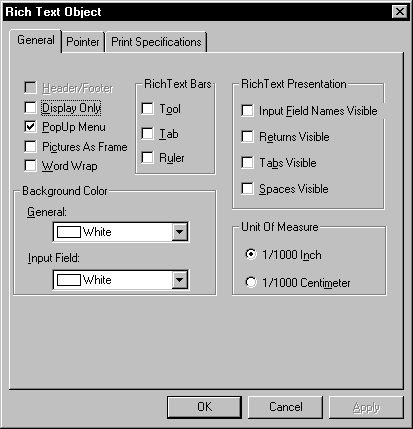
The General property page on the user’s Rich Text
Object dialog box presents many of the same options as the Document
property page in the development environment.
For more information about the RichTextEdit
control, see the chapter on implementing rich text in Application
Techniques
.