Using the individual controls
There are four basic types of controls with different purposes.
| Function | Controls include |
|---|---|
| Invoke actions | CommandButtons, PictureButtons, PictureHyperLinks, StaticHyperLinks, Tabs, User Objects |
| Display or accept data, or both | ListBoxes, PictureListBoxes, DropDownListBoxes, DropDownPictureListBoxes, DataWindow controls, StaticText, ListViews, TreeViews, RichTextEdit, Graphs, Pictures, ProgressBars, ScrollBars, SingleLineEdits, MultiLineEdits, EditMasks, Tabs, user objects, OLE controls, MonthCalendar, DatePicker, InkEdit, and InkPicture controls |
| Indicate choices | RadioButtons, CheckBoxes (you can group these controls in a GroupBox), TrackBars |
| Decorative | Line, Rectangle, RoundRectangle, Oval, Animation |
How to use the controls
You should use the controls only for the purpose shown in
the table. For example, users expect radio buttons for selecting
an option. Do not use a radio button also to invoke an action, such
as opening a window or printing. Use a command button for that.
There are, however, several exceptions: user objects can be
created for any purpose, and ListBoxes, ListViews, TreeViews, and
Tabs are often used both to display data and to invoke actions.
For example, double-clicking a ListBox item often causes some action
to occur.
Individual controls
The following sections describe some features that are unique
to individual controls. The controls are listed in the order in
which they display on the Insert>Control menu and the drop-down
controls palette:
- “CommandButton”
- “PictureButton”
- “CheckBox”
- “RadioButton”
- “StaticText”
- “StaticHyperLink”
- “Picture”
- “PictureHyperLink”
- “GroupBox”
- “Drawing controls”
- “SingleLineEdit and MultiLineEdit”
- “EditMask”
- “HScrollBar and VScrollBar”
- “HTrackBar and VTrackBar”
- “HProgressBar and
VProgressBar” - “DropDownListBox”
- “DropDownPictureListBox”
- “ListBox”
- “PictureListBox”
- “ListView”
- “TreeView”
- “Tab”
- “MonthCalendar”
- “DatePicker”
- “Animation”
- “InkEdit and InkPicture”
Some controls are not covered in this chapter:
- DataWindow controls and objects. See Chapter 18, “Defining DataWindow Objects .”
- RichTextEdit controls. See Chapter 30, “Working with Rich Text .”
- User objects. See Chapter 15, “Working with User Objects .”
- Graph controls. See Chapter 26, “Working with Graphs .”
- OLE controls. See Chapter 31, “Using OLE in a DataWindow Object .”
CommandButton
CommandButtons are used to carry out actions. For example,
you can use an OK button to confirm a deletion or a Cancel button
to cancel a requested deletion. If there are many related CommandButtons,
place them along the right side of the window; otherwise, place
them along the bottom of the window.
You cannot change the color or alignment of text in a CommandButton.
If clicking the button opens a window that requires user interaction
before any other action takes place, use ellipsis points in the
button text; for example, “Print…“.
Specifying Default and Cancel buttons
You can specify that a CommandButton is the default button
in a window by selecting Default in the General property page in
the button’s Properties view.
When there is a default CommandButton and the user presses
the Enter key:
- If the focus is not on
another CommandButton, the default button’s Clicked event
is triggered - If the focus is on another CommandButton, the Clicked
event of the button with focus is triggered
 Other controls affect default behavior If the window does not contain an editable field, use the SetFocus function
or the tab order setting to make sure the default button behaves
as described above.
A bold border is placed around the default CommandButton (or
the button with focus if the user explicitly tabs to a CommandButton).
You can define a CommandButton as being the cancel button
by selecting Cancel in the General property page in the button’s
Properties view. If you define a cancel CommandButton, the cancel
button’s Clicked event is triggered when the user presses
the Esc key.
PictureButton
PictureButtons are identical to CommandButtons in their functionality.
The only difference is that you can specify a picture to display
on the button. The picture can be a bitmap (BMP) file, a GIF or
animated GIF file, a JPEG file, a PNG file, a run-length
encoded (RLE) file, or an Aldus-style Windows metafile
(WMF).
You can choose to display one picture if the button is enabled
and a different picture if the button is disabled.
Use these controls when you want to be able to represent the
purpose of a button by using a picture instead of text.
 To specify a picture:
-
Select the PictureButton to display its
properties in the Properties view. -
On the General tab page, enter the name of the
image file you want to display when the button is enabled, or use
the Browse button and choose a file. -
Enter the name of the image file you want to display
when the button is disabled, or use the Browse Disabled button and
choose a file.If the PictureButton is defined as initially enabled, the
enabled picture displays in the Layout view. If the PictureButton
is defined as initially disabled, the disabled picture displays
in the Layout view.
To specify button text alignment:
-
Select the PictureButton to display its
properties in the Properties view. -
On the General tab page, enter the text for the
PictureButton in the Text box. -
Use the HTextAlign and VTextAlign lists to choose
how you want to display the button text.
CheckBox
CheckBoxes are square boxes used to set independent options.
When they are selected, they contain a check mark; when they are
not selected, they are empty.
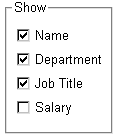
CheckBoxes are independent of each other. You can group them
in a GroupBox or rectangle to make the window easier to understand
and use, but that does not affect the CheckBoxes’ behavior;
they are still independent.
Using three states
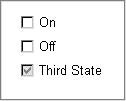
CheckBoxes usually have two states: on and off. But sometimes
you need to represent a third state, such as Unknown. The third
state displays as a grayed box with a check mark.
To enable the third state:
-
Select the ThreeState property in the General
page of the CheckBox Properties view.
To specify that a CheckBox’s current
state is the third state:
-
Select the ThreeState and the ThirdState
properties in the General page of the CheckBox Properties view.
RadioButton
RadioButtons are round buttons that represent mutually exclusive
options. They always exist in groups. Exactly one RadioButton is
selected in each group.
When a RadioButton is selected, it has a dark center; when
it is not selected, the center is blank.
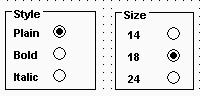
In the following example, the text can be either plain, bold,
or italic (plain is selected):

When the user clicks a RadioButton, it becomes selected and
the previously selected RadioButton in the group becomes deselected.
Use RadioButtons to represent the state of an option. Do not
use them to invoke actions.
When a window opens, one RadioButton in a group must be selected.
You specify which is the initially selected RadioButton by selecting
the Checked property in the General property page in the RadioButton’s
Properties view.
Grouping RadioButtons
By default, all RadioButtons in a window are in one group,
no matter what their location in the window. Only one RadioButton
can be selected at a time.
You use a GroupBox control to group related RadioButtons.
All RadioButtons inside a GroupBox are considered to be in one group.
One button can be selected in each group.
The Automatic property
When a window contains several RadioButtons that are outside
of a GroupBox, the window acts as a GroupBox. Only one RadioButton
can be active at a time unless the check box
for the Automatic property on the RadioButton’s General property
page is cleared. When the Automatic property is not set, you must
use scripts to control when a button is selected. Multiple RadioButtons
can be selected outside of a group.
The Automatic property does not change how RadioButtons are
processed inside a GroupBox.
StaticText
You use a StaticText control to display text to the user or
to describe a control that does not have text associated with it,
such as a list box or edit control.
The user cannot change the text, but you can change the text
for a StaticText control in a script by assigning a string to the
control’s Text property.
StaticText controls have events associated with them, but
you will probably seldom write scripts for them because users do
not expect to interact with static text.
Indicating accelerator keys
One use of a StaticText control is to label a list box or
edit control. If you assign an accelerator key to a list box or
edit control, you need to indicate the accelerator key in the text
that labels the control. Otherwise, the user would have no way of
knowing that an accelerator key is defined for the control. This technique
is described in “Defining accelerator keys “.
Indicating a border style
You can select a border style using the BorderStyle property
on the General property page.
Selecting the Border property The BorderStyle property will affect only the StaticText control
if the Border property check box is selected.
StaticHyperLink
A StaticHyperLink is display text that provides a hot link
to a specified Web page. When a user clicks the StaticHyperLink
in a window, the user’s Web browser opens to display the
page.
The StaticHyperLink control has a URL property that specifies
the target of the link. You specify the text and URL on the StaticHyperLink
control’s General tab page in the Properties view.
If you know that your users have browsers that support URL
completion, you can enter a partial address—for example, sybase.com instead
of the complete address, http://www.sybase.com.
When the StaticHyperLink control is in an MDI Frame window
with MicroHelp, the URL you specify displays in the status bar when
the user’s pointer is over the control.
A hand is the default pointer and blue underlined text is
the default font. To change the pointer, use the Other property
page. To change the font, use the Font property page.
Picture
Pictures are PowerBuilder-specific controls that display a
bitmap (BMP) file, a GIF or animated GIF file, a JPEG file, a PNG file, a run-length
encoded (.RLE) file, or an Aldus-style Windows metafile (WMF).
To display a picture:
-
Place a picture control in the window.
-
In the General tab page in the Properties view,
enter in the PictureName text box the name of the file you want
to display, or browse to select a file.The picture displays.
You can choose to resize or invert the image.
If you try to insert a very large image into a picture control,
the image may fail to display. The maximum size that will display
depends on the version of Windows, the graphics card and driver,
and the available memory. Compressed files must be decompressed
to display. Failure to display is most likely to occur with JPEG
files because the JPEG standard supports very high compression and
the decompressed content may be many times larger than the size
of the JPEG file.
Be careful about how you use picture controls. They can serve
almost any purpose. They have events, so users can click on them,
but you can also use them simply to display images. Be consistent
in their use so users know what they can do with them.
PictureHyperLink
A PictureHyperLink is a picture that provides a hot link to
a specified Web page. When a user clicks the PictureHyperLink in
a window, the user’s Web browser opens to display the page.
The PictureHyperLink control has a URL property that specifies
the target of the link. You specify the picture and URL in the PictureHyperLink
control’s Properties view in the General tab page. If you
know that your users have browsers that support URL completion,
you can enter a partial address—for example, sybase.com—instead
of the complete address, http://www.sybase.com.
When the PictureHyperLink control is in an MDI Frame window
with MicroHelp, the URL you specify appears in the status bar when
the user’s pointer is over the control.
A hand is the default pointer. To change the pointer, use
the Other property page.
The PictureHyperLink control is a descendant of the Picture
control. Like a Picture control, a PictureHyperLink control can
display a bitmap (BMP) file, a GIF or animated GIF file, a JPEG
file, a PNG file, a run-length
encoded (RLE) file, or an Aldus-style Windows metafile (WMF).
You display a picture in a PictureHyperLink control in the
same way you display a picture in a picture control. For more information,
see “Picture”.
GroupBox
You use a GroupBox to group a set of related controls. When
a user tabs from another control to a GroupBox, or selects a GroupBox,
the first control in the GroupBox gets focus. To tab between controls
in a GroupBox, set the tab value of the GroupBox to 0 and assign
a tab value to each control within it.
All RadioButtons in a GroupBox are considered to be in a group.
For more information about using RadioButtons in GroupBoxes, see “RadioButton”.
Drawing controls
PowerBuilder provides the following drawing controls: Line,
Oval, Rectangle, and RoundRectangle. Drawing controls are usually
used only to enhance the appearance of a window or to group controls.
However, constructor and destructor events are available, and you
can define your own unmapped events for a drawing control. A drawing
control does not receive Windows messages, so a mapped event would
not be useful.
You can use the following functions to manipulate drawing
controls at runtime:
- Hide
- Move
- Resize
- Show
In addition, each drawing control has a set of properties
that define its appearance. You can assign values to the properties
in a script to change the appearance of a drawing control.
Never in front You cannot place a drawing control on top of another control
that is not a drawing control, such as a GroupBox. Drawing controls always appear
behind other controls whether or not the Bring to Front or Send
to Back items on the pop-up menu are set. However, drawing controls
can be on top of or behind other drawing controls.
SingleLineEdit and MultiLineEdit
A SingleLineEdit is a box in which users can enter a single
line of text. A MultiLineEdit is a box in which users can enter
more than one line of text.
SingleLineEdits and MultiLineEdits are typically used for
input and output of data.
For these controls, you can specify many properties, including:
- Whether the box has
a border (the Border property) - Whether the box automatically scrolls as needed
(AutoHScroll and, for MultiLineEdits, AutoVScroll) - For SingleLineEdits, whether the box is a Password
box so asterisks are displayed instead of the actual entry (Password) - The case in which to accept and display the entry
(TextCase) - Whether the selection displays when the control
does not have focus (Hide Selection)
For more information about properties of these
controls, right-click in any tab page in the Properties view and
select Help from the pop-up menu.
EditMask
Sometimes users need to enter data that has a fixed format.
For example, U.S. and Canadian phone numbers have a three-digit
area code, followed by three digits, followed by four digits. You
can use an EditMask control that specifies that format to make it
easier for users to enter values. Think of an EditMask control as
a smart SingleLineEdit: it knows the format of the data that can
be entered.
An edit mask consists of special characters that determine
what can be entered in the box. An edit mask can also contain punctuation
characters to aid the user.
For example, to make it easier for users to enter phone numbers
in the proper format, you can specify the following mask, where # indicates
a number:
|
1 |
(###) ###-#### |
At runtime, the punctuation characters (the parentheses and
dash) display in the box and the cursor jumps over them as the user
types.
Masks in EditMask controls in windows work in a similar way
to masks in display formats and in the EditMask edit style in DataWindow
objects. For more information about specifying masks, see the discussion
of display formats in Chapter 22, “Displaying and Validating
Data .”
Edit mask character for Arabic and Hebrew The b mask character allows the entry of Arabic characters
when you run PowerBuilder on an Arabic-enabled version of Windows
and Hebrew characters when running on a Hebrew-enabled version.
It has no effect on other operating systems.
To use an EditMask control:
-
Select
the EditMask to display its properties in the Properties view. -
Name the control on the General property page.
-
Select the Mask tab.
-
In the MaskDataType drop-down list, specify the
type of data that users will enter into the control. -
In the Mask edit box, type the mask.
You can click the button on the right and select masks. The
masks have the special characters used for the specified data type. -
Specify other properties for the EditMask control.
For information on the other properties, right-click
in any tab page in the Properties view and select Help from the
pop-up menu.
Control size and text entry The size of the EditMask control affects its behavior. If
the control is too small for the specified font size, users might
not be able to enter text.
To correct this, either specify a smaller font size or resize
the EditMask control.
Validation for EditMask controls
The EditMask control checks the validity of a date when you
enter it, but if you change a date so that it is no longer valid,
its validity is not checked when you tab away from the control.
For example, if you enter the date 12/31/2005
in an EditMask control with the mask mm/dd/yyyy,
you can delete the 1 in 12, so that the date becomes 02/31/2005.
To catch problems like this, add validation code to the LoseFocus
event for the control.
Keyboard behavior
Some keystrokes have special behavior in EditMask controls.
For more information, see “The EditMask edit
style”.
Using a drop-down calendar
You can use a drop-down calendar that is similar to the DatePicker
control in EditMask controls that have a Date or DateTime edit mask.
The user can choose to edit the date in the control or to select
a date from a drop-down calendar.
To specify that an EditMask control uses a drop-down calendar
to display and set dates, select the Drop-down Calendar check box
on the Mask page in the Properties view. You can set display properties
for the calendar on the Calendar page. Users navigate and select
dates within the calendar as they do in the calendar in a DatePicker
control.
Using spin controls
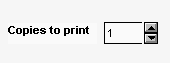
You can define an EditMask as a spin control, which is an
edit control that contains up and down arrows that users can click
to cycle through fixed values. For example, assume you want to allow
your users to select how many copies of a report to print. You could
define an EditMask as a spin control that allows users to select
from a range of values.
To define an EditMask as a spin control:
-
Name the EditMask and provide the data
type and mask, as described above. -
Select the Spin check box on the Mask property
page. -
Specify the needed information.
For example, to allow users to select a number from 1 to 20
in increments of 1, specify a spin range of 1 to 20 and a spin increment
of 1.
For more information on the options for spin
controls, right-click in any tab page in the Properties view and
select Help from the pop-up menu.
HScrollBar and VScrollBar
You can place freestanding scroll bar controls within a window.
Typically, you use these controls to do one of the following:
- Act as a slider control
with which users can specify a continuous value - Graphically display information to the user
You can set the position of the scroll box by specifying the
value for the control’s Position property. When the user
drags the scroll box, the value of Position is automatically updated.
HTrackBar and VTrackBar
HTrackBars and VTrackBars are bars with sliders that move
in discrete increments. Like a scroll bar, you typically use a track
bar as a slider control that allows users to specify a value or
see a value you have displayed graphically, but on a discrete scale
rather than a continuous scale. Clicking on the slider moves it
in discrete increments instead of continuously.
Typically a horizontal trackbar has a series of tick marks
along the bottom of the channel and a vertical trackbar has tick
marks on the right.
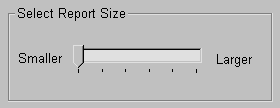
Use a trackbar when you want the user to select a discrete
value. For example, you might use a trackbar to enable a user to
select a timer interval or the size of a window.
You can set properties such as minimum and maximum values,
the frequency of tick marks, and the location where tick marks display.
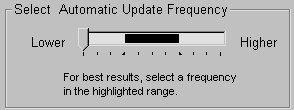
You can highlight a range of values in the trackbar with the
SelectionRange function. The range you select is indicated by a
black fill in the channel and an arrow at each end of the range.
This is useful if you want to indicate a range of preferred values.
In a scheduling application, the selection range could indicate a
block of time that is unavailable. Setting a selection range does
not prevent the user from selecting a value either inside or outside
the range.
You can see an example of a window with a trackbar in the
PowerBuilder Code Examples sample application in the Examples subdirectory
in your PowerBuilder directory. See the w_trackbars window
in PBEXAMW3.PBL.
HProgressBar and VProgressBar
HProgressBars and VProgressBars are rectangles that indicate
the progress of a lengthy operation, such as an installation program
that copies a large number of files. The progress bar gradually
fills with the system highlight color as the operation progresses.
You can set the range and current position of the progress
bar in the Properties view using the MinPosition, MaxPosition, and
Position properties. To specify the size of each increment, set
the SetStep property.
You can see an example of a window with a progress bar in
the PowerBuilder Code Examples sample application in the Examples
subdirectory in your PowerBuilder directory. See the w_progressbars window
in PBEXAMW3.PBL.
DropDownListBox
DropDownListBoxes combine the features of a SingleLineEdit
and a ListBox.
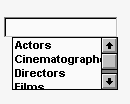
There are two types of DropDownListBoxes:
- Noneditable
- Editable
Noneditable boxes
If you want your user to choose only from a fixed set of choices,
make the DropDownListBox noneditable.
In these boxes, the only valid values are those in the list.
There are several ways for users to pick an item from a noneditable DropDownListBox:
- Use the arrow keys
to scroll through the list. - Type a character. The ListBox scrolls to the first
entry in the list that begins with the typed character. Typing the
character again scrolls to the next entry that begins with the character,
unless the character can be combined with the first to match an
entry. - Click the down arrow to the right of the edit control
to display the list, then select the one you want.
Editable boxes
If you want to give users the option of specifying a value
that is not in the list, make the DropDownListBox editable by selecting
the AllowEdit check box on the General tab page.
With editable DropDownListBoxes, you can choose to have the
list always display or not. For the latter type, the user can display
the list by clicking the down arrow.
Populating the list
You specify the list in a DropDownListBox the same way as
for a ListBox. For information, see “ListBox”.
Specifying the size of the drop-down box
To indicate the size of the box that drops down, size the
control in the Window painter using the mouse. When the control
is selected in the painter, the full size—including the
drop-down box—is shown.
Other properties
As with ListBoxes, you can specify whether the list is sorted
and whether the edit control is scrollable.
For more information, right-click in any tab
page in the Properties view and select Help from the pop-up menu.
DropDownPictureListBox
DropDownPictureListBoxes are similar to DropDownListBoxes
in the way they present information. They differ in that DropDownListBoxes
use only text to present information, whereas DropDownPictureListBoxes
add images to the information.
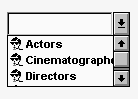
Everything that you can do with DropDownListBoxes you can
do with DropDownPictureListBoxes. For more information, see “DropDownListBox”.
Adding images to a DropDownPictureListBox
You can choose from a group of stock images provided by PowerBuilder,
or use any bitmap (BMP), icon (ICO), GIF, JPEG, or PNG file when
you add images to a DropDownPictureListBox. You use the same technique
that you use to add pictures to a PictureListBox. For more information,
see “Adding images to a PictureListBox”.
ListBox
A ListBox displays available choices. You can specify that
ListBoxes have scroll bars if more choices exist than can be displayed
in the ListBox at one time.
ListBoxes are an exception to the rule that a control should
either invoke an action or be used for viewing and entering data.
ListBoxes can do both. ListBoxes display data, but can also invoke
actions. Typically in Windows applications, clicking an item in
the ListBox selects the item. Double-clicking an item acts upon
the item.
For example, in the PowerBuilder Open dialog box, clicking
an object name in a ListBox selects the object. Double-clicking
a name opens the object’s painter.
PowerBuilder automatically selects (highlights) an item when
a user selects it at runtime. If you want something to happen when
users double-click an item, you must code a script for the control’s
DoubleClicked event. The Clicked event is always triggered before
the DoubleClicked event.
Populating the list
To add items to a ListBox, select the ListBox to display its
properties in the Properties view, select the Items tab, and enter
the values for the list. Press tab to go to the next line.
In the Items tab page, you can work with rows in this way:
| To do this | Do this |
|---|---|
| Select a row | Click the row button on the left or with the cursor in the edit box, press Shift+Space |
| Delete a row | Select the row and press Delete |
| Move a row | Click the row button and drag the row where you want it or press Shift+Space to select the row and then press Ctrl+Up Arrow or Ctrl+Down Arrow to move the row |
| Delete text | Click the text and select Delete from the pop-up menu |
Changing the list at runtime To change the items in the list at runtime, use the functions AddItem, DeleteItem,
and InsertItem.
Setting tab stops
You can set tab stops for text in ListBoxes (and in MultiLineEdits)
by setting the TabStop property on the General property page. You
can define up to 16 tab stops. The default is a tab stop every eight
characters.
You can also define tab stops in a script. Here is an example
that defines two tab stops and populates a ListBox:
|
1 |
// lb_1 is the name of the ListBox.<br />string f1, f2, f3<br />f1 = "1"<br />f2 = "Emily"<br />f3 = "Foulkes"<br />// Define 1st tab stop at character 5.<br />lb_1.tabstop[1] = 5<br />// Define 2nd tab stop 10 characters after the 1st.<br />lb_1.tabstop[2] = 10<br />// Add an item, separated by tabs.<br />// Note that the ~t must have a space on either side<br />// and must be lowercase.<br />lb_1.AddItem(f1 + " ~t " + f2 + " ~t " + f3) |
Note that this script will not work if it is in the window’s
Open event, because the controls have not yet been created. The
best way to specify this is in a user event that is posted in the
window’s Open event using the PostEvent function.
Other properties
For ListBoxes, you can specify whether:
- Items in the ListBox
are displayed in sorted order - The ListBox allows the user to select multiple items
- The ListBox displays scroll bars if needed
For more information, right-click in any tab
page in the Properties view for a ListBox and select Help from the
pop-up menu.
PictureListBox
A PictureListBox, like a ListBox, displays available choices
in both text and images. You can specify that PictureListBoxes have
scroll bars if more choices exist than can be displayed in the PictureListBox
at one time.
Adding images to a PictureListBox
You can choose from a group of stock images provided by PowerBuilder,
or use any bitmap (BMP), icon (ICO), GIF, JPEG, or PNG file when
you add images to a PictureListBox.
Keep in mind, however, that the images should add meaning
to the list of choices. If you use a large number of images in a
list, they become meaningless.
You could, for example, use images in a long list of employees
to show the department to which each employee belongs, so you might
have a list with 20 or 30 employees, each associated with one of
five images.
To add an image to a PictureListBox:
-
Select the PictureListBox control to display
its properties in the Properties view, and then select the Pictures
tab.The Pictures property page displays.
-
Use the PictureName drop-down ListBox to select
stock pictures to add to the PictureListBoxor
Use the Browse button to select a bitmap (BMP), icon
(ICO), GIF, JPEG, or PNG file to include in the PictureListBox. About cursor files To use a cursor file, you must type the file name. You cannot
select it. -
Specify a picture mask color (the color that will
be transparent for the picture). -
Specify the height and width for the image in
pixels or accept the defaults.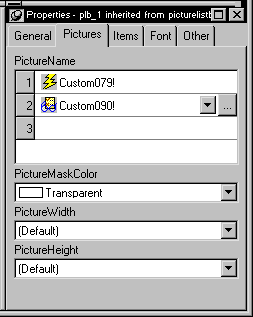
-
Repeat the procedure for the number of images
you plan to use in your PictureListBox. -
Select the Items tab and change the Picture Index
for each item to the appropriate number.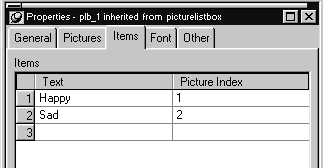
-
Click OK.
On the Items tab page, you can work with rows in this way:
| To | Do this |
|---|---|
| Select a row | Click the row button on the left, or with the cursor in the edit box, press Shift+Space |
| Delete a row | Select the row and press Delete |
| Move a row | Click the row button and drag the row where you want it or press Shift+Space to select the row and then press Ctrl+Up Arrow or Ctrl+Down Arrow to move the row |
| Delete text | Click the text and select Delete from the pop-up menu |
On the Pictures tab page, you can work with rows in the same
way, and also:
| To | Do this |
|---|---|
| Browse for a picture | Select the row and click the Browse button or press F2 |
For information about other properties, right-click
in any tab page in the Properties view and select Help from the
pop-up menu.
ListView
A ListView control lets you display items and icons in a variety
of arrangements. You can display large or small icons in free-form
lists. You can add columns, pictures, and items to the ListView,
and modify column properties, using PowerScript functions such as AddColumn, AddLargePicture, SetItem, SetColumn,
and so on. For information about ListView functions, see the online
Help.
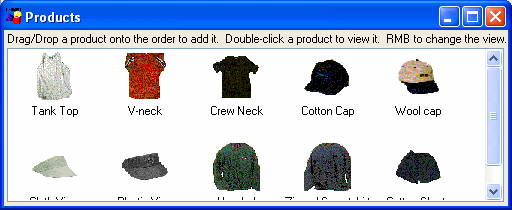
The following illustration from the Code Examples application
shows a ListView control used in a sales order application.
Adding ListView items and pictures
Adding images to a ListView control is the same as adding
images to a PictureListBox. The ListView control’s Properties
view has two tab pages for adding pictures: Large Picture (default
size 32 by 32 pixels) and Small Picture (16 by 16 pixels).
For more information, see “Adding images to a PictureListBox”.
To add ListView items:
-
Select the ListView control to display
its properties in the Properties view and then select the Items
tab. -
Enter the name of the ListView item and the picture
index you want to associate with it. This picture index corresponds
to the images you select on the Large Picture, Small Picture, and
State property pages.On the Items tab page, you can work with rows in this way:
To Do this Select a row Click the row button on the left, or
with the cursor in the edit box, press Shift+SpaceDelete a row Select the row and press Delete Move a row Click the row button and drag the row
where you want it, or press Shift+Space to select the row
and then press Ctrl+Up Arrow or Ctrl+Down Arrow
to move the rowDelete text Click the text and select Delete from
the pop-up menu Setting the picture index for the first item to zero
clears all the settings on the tab page. -
Set properties for the item on the Large Picture,
Small Picture, and/or State tab pages as you did on the
Items tab page.On these pages, you can also browse for a picture. To do so,
click the browse button or press F2. -
Repeat until all the items are added to the ListView.
Choosing a ListView style
You can display a ListView in four styles:
- Large icon
- Small icon
- List
- Report
To select a ListView style:
-
Select the ListView control to display
its properties in the Properties view and then select the General
tab. -
Select the type of view you want from the View
drop-down list.
For more information about other properties,
right-click in any tab page in the Properties view and select Help
from the pop-up menu.
Setting other properties
You can set other ListView properties.
To specify other ListView properties:
-
Select the ListView control to display its properties
in the Properties view. -
Choose the tab appropriate to the property you want
to specify:To specify Choose this tab The border style General Whether the user can delete items General The images for ListView items in Large
Icon viewLarge Picture The images for ListView items in Small
Icon, list, and report viewsSmall Picture The state images for ListView items State The names and associated picture index
for ListView itemsItems The font size, family, and color for
ListView itemsFont The size and position of the ListView Other The icon for the mouse pointer in the
ListViewOther The icon for a drag item, and whether
the drag-and-drop must be performed programmaticallyOther
For more information on the ListView control,
see Application Techniques
. For information
about its properties, see Objects and Controls
.
TreeView
You can use TreeView controls in your application to represent
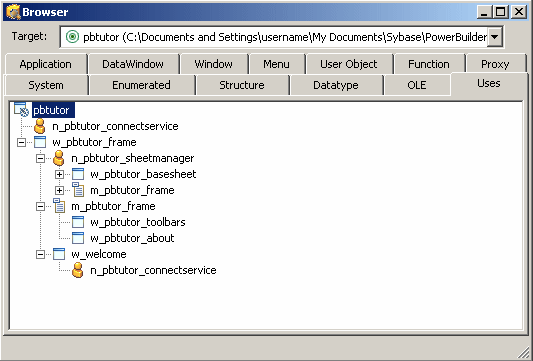
relationships among hierarchical data. An example of a TreeView
implementation is PowerBuilder’s Browser. The tab pages
in the Browser contain TreeView controls.
Adding TreeView items and pictures
A TreeView consists of TreeView items that are associated
with one or more pictures. You add images to a TreeView in the same
way that you add images to a PictureListBox.
For more information, see “Adding images to a PictureListBox”.
Dynamically changing image size The image size can be changed at runtime by setting the PictureHeight
and PictureWidth properties when you create a TreeView.
For more information about PictureHeight and
PictureWidth, see the PowerScript Reference.
To add items to a TreeView:
-
Write a script in the TreeView constructor
event to create TreeView items.For more information about populating a TreeView,
see Application Techniques
and Objects
and Controls.
Adding state pictures to TreeView items
A state picture is an image that appears
to the left of the TreeView item indicating that the item is not
in its normal mode. A state picture could indicate that a TreeView
item is being changed, or that it is performing a process and is unavailable
for action.
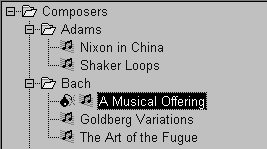
To specify a state picture for a TreeView item:
-
Select the TreeView control to display
its properties in the Properties view and then select the State
tab. -
Do one of the following:
- Use
the StatePictureName drop-down list to select stock pictures to add
to the TreeView. - Use the Browse button to select any bitmap (BMP),
icon (ICO), GIF, JPEG or PNG file.
To specify a cursor file To use a cursor file, you must type the file name. You cannot
select it. - Use
Working in the Properties view with the rows in the State
or Pictures tab page is the same as working with them in a ListView
control. For information, see “ListView”.
To activate a state picture for a TreeView item:
-
Write a script that changes the image when
appropriate.For example, the following script gets the current TreeView
item and displays the state picture for it.1long ll_tvi<br />treeviewitem tvi<br /> <br />ll_tvi = tv_foo.finditem(currenttreeitem! , 0)<br />tv_foo.getitem(ll_tvi , tvi)<br />tvi.statepictureindex = 1<br />tv_foo.setitem(ll_tvi, tvi)For more information on the TreeView control,
see Application Techniques
.
Setting other properties
To specify other TreeView properties:
-
Select the TreeView control to display
its properties in the Properties view and then select the General
tab. -
Enter a name for the TreeView in the Name text
box and specify other properties as appropriate. Among the properties
you can specify on the General property page are:- The border style
- Whether the TreeView has lines showing the item
hierarchy - Whether the TreeView includes collapse and expand
buttons - Whether the user can delete items
- Whether the user can drag and drop items into the
TreeView
For more information, right-click in any tab
page in the Properties view and select Help from the pop-up menu. -
For other options, choose the tab appropriate to the
property you want to specify:To specify Choose this tab The images used to represent TreeView
itemsPictures The state images for the TreeView items State The font size, family, and color for
TreeView itemsFont The size and position of the TreeView Other The icon for the mouse pointer in the
TreeViewOther The icon for a drag item, and whether
the drag-and-drop must be performed programmaticallyOther For more information on the TreeView control,
see Application Techniques
. For information
about its properties, see Objects and Controls
.
Tab
A Tab control is a container for tab pages that display other
controls. You can add a Tab control to a window in your application
to present information that can logically be grouped together but
may also be divided into distinct categories. An example is the
use of tab pages in the Properties view for objects in PowerBuilder.
Each tab page has a tab that displays the label for the tab page and
is always visible, whichever tab page is selected.
When you add a Tab control to a window, PowerBuilder creates
a Tab control with one tab page labeled “none”.
The control is rectangular.
Selecting Tab controls and tab pages
You may find that you select the control when you want to
select the page and vice versa. This Tab control has three tab pages.
The TabPosition setting is tabsontopandbottom!,
so that the tab for the selected tab page and pages that precede
it in the tab order display at the top of the Tab control.
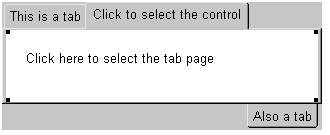
To select the Tab control, click any of the tabs where the
label displays, or in the area adjacent to the tabs, shown in gray
here.
To select a tab page, click its tab and then click anywhere
on the tab page except the tab itself. The handles at
the corners of the white area indicate that the tab page is selected,
not the Tab control.
Adding tab pages to a Tab control
To add a new Tab control to a window, select Insert>Control>Tab
and click in the window. The control has one tab page when it is
created. Use the following procedure to add additional tab pages
to the tab control.
To create a new tab page within a Tab control:
-
Select the Tab control by clicking on the
tab of the tab page or in the area to its right.The handles that indicate that the Tab control is selected
display at the corners of the Tab control. If you selected the tab
page, the handles display at the corners of the area under the tab. -
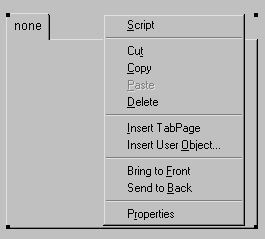
Choose Insert TabPage from the pop-up menu.
-
Add controls to the new tab page.
Creating a reusable tab page
You can create reusable tab pages in the User Object painter
by defining a tab page with controls on it that is independent of
a Tab control. Then you can add that tab page to one or more Tab
controls.
To define a tab page that is independent of a
Tab control:
-
Click the New button on the PowerBar and
use the Custom Visual icon on the Object tab page to create a custom
visual user object. -
Size the user object to match the size of the
Tab controls in which you will use it. -
Add the controls that you want to have appear
on the tab page to the user object. -
Select the user object (not one of the controls
you added) and specify the information to be used by the tab page
on the TabPage page in the Properties view:- Text—the
text to be displayed on the tab - PictureName—a picture to appear on the
tab with or instead of the text - PowerTipText—text for a pop-up message
that displays when the user moves the cursor to the tab - Colors for the tab and the text on the tab
- Text—the
-
Save and close the user object.
Adding a reusable tab page to a Tab control
Once you have created a user object that can be used as a
tab page, you can add it to a Tab control. You cannot add the user
object to a Tab control if the user object is open, and, after you
have added the user object to the control, you cannot open the user
object and the window that contains the Tab control at the same
time.
To add a tab page that
exists as an independent user object to a Tab control:
-
In the Window painter, right-click the
Tab control. -
Choose Insert User Object from the pop-up menu.
-
Select a user object that you have set up as a
tab page and click OK.
A tab page, inherited from the user object you selected, is
inserted. You can select the tab page, set its tab page properties,
and write scripts for the inherited user object just as you do for
tab pages defined within the Tab control, but you cannot edit the
content of the user object within the Tab control. If you want to edit
the controls, close the Window painter and go back to the User Object painter
to make changes.
Manipulating the Tab control
To change the name and properties of the Tab control:
-
Click any of the tabs in the Tab control
to display the Tab control properties in the Properties view. -
Edit the properties.
For more information, right-click in the Properties
view and select Help from the pop-up menu.
To change the scripts of the Tab control:
-
With the mouse pointer on one of the tabs,
double-click the Tab control, or display the pop-up menu and select
Script. -
Select a script and edit it.
To resize a Tab control:
-
Grab a border of the control and drag it
to the new size.The Tab control and all tab pages are sized as a group.
To move a Tab control:
-
With the mouse pointer on one of the tabs,
hold down the left mouse button and drag to move the control to
the new position.The Tab control and all tab pages are moved as a group.
To delete a Tab control:
-
With the mouse pointer on one of the tabs,
select Cut or Delete from the pop-up menu.
Manipulating the tab pages
To view a different tab page:
-
Click on the page’s tab.
The selected tab page is brought to the front. The tabs are
rearranged according to the TabPosition setting you have chosen.
To change the name and properties of a tab page:
-
Select the tab.
It might move to the position for a selected tab based on
the TabPosition setting. For example, if TabPosition is set to tabsonbottomandtop!
and a tab displays at the top, it moves to the bottom when you select
it. -
Click anywhere on the tab page except the tab.
-
Edit the properties.
To change the scripts of the tab page:
-
Select the tab.
It may move to the position for a selected tab based on the
Tab Position setting. -
Click anywhere on the tab page except the tab.
-
Select Script from the tab page’s pop-up
menu. -
Select a script and edit it.
To delete a tab page from a Tab control:
-
With the mouse pointer anywhere on the
tab page except the tab, select Cut or Delete from the pop-up menu.
Managing controls on tab pages
To add a control to a tab page:
-
Choose a control from the toolbar or the
Control menu and click on the tab page, just as you would add a
control to a window.You can add controls only to a tab page created within the
Tab control. To add controls to an independent tab page, open it
in the User Object painter.
To move a control from one tab page to another:
-
Cut or copy the control and paste it on
the destination tab page.
The source and destination tab pages must be embedded tab
pages, not independent ones created in the User Object painter.
To move a control between a tab page and the window
containing the Tab control:
-
Cut or copy the control and paste it on
the destination window or tab page.
Moving the control between a tab page and the window changes
the control’s parent, which affects scripts that refer
to the control.
For more information on the Tab control, see the chapter on
using tabs in a window in Application Techniques
.
MonthCalendar
A MonthCalendar control lets you display a calendar to your
users to make it easy for them to view and set date information.
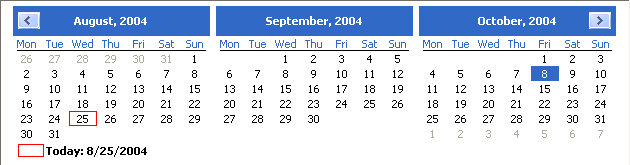
You can size the calendar to show from one to twelve months. The
following illustration shows a calendar with three months. Today’s
date is August 25, 2004, and the date October 8 has been selected.
If a user selects a date or a range of dates in the calendar,
you can use the GetSelectedDate or GetSelectedRange functions
to obtain them. You use the SetSelectedDate and SetSelectedRange functions
to select dates programmatically.
You can also:
- Set and get minimum and
maximum dates that can be displayed in the calendar - Display dates in bold
- Get the number of months currently displayed with
the start and end dates - Set and get the date the calendar uses as the current
date - Use properties to customize the appearance of the
calendar
Users can navigate through the calendar using the arrow keys
in the top corners. You can specify how many months should scroll
for each click using the ScrollRate property. If users click on
the name of the month in the title bar, a drop-down list displays,
allowing them to navigate to another month in the same year. Clicking
on the year in the title bar displays a spin control that lets users
navigate quickly to a different year.
DatePicker
The DatePicker control provides an easy way for a user to
select a single date. The user can choose to edit the date in the
control or to select a date from a drop-down calendar. The calendar
is similar to the MonthCalendar control, which can be used to select
a range of dates. As an alternative to the drop-down calendar, you
can set the ShowUpDown property to display up and down arrows that
allow users to specify one element of the date at a time.
The drop-down calendar can only be used to select a date.
The up and down arrows lets users specify a time as well as a date.
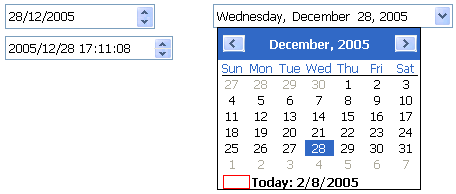
The following illustration shows three DatePicker controls. The
controls on the left have the ShowUpDown property set. One uses
the standard date format, and the other uses a custom format that
displays the date and time. The control on the right uses the default
drop-down calendar option and the standard long date format.
You can set initial properties for the appearance and behavior
of the control in the Properties view. Properties that apply to
the drop-down calendar portion of the control are similar to the
properties that apply to the MonthCalendar control and display on
the Calendar page in the Properties view. For example, you can choose
which day of the week displays as the first day in the week, whether
the current date is circled, and whether a “Today Section” showing
the current date displays at the bottom of the calendar.
Specifying a format
You can choose to display the date in the DatePicker control
as a long date, a short date, a time, or with a custom format. To
set a custom format in the painter, select dtfCustom! from the Format
list and type the format in the Custom Format field. For example,
the second control on the left in the previous illustration uses
the custom format yyyy/MM/dd
HH:mm:ss. The uppercase H for the hour format
specifies a 24-hour clock. The following statements set the Format
property to use a custom format and set the CustomFormat property
to show the full name of the month, the day of the month followed
by a comma, and the four-digit year:
|
1 |
dp_1.Format = dtfCustom!<br />dp_1.CustomFormat = "MMMM dd, yyyy" |
For a complete list of formats you can use, see the description
of the CustomFormat property in the online Help.
Specifying maximum and minimum dates
The MaxDate and MinDate properties determine the range of
dates that a user can enter or pick in the control. If you set a
restricted range, the calendar displays only the months in the range
you set, and if users type a date outside the range into the control,
the date reverts to its previous value.
Editing modes
When a user tabs into a DatePicker control, the control is
in normal editing mode and behaves in much the same way as an EditMask
control with a Date or DateTime mask. Users can edit the part of
the date (year, month, day, hour, minutes, or seconds) that has
focus using the up/down arrow keys on the keyboard or,
for numeric fields, the number keys. Use the left/right
arrow keys to move between parts of the date.If the control has
a drop-down calendar, users can navigate from one month or year
to another using the controls in the calendar and click to select
a date. If the ShowUpDown option is set, users can change the selected
part of the date or time with the up and down keys in the control.
To navigate in the drop-down calendar, a user can:
- Click the arrows in the top corners to move from
month to month - Click the month to display a list of months, then
click a month to select it - Click the year to display a spin control, then use
the spin control’s arrows to select a year - Click a date to select the date and close the calendar
- Press the Esc key to close the calendar without
changing the selection
Allowing users to edit the date directly
You can give users a third way to change the date by setting
the AllowEdit property to “true”. The user can
then press F2 or click in the control to select all the text in
the control for editing. When the control loses focus, the control returns
to normal editing mode and the UserString event is fired. The UserString
event lets you test whether the text the user entered in the control
is a valid date and set the value to the new date if it is valid.
If it is valid, you can use the event’s dtm by
reference argument to set the value to the new date. This code in
the UserString event tests whether the date is valid and within
range:
|
1 |
Date d<br />DateTime dt<br /> <br />IF IsDate(userstr) THEN<br /> d = Date(usrstr)<br /> IF (this.maxdate >= d and this.mindate <= d) THEN<br /> dtm = DateTime(dt)<br /> ELSE<br /> MessageBox("Date is out of range", userstr)<br /> END IF<br />ELSE<br /> MessageBox("Date is invalid", userstr)<br />END IF |
The Value property
The Value property contains the date and time to which the
control is set. If you do not specify a date, the Value property
defaults to the current date and time. You can set the property
in the painter or in a script. If you change the value at runtime,
the display is updated automatically. The Value property has two
parts that can be obtained from the DateValue and TimeValue properties.
These properties should be used only to obtain the date and time
parts of the Value property; they cannot be used to set a date or
time. The Text property and the GetText function
return the Value property as a string formatted according to your
format property settings.
You can use the SetValue function to set
the Value property in a control using separate date and time values
or a single DateTime value. This example sets the property control
using separate date and time values:
|
1 |
date d<br />time td=date("2007/12/27")<br />t=time("12:00:00")dp_1.SetValue(d, t) |
This example sets the Value property using a DateTime
value:
|
1 |
date d<br />time t<br />datetime dt<br />dt = DateTime(d, t)<br /> <br />dp_1.SetValue(dt) |
Localizing the DatePicker control
The DatePicker control is designed to work in different locales.
The string values in the DatePicker control support non-English
characters and the names of months and days of the week in the calendar
display in the local language. You can set the FirstDayOfWeek property
on the Calendar page in the Properties view to have the drop-down
calendar use Monday or any other day of the week as the first day.
The MaxDate and MinDate properties and the date part of the
Value property use the Short Date format specified in the regional
settings in the Windows control panel of the local computer, and
the time part uses the local computer’s time format. The
three predefined display formats—long date, short date,
and time—also depend on the local computer’s regional
settings.
Animation
Animation controls can display Audio-Video Interleaved (AVI)
clips. An AVI clip is a series of bitmap frames that can be played
like a movie. The clip can come from an uncompressed AVI file or
from an AVI file compressed using run-length encoding (BI_RLE8).
If you use an AVI file that has a sound channel, the sound is not
played.
You might display an AVI clip to show the user that some activity
is occurring while a lengthy operation such as a search or full
build is completing. To specify which AVI clip to use, specify the
AVI file name in the control’s AnimationName property.
If you want the control to display only when an event in your application
starts to play the application, set its Border and Visible properties
to “false” and its Transparent property to “true”.
InkEdit and InkPicture
InkEdit and InkPicture provide the ability to capture ink
input from users of Tablet PCs.
The InkEdit control captures and recognizes handwriting and
optionally converts it to text. The InkPicture control captures
signatures, drawings, and other annotations that do not need to
be recognized as text. You can place a background image in an InkPicture
control, and capture and save a user’s annotations to the
picture.
The ink controls are fully functional on Tablet PCs. On other
computers, the InkEdit control behaves like a multiline edit control.
If the Microsoft Tablet PC Software Development Kit (SDK) 1.7 is
installed on the computer, InkPicture controls can accept ink input
from the mouse.
InkEdit control
The InkEdit control on a Tablet PC is like a MultiLineEdit
control that has the added ability to accept ink input. On other
PCs, the InkEdit control behaves as a normal MultiLineEdit control
and cannot collect ink.
On a Tablet PC, the InkEdit control collects ink from a user
in the form of handwriting and can handle single or multiple lines
of text. It also recognizes gestures, which are specific pen strokes
that represent a keyboard action such as backspace, space, or tab. The InkEdit control can convert ink
to text, or leave it as handwriting.
InkPicture control
The InkPicture control behaves like a Picture control that
accepts annotation. The InkPicture control does not convert ink
to text. You can associate a picture with the control so that the
user can draw annotations on the picture, then save the ink, the
picture, or both. If you want to use the control to capture and
save signatures, you usually do not associate a picture with it.
You might use an InkPicture control to display an image of
a process flow chart or a floor plan of a building, and capture
suggested changes that users enter in the form of ink. Using an
image of a garden, for example, a user could mark trees and shrubs
to be removed and indicate where new plants should be added.
You can save the background image, the ink annotations, or
both, to a file or to a blob.