Using
PowerBuilder extensions
Every PowerBuilder extension requires a compiled C++ shared library,
usually with the extension .pbx (for PowerBuilder eXtension). The C++
shared library file contains classes and methods that you use in your
PowerScript target in the same way that you use PowerBuilder system
objects or user objects.
To use the shared library in PowerBuilder, you place it in
PowerBuilder’s search path. In the System Tree, right-click a library in
your PowerScript target, select Import PB Extension from the pop-up menu,
navigate to the shared library, and select Open. This imports the
definitions in the PBX into the library in your target. You can
alternatively add the associated PBD file to the target’s library search
path. The PBD acts as a wrapper for the C++ shared library, enabling
PowerBuilder to display the objects and methods it contains.
When you deploy an application that uses an extension, the C++
shared library must be deployed in the application’s search path with the
other PowerBuilder runtime files.
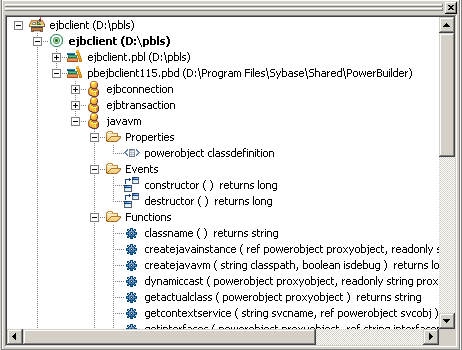
When you import an extension into a PowerScript target, the classes
it contains display in the System Tree as user objects. You can expand the
objects to display properties, events, and functions. You can inherit from
extension objects and use drag-and-drop programming from the inherited
objects in the System Tree as you do for other user objects.
Using nonvisual classes
In PowerScript, use the classes in a nonvisual extension just as you
would a custom class user object: declare an instance of the object, use
the CREATE statement to create the instance, invoke the object’s
functions, and destroy the instance when you have finished with it. You
can inherit from the native classes if you want to add functions or events
to the class.
At runtime, instances of the native class are created as normal
PowerBuilder objects.
Using visual classes
You do not need to declare an instance of a visual class or use the
CREATE statement to create an instance. To use a visual extension, select
File>Inherit from the PowerBuilder menu, select the PBL or PBD that
contains the visual class in the Libraries list in the Inherit from Object
dialog box, select the visual class, and click OK.
In the User Object painter, size the visual object and make any
other changes you need, then save the object. You can then drag the new
user object from the System Tree directly onto a window or onto another
visual control, such as a tab control, and use it like any other visual
user object.
PBXRuntimeError
PowerBuilder extensions can throw a special exception,
PBXRuntimeError, that inherits from the PowerBuilder RuntimeError
exception. If you use an extension in a PowerBuilder application, you
should include try-catch blocks for this exception and report any
occurrences to the provider of the extension. This exception is usually
caused by programming errors within the extension.