Using inheritance to build a menu
When you build a menu that inherits its style, events, functions,
structures, variables, and scripts from an existing menu, you save
coding time. All you have to do is modify the descendent object
to meet the requirements of the current situation.
 To use inheritance to build a descendent menu:
- Click the Inherit button on the PowerBar.
-
In the Inherit From Object dialog box, select
Menus from the Object Type dropdown list, the library or libraries
you want to look in, the menu you want to use to create the descendant,
and click OK. Displaying menus from many libraries To find a menu more easily, you can select more than one library
in the Application Libraries listbox. Use CTRL+CLICK to
toggle selected libraries and SHIFT+CLICK to select a range.The selected menu displays in the WYSIWYG Menu view and the
Tree Menu view in the Menu painter. The title in the painter’s
title bar indicates that the menu is a descendant. -
Make the changes you want to the descendent menu
as described in the next section. - Save the menu under a new name.
Using the inherited information
When you build and save a menu, PowerBuilder treats the menu
as a unit that includes:
- All menu items and
their scripts - Any variables, functions, and structures declared
for the menu
When you use inheritance to build a menu, everything in the
ancestor menu is inherited in all of its descendants.
What you can do
You can do the following in a descendent menu:
- Add menu items to
the end of a menu - Insert menu items in a menu (with some restrictions)
For more information, see “Where you can insert menu
items in a descendent menu”. - Modify existing menu items
For example, you can change the text displayed for a menu
item or change its initial appearance, such as making it disabled
or invisible. - Build scripts for menu items that don’t
have scripts in the ancestor menu - Extend or override inherited scripts
- Declare functions, structures, and variables for
the menu
What you cannot do
You cannot do the following in a descendent menu:
- Change the order of
inherited menu items - Delete an inherited menu item
- Insert menu items between non-shifted inherited
menu items - Change the name of an inherited menu item
- Change the type of an inherited menu item
Hiding a menu item If you don’t need a menu item in a descendent menu,
you can hide it by clearing the visible property in the Properties
view or by using the Hide built-in function.
About menu item names in a descendent
PowerBuilder uses the following syntax to show names of inherited
menu items:
|
1 |
AncestorMenuName::MenuItemName |
For example, in a menu inherited from m_update_file,
you see m_update_file::m_file for the
m_file menu item, which is defined in m_update_file.
The inherited menu item name is also locked, so you can’t
change it.
Understanding inheritance
The issues concerning inheritance with menus are similar to
the issues concerning inheritance with windows and user objects.
For information, see Chapter 12, “Understanding Inheritance “.
Inserting menu items in a descendent menu
Modifying the ShiftToRight property
When defining a descendent menu, you might want to insert
menu items in the middle of the menu bar or in the middle of a dropdown
or cascading menu. To do this, you will sometimes be setting the
ShiftToRight property in a menu item’s Properties view
on the General property page:
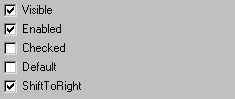
If the ancestor menu has no menu items with ShiftToRight set,
you can only add a new menu item to the end of the descendent menu
unless you first set the ShiftToRight property for the descendant
menu items that will follow the new menu item. Then you can add
the new menu item before the items that have ShiftToRight set.
The ShiftToRight property is used for menu items on the menu
bar (where items need to shift right if a new item is inserted)
and also for menu items in a dropdown or cascading menu (where items
may need to shift down
if a new item is inserted).
Although the property name is ShiftToRight, it means shift down
in dropdown or cascading menus.
Where you set the ShiftToRight property
You only set the ShiftToRight property in an ancestor menu
if you know that you will always want a group of menu items to shift
right (or down) when you inherit from the menu and add a new menu
item. For example, in this menu, you may want to set the ShiftToRight
property for the Window and Help menu items if you are going to
inherit from this menu because Window and Help are usually the last
items on a menu:

Where you can insert menu
items in a descendent menu
In a descendent menu, a group of menu items can be one of
four types and each type has an insertion rule
| Type of group | Insertion rule |
|---|---|
| Inherited menu items without ShiftToRight set |
You can’t insert a new menu item before any of these menu items |
| New items without ShiftToRight set | You can insert a new menu item before any of these menu items |
| Inherited menu items with ShiftToRight set in ancestor |
You can insert before the first menu item in the group but not before the others |
| New items with ShiftToRight set | You can insert a new menu item before any of these menu items |
How to insert menu items in a descendent menu
If you can insert a menu item in a descendent menu, the Insert
menu or the popup menu will have the Insert Menu Item option enabled.
The Insert Menu Item will be enabled if ShiftToRight is set in the
selected item before which you are inserting and all menu items
following it.
To insert a menu item in a descendent, you use the same method
you use to insert an item in a new menu, whether the menu item is
on the menu bar or on a dropdown or cascading menu. For information
about inserting menu items, see “Working with menu items”.
The following examples illustrate where you can insert menu
items in a descendent menu and the rules that affect where you can
insert the menu items.
Example with no ShiftToRight in ancestor
Say you have the following menu just inherited from an ancestor
frame menu with no items set as ShiftToRight in the ancestor:
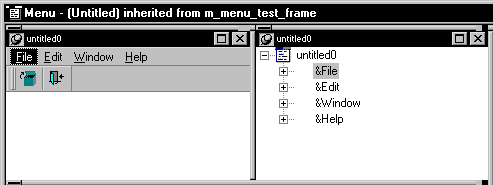
Here’s how you might add some new menu items. Since
ShiftToRight is not set anywhere at first, you can only add a menu
item to the end.
To insert some new menu items in a descendent
menu that does not have
ShiftToRight set for
menu items in the ancestor menu:
-
Select Insert Menu Item At End from the
popup menu.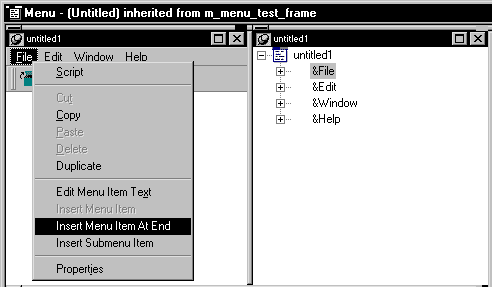
-
Name the new menu item New1 and press ENTER.

Say you now want to add a new Menu item before the New1 menu
item. You can do this without setting ShiftToRight on New1 because
New1 is a new menu item in the inherited menu. (See “Where you can insert menu
items in a descendent menu”.) -
Select Insert New Item from the popup menu.
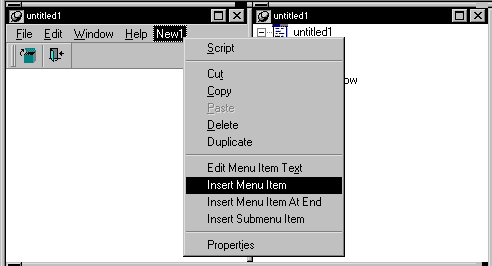
-
Name the new menu item New2 and press ENTER.

Say you now want to add a new Menu item before the Help menu
item. You can’t do this unless you set ShiftToRight on
the Help menu item, the New2 Menu item, and the New1 menu item because
Help is an inherited menu item without ShiftToRight set in the ancestor
menu. (See “Where you can insert menu
items in a descendent menu”.) For Help to shift right, New2
and New1 must also be able to shift right. -
Select the Help menu item and in the Properties
view, select the ShiftToRight property, and then do the same for
New1 and New2. What order you set ShiftToRight in for the three menu
items You can set ShiftToRight in any order. But if you set it right
to left, you won’t see any menu items shift. If you don’t,
you’ll see some shifting of items, but when you finish
setting ShiftToRight, the items will be in the correct order.Now you can add a new menu item before the Help menu item.
-
Select the Help menu item, then select Insert
New Item from the popup menu, name the new item New3, and then press
ENTER.
If you now wanted to add a new Menu item before the New3 menu
item, you can do it without setting ShiftToRight on New3 because
New3 is a new menu item and ShiftToRight is set in all items that
follow. (See “Where you can insert menu
items in a descendent menu”.)However, if you want to add a new menu item before the Window
menu item, you can’t do this working only in the descendent
menu because the Window menu item is an ancestor menu item and ShiftToRight
is not set in the ancestor. (See “Where you can insert menu
items in a descendent menu”.) To be able to do this, you must
set Window as ShiftToRight in the ancestor.
Example with ShiftToRight in ancestor
In this example, ShiftToRight has been set in the Window and
Help menu items in the ancestor menu. Let’s say you want
to insert a new menu item before the Help menu item and the Window
menu item.
To insert some new menu items in a descendent
menu that has ShiftToRight set
for some items
in the ancestor menu:
-
Select the Help menu item and display the
popup menu.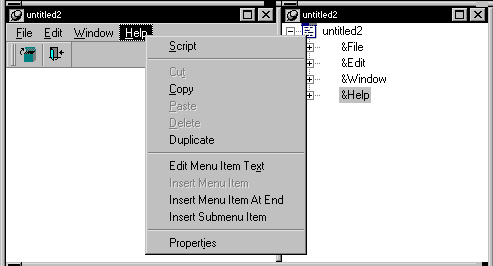
Notice that you can’t use the Insert Menu Item option
on the Help item’s popup menu because the Help item is
an ancestor menu item with ShiftToRight set in the ancestor. (See “Where you can insert menu
items in a descendent menu”.) -
Select the Window menu item and display the popup
menu.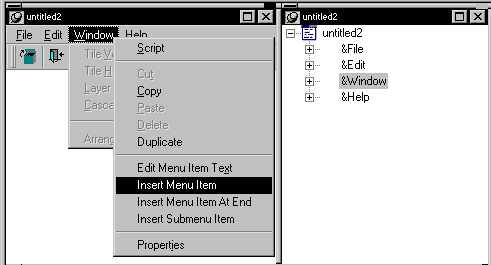
Notice that you can use the Insert Menu Item option on the
Window item’s popup menu because the Window item is the
first item in a group of ancestor menu items (Window and Help) with
ShiftToRight set in the ancestor. (See “Where you can insert menu
items in a descendent menu”.) -
Select Insert Menu Item At End from the popup
menu (to insert a new menu item after Help), name it New1, and press
ENTER.Notice that the New1 item’s ShiftToRight property
is set automatically.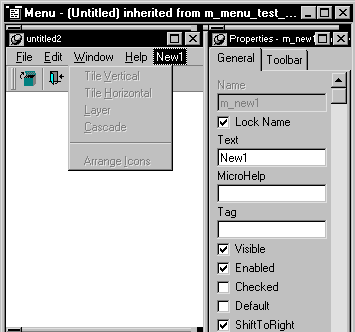
So now the Window, Help, and New1 items are set ShiftToRight.
Now you can insert a new item before Window and New1, but not before
Help because the Window and Help menu items are a group for which ShiftToRight
is set in the ancestor. (See “Where you can insert menu
items in a descendent menu”.)Also notice that you can’t insert a new item before
the Edit menu item because Edit is in the group File and Edit that
are inherited items with no ShiftToRight set in the ancestor. -
Select the Edit menu item, select ShiftToRight
in the Properties view, and then add the new menu item.
You could also have set the ShiftToRight property in the ancestor
menu, but it’s easier to just work in the descendant.