Using AutoScript
AutoScript is a tool designed to help you write PowerScript
code more quickly by providing a look-up and paste service inside
the Script view. It’s an alternative to using the paste
toolbar buttons or the Browser–you don’t need to
move your hands away from the keyboard to paste functions, events, variables,
properties, and templates for PowerBuilder DO, FOR, IF, and CHOOSE
statements into your script.
If you’re not sure what the name or syntax of a function
is or what the names of certain variables are, AutoScript can show
you a list to choose from and paste what you need right into the
script. If you can remember part of the name, start typing and select
Edit>Activate AutoScript (or do nothing if automatic popup
is turned on). If you can’t remember the name at all, place
your cursor in white space and select Edit>Activate AutoScript.
 Creating shortcuts If you plan to use AutoScript, you will probably want to create
a shortcut key for Edit>Activate AutoScript. See “Creating shortcut keys”.
Where you use AutoScript
You can use AutoScript in three different contexts:
- When you can remember part of the name and you want
AutoScript to finish typing it for you or show you a list of alternatives. - When you can’t remember the name or you
just want a list. AutoScript options can help you narrow the list
if you don’t know the name but you do know the type you
are looking for. For example, you can choose to see a list showing
all variables, or only all local variables. - When you want a list of the properties and/or
functions and events that apply to an identifier followed by a dot.
For how to use AutoScript options, see “Customizing AutoScript”.
Two ways to use AutoScript
AutoScript can pop up a list automatically when you pause
while typing, or when you request it:
- Turn
automatic popup on to have AutoScript pop up the list or complete what
you are typing when you pause for a few seconds after typing one
or more characters or an identifier followed by a dot. - Invoke AutoScript when you need it by selecting
Edit>Activate AutoScript when you have typed one or more
characters or an identifier followed by a dot, or when the cursor
is in white space. This menu item activates AutoScript only once.
It does not turn automatic popup on.
For how to paste an item from the popup window into a script,
see “Using the AutoScript popup
window”.
Using the AutoScript popup window
If there is more than one property, variable, method, or statement
that could be inserted, AutoScript pops up a list with an alphabetical
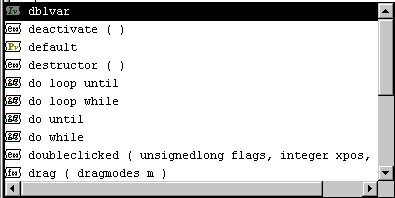
list of possible completions or insertions. An icon next to each
item indicates its type. The following illustration includes an
instance variable, events, properties, statements, and a function:
If a function is overloaded, each version displays on a different
line in the AutoScript popup window.
If you have started typing a word, only completions that begin
with the string you have already typed display in the list.
Case sensitivity AutoScript always pastes lowercase characters, but the case
of any characters you have already typed is preserved. For example,
if you’re using AutoScript to complete a function name
and you want to use mixed case, you can type up to the last uppercase
letter before invoking AutoScript. AutoScript completes the function
name and pastes an argument template.
Pasting an item into the script
To paste an item into the script, press TAB or ENTER or double-click
the item. Use the arrow and page up and down keys to scroll through
the list. If the item is a function, event, or statement, the template
that is pasted includes descriptive comments that you replace with
argument names, conditions, and so forth. The first commented argument
or statement is selected so that it is easy to replace. You can
jump to the next comment by selecting Edit>Go To>Next
Marker.
Go to next marker You can use Edit>Go To>Next Marker to jump
to the next comment enclosed by /* and */ anywhere
in the Script view, not just in AutoScript templates. For how to
create a shortcut for this menu item, see “Customizing AutoScript”.
If you don’t want to paste from the
list
Press the BACKSPACE key or click anywhere outside the popup
window to dismiss it without pasting into the script.
If nothing displays
AutoScript does not pop up a list if the cursor is in a comment
or string literal or if an identifier is complete. If that is not
the case and nothing displays when you select Edit>Activate
AutoScript, there may be no appropriate completions in the current
context. Check that the options you need are selected on the AutoScript
options page as described in “Customizing AutoScript”.
Customizing AutoScript
There are four ways to customize AutoScript:
- Creating shortcut keys
- Specifying what displays
in the list - Having AutoScript pop up
automatically - Using AutoScript only with
dot notation
Creating shortcut keys
AutoScript is easier to use if you create shortcuts for the
menu items that you use frequently. Select Tools>Keyboard
Shortcuts from the menu bar and expand the Edit menu in the Keyboard
Shortcuts dialog box. Scroll down and select Activate AutoScript
and type a key sequence, such as CTRL+SPACE. Then expand
the Go To menu, select Next Marker, and type a key sequence, such
as CTRL+M. After you click OK, the shortcuts display in
the Edit menu.
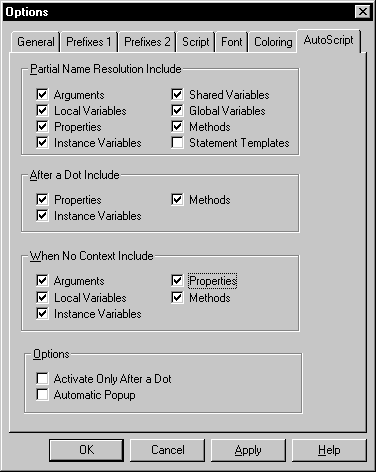
To make the next three customizations, select Design>Options
from the menu bar and select the AutoScript tab:
Specifying what displays
in the list
You can select different items to include in three different
contexts: when you have started typing a variable or method name
or the beginning of a PowerScript statement; when you have typed
the name of an object followed by a dot; and when the cursor is
at the beginning of a new line or in white space.
The following table shows what is included in the list or
pasted when you check each box:
| Checkbox | Displays |
|---|---|
| Arguments | Arguments for the current function or event |
| Local Variables | Variables defined in the current script |
| Instance Variables | Variables defined for and associated with an instance of the current object or, after a dot, variables associated with the object preceding the dot |
| Shared Variables | Variables defined for the current object and associated with all instances of it |
| Global Variables | Variables defined for the current application |
| Properties | Properties for the current object or, after a dot, properties for the object preceding the dot. Includes controls on the current window |
| Methods | Functions and events for the current object or, after a dot, functions and events for the object preceding the dot |
| Statement Templates | PowerScript statement templates for each type of IF, FOR, CHOOSE CASE, or DO statement with comments indicating what code should be inserted. This option is off by default |
Turning options off reduces the length of the list that displays
when you invoke AutoScript so that it’s faster and easier
to paste a completion or insert code into the script:
- To show all variables and methods when typing, check all the
boxes except Statement Templates in the Partial Name Resolution
Include groupbox. When you pause or select Edit>Activate
AutoScript, the list shows variables and methods that begin with
the string you typed. - To quickly find functions on an object, clear all
the boxes except Methods in the After A Dot Include groupbox. When
you type an instance name followed by a dot, only function and event
names for the instance display. - To see a list of arguments and local variables when
the cursor is in white space, check the Arguments and Local Variables
boxes in the When No Context Include groupbox. When you select Edit>Activate
AutoScript, the list shows only arguments and local variables.
Using name completion shortens the list You may not need to clear boxes on the AutoScript page to
reduce the length of the list if you are using name completion and
Edit>Activate AutoScript to invoke AutoScript. For example,
suppose you have created an instance called inv_ncst_dssrv
of the PFC class n_cst_dssrv and you know the
function you want to use begins with of_g. Type the following
into a script and then press the shortcut key:
|
1 |
inv_ncst_dssrv.of_g |
AutoScript displays a popup window showing only the functions
on n_cst_dssrv that begin with of_g.
Having AutoScript pop up
automatically
Most of the time you will probably use a shortcut key to invoke
AutoScript, but you can also have AutoScript pop up a list or paste
a selection automatically whenever you pause for several seconds
while typing. To do so, check the Automatic Popup box on the AutoScript
options page. Automatic popup does not operate when the cursor is
at the beginning of a line or in white space.
You will probably find this feature most useful when you are
entering new code. You can customize the options in the Partial
Name Resolution Include and After A Dot Include groupboxes to reduce
the number of times AutoScript pops up.
When you are editing existing code, it’s easier to
work with automatic popup off; AutoScript may pop up a list or paste
a template for a function when you don’t want it to. Using
only the shortcut key to invoke AutoScript gives you complete control.
Using AutoScript only with
dot notation
If you want AutoScript to work only
when
you have typed an identifier followed by a dot, check the Activate
Only After a Dot box on the AutoScript options page. The effect
of checking this box applies whether or not you have checked Automatic
Popup; but you may find it most useful when you have checked Automatic
Popup, because it provides another way to limit the number of times
AutoScript pops up automatically.
Example
The following simple example illustrates how AutoScript works
with automatic popup turned off and different settings for each
context. To set up the example:
- Create a new
window and place on it a DataWindow control and a CommandButton
control. - Select all the boxes in the Partial Name Resolution
Include groupbox. - Clear all the boxes in the After A Dot Include groupbox
except Methods. - Clear all the boxes in the When No Context Include
groupbox except Arguments and Local Variables. - Clear both boxes in the Options groupbox.
| Context | Do this | What happens |
|---|---|---|
| Partial name resolution | In the Clicked event script for cb_1, type long ll_rtn. On a new line, type ll and select Edit>Activate AutoScript |
AutoScript pastes the local variable ll_rtn into the script because it is the only completion that begins with ll |
| Type = d and select Edit>Activate AutoScript |
The list displays all properties, events, functions, variables, and statements that begin with d |
|
| Type w and press TAB or ENTER |
The list scrolls to dw_1 and AutoScript pastes it into the script when you press TAB or ENTER |
|
| After a dot | Type a dot after dw_1 and select Edit>Activate AutoScript |
The list shows all the functions and events for a DataWindow control |
| Type GetNextM and press TAB or ENTER |
AutoScript pastes the rest of the GetNextModified function name and template into the script, retaining your capitalization |
|
| Select Edit>Go To>Next Marker | AutoScript selects the next function argument so you can replace it. Complete or comment out the statement |
|
| No context | In the empty ItemChanged event for dw_1, declare some local variables, press TAB or ENTER, and then select Edit>Activate AutoScript |
The list displays the local variables and the arguments for the ItemChanged event |