The Export/Import Template view for XML
You define and
edit templates for export and import in the Export/Import Template
view for XML in the DataWindow painter. The view uses a tree view to represent
the template.
When you create a new DataWindow object, PowerBuilder displays a default template
in the Export/Import Template view. You can edit only one
template at a time in the view, but you can create multiple templates
and save them with the DataWindow object. Each template is uniquely associated
with the DataWindow object open in the painter.
The default template has one element for each column in the DataWindow object.

Creating, opening, and saving templates
From the pop-up menu for the Export/Import Template
view (with nothing selected), you can create new templates with
or without default contents, open an existing template, save the
current template, or delete the current template. You can only open
and edit templates that are associated with the current DataWindow object.

Representing tree view items
Each
item in the template displays as a single tree view item with an
image and font color that denotes its type. Elements are represented
by a yellow icon that resembles a luggage tag. The end tags of elements
and the markup delimiters used in an XML document do not display.
Table 27-1 shows
the icons used in the Export/Import Template view.
| Icon | Description |
|---|---|

|
XML declaration or document type declaration |

|
Root or child element |

|
Group header element |

|
DataWindow column reference |

|
Static text control reference |

|
Computed field reference |

|
DataWindow expression reference |

|
Literal text |

|
Comment |

|
Processing instruction |

|
CDATA section |

|
Nested report |
Creating templates
To create a template, select the New menu item or the New
Default menu item from the pop-up menu in the Export/Import
Template view.
Creating new base templates
The New menu
item creates a template that is empty except for the XML declaration,
the root element, and the first element of the row data section, referred
to as the Detail Start element. The name of the root element is
the same as the name of the DataWindow object, and the default name for
the Detail Start element is the name of the root element with _row appended.
For example, if the DataWindow object is named d_name,
the default template has this structure:
|
1 |
<?xml version="1.0"?><br /><d_name><br /> <d_name_row><br /> </d_name_row><br /></d_name> |
Creating new default templates
The New Default menu item creates a template with the same
contents as the New menu item, as well as a flat structure of child
elements of the Detail Start element. A child element is created
for each DataWindow column name, in the order in which the columns
appear in the SELECT statement, with the exception
of blob and computed columns. The default tag for the element is
the column’s name.
If the names of the column and the control are the same, the
content of the child element displays with a control reference icon.
If there is no control name that matches the column name, the content
of the child element displays using the DataWindow expression icon. For example,
consider a DataWindow object in which the dept_id column
is used as a retrieval argument and does not display:

The SQL syntax is:
|
1 |
SELECT "employee"."dept_id",<br /> "employee"."emp_lname",<br /> "employee"."emp_fname",<br /> "employee"."salary" <br /> FROM "employee" <br /> WHERE employee.dept_id = :deptnum<br />ORDER BY "employee"."emp_lname" ASC |
In the default template, dept_id uses
the DataWindow expression icon. All the other columns used the column control
reference icon.
Saving templates
To save a new
template, select Save from the pop-up menu in the Export/Import
Template view, and give the template a name and optionally a comment
that identifies its use.
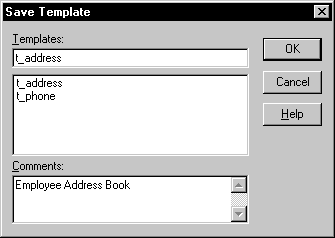
The template is stored inside the DataWindow object in the PBL. After saving a template with
a DataWindow object, you can see its definition in the Source editor for
the DataWindow object. For example, this is part of the source for a DataWindow that
has two templates. The templates have required elements only:
|
1 |
export.xml(usetemplate="t_address"<br /> template=(comment="Employee Phone Book"<br /> name="t_phone" xml="<d_emplist><d_emplist_row<br /> __pbband=~"detail~"/></d_emplist>")<br /> template=(comment="Employee Address Book"<br /> name="t_address" xml="<d_emplist><d_emplist_row<br /> __pbband=~"detail~"/></d_emplist>")) |
Header and Detail sections
An XML
template has a Header section and a Detail section, separated graphically
by a line across the tree view.
The items in the Header section are generated only once when
the DataWindow is exported to XML, unless the DataWindow is a group DataWindow.
For group DataWindow objects, you can choose to generate the contents of
the header section iteratively for each group. For more information,
see “Generating group headers”.
The Detail section contains the row data, and is generated
iteratively for each row in the DataWindow object.
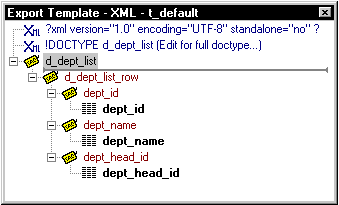
The Detail Start element
A line across the Export/Import
Template view separates the Header section from the Detail section.
The first element after this line, d_dept_list_row
in the previous screenshot, is called the Detail Start element.
There can be only one Detail Start element, and it must be
inside the document’s root element. By default, the first
child of the root element is the Detail Start element. It usually
wraps a whole row, separating columns across rows. When the DataWindow is
exported to XML, this element and all children and/or siblings
after it are generated iteratively for each row. Any elements in the
root element above the separator line are generated only once, unless
the DataWindow is a group DataWindow and the Iterate Group Headers
check box has been selected.
The Detail Start element can be a nested (or multiply-nested)
child of an element from the Header section, permitting a nested
detail. This may be useful for DataStores being packaged for submission
to external processes, such as B2B, that require company and/or
document information, date, or other master data preceding the detail.
Moving the separator
You can change the location of the separator line by selecting
the element that you want as the Detail Start element and selecting
Starts Detail from its pop-up menu. The separator line is redrawn
above the new Detail Start element. When you export the data, the
Detail Start element and the children and siblings after it are
generated iteratively for each row.
If no Detail Start element is specified (that is, if the Starts
Detail option has been deselected), the template has only a Header
section. When you export the data, only one iteration of row data
is generated.
Header section
The Header section can contain the items listed in Table 27-2. Only the root element
is required:
| Item | Details |
|---|---|
| XML declaration | This must be the first item in the tree view if it exists. See “XML declaration”. |
| Document type declaration | If there is an XML declaration, the document type declaration must appear after the XML declaration and any optional processing instructions and comments, and before the root element. Otherwise, this must be the first item in the tree view. See “Document type declaration”. |
| Comments | See “Comments”. |
| Processing Instructions | See “Processing instructions”. |
| Root element (start tag) | See “Root element”. |
| Group header elements | See “Generating group headers”. |
| Child elements | Child elements in the Header section cannot be iterative except in the case of group DataWindows. |
 Detail section in root element The root element displays in the Header section, but the entire
content of the Detail section is contained in the root element.
Detail section
The Detail section, which holds the row data, can contain
the items listed in Table 27-3.
| Item | Details |
|---|---|
| Detail start element | See “The Detail Start element”. |
| Child or sibling elements to the Detail Start element |
To add a sibling to the Detail Start element, add a child to its parent (the root element by default). |
| Control references | These references are in text format and can include references to column, text, computed field, and report controls. See “Controls”. Nested report controls can only be referenced as child elements. See “Composite and nested reports”. |
| DataWindow expressions | See “DataWindow expressions”. |
| Literal text | Literal text does not correspond to a control in the DataWindow object. |
| Comments | See “Comments”. |
| Processing instructions | See “Processing instructions”. |
| CDATA sections | See “CDATA sections”. |
| Attributes | You can assign attributes to all element types. See “Attributes”. |