The DropDownListBox edit style
You can use the DropDownListBox edit style to have columns
display as drop-down lists at runtime:
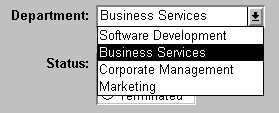
Typically, this edit style is used with code tables, where you
can specify display values (which users see) and shorter data values
(which are stored in the database).
In the DropDownListBox edit style, the display values of the
code table display in the ListBox portion of the DropDownListBox. The
data values are the values that are put in the DataWindow buffer (and
sent to the database when an Update is issued) when the user selects
an item in the ListBox portion of the drop-down list.
In the preceding example, when users see the value Business
Services, the corresponding data value could be 200.
To use the DropDownListBox edit style
-
Select DropDownListBox from the Style Type list.
-
Select the appropriate properties.
-
Enter the value you want to have appear in the Display Value
box and the corresponding data value in the Data Value box.
At runtime
You can define and modify a code table for a column in a script
code by using the SetValue method at runtime. To obtain the value of a
column at runtime, use the GetValue method. To clear the code table of
values, use the ClearValues method.
For more about code tables, see Defining
a code table.