Sybase SQL Anywhere
This section describes how to prepare and define a Sybase SQL Anywhere data source in order
to connect to it using the SQL Anywhere
ODBC driver.
 Name change For versions 6 through 9, the SQL Anywhere
database server was called Adaptive Server® Anywhere (ASA).
SQL Anywhere
includes two database servers—a personal database server
and a network database server. For information about using Sybase
SQL Anywhere, see the SQL Anywhere
documentation.
Supported versions for SQL Anywhere
The SQL Anywhere ODBC
driver supports connection to local and remote databases created
with the following:
- PowerBuilder running on your
computer - SQL Anywhere
version 10.x - ASA version 9.x
- ASA version 8.x
- ASA version 7.x
- ASA version 6.x
- SQL Anywhere
version 5.x
Basic software components for SQL Anywhere
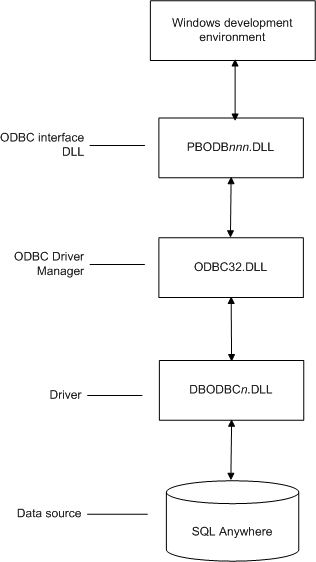
Figure 2-5 shows
the basic software components required to connect to a SQL Anywhere data source in PowerBuilder.
Preparing to use the SQL Anywhere data source
Before you define and connect to a SQL Anywhere
data source in PowerBuilder, follow these steps to prepare the data
source.
 To prepare a SQL Anywhere
data source:
-
Make sure the database file for the SQL Anywhere data source already exists.
You can create a new database by:- Launching the Create SQL Anywhere
Database utility. You can access this utility from the Utilities
folder for the ODBC interface in the Database profile or Database
painter when PowerBuilder is running on your computer.
This method creates a local SQL Anywhere
database on your computer, and also creates the data source definition
and database profile for this connection. (For instructions, see
the User’s Guide
.) - Creating the database some other way, such as with PowerBuilder running
on another user’s computer or by using SQL Anywhere outside PowerBuilder.
(For instructions, see the SQL Anywhere documentation.)
- Launching the Create SQL Anywhere
-
Make sure you have the log file associated with
the SQL Anywhere database so
that you can fully recover the database if it becomes corrupted.If the log file for the SQL Anywhere
database does not exist, the SQL Anywhere
database engine creates it. However, if you are copying or moving
a database from another computer or directory, you should copy or
move the log file with it.
Defining the SQL Anywhere data source
When you create a local SQL Anywhere
database, PowerBuilder automatically creates the data source definition
and database profile for you. Therefore, you need only use the following
procedure to define a SQL Anywhere
data source when you want to access a SQL Anywhere
database not created using PowerBuilder on your computer.
To define a SQL Anywhere
data source for the SQL Anywhere
driver:
-
Select Create ODBC Data Source from the
list of ODBC utilities in the Database Profiles dialog box or the
Database painter. -
Select User Data Source and click Next.
-
On the Create New Data Source page, select the SQL Anywhere driver and click Finish.
The ODBC Configuration for SQL Anywhere
dialog box displays: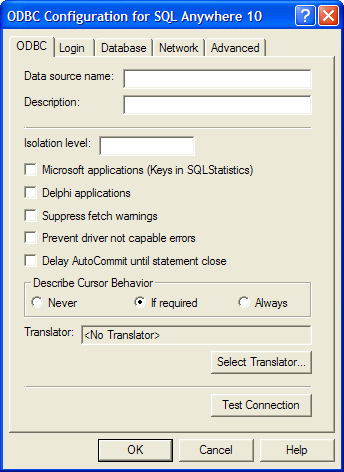
-
You must supply the following values:
- Data source name on the ODBC tab page
- User ID and password on the Login tab page
- Database file on the Database tab page
Use the Help button to get information about fields in the
dialog box. -
(Optional) To select an ODBC translator to translate
your data from one character set to another, click the Select button
on the ODBC tab. -
Click OK to save the data source definition.
Specifying a Start Line value
When the SQL Anywhere
ODBC driver cannot find a running personal or network database server
using the PATH variable and Database Name setting, it uses the commands
specified in the Start Line field to start the database servers.
Specify one of the following commands in the Start Line field
on the Database tab page, where n is the version
of SQL Anywhere you are using.
| Specify this command |
To |
|---|---|
| dbengn.exe | Start the personal database server and the database specified in the Database File box |
| rtengn.exe | Start the restricted runtime database server and the database specified in the Database File box |
For information on completing the ODBC Configuration For SQL
Anywhere dialog box, see the SQL Anywhere
documentation.
Support for Transact-SQL special
timestamp columns
When you work with a SQL Anywhere
table in the DataWindow®, Data Pipeline, or Database painter,
the default behavior is to treat any column named timestamp as
a SQL Anywhere Transact-SQL special timestamp column.
Creating special timestamp columns
You can create a Transact-SQL special
timestamp column in a SQL Anywhere table.
To create a Transact-SQL special
timestamp column in a SQL Anywhere table
in PowerBuilder:
-
Give the name timestamp to any column having
a timestamp datatype that you want treated
as a Transact-SQL special timestamp
column. Do this in one of the following ways:- In the painter – Select timestamp as the
column name. (For instructions, see the User’s
Guide
.) - In a SQL CREATE
TABLE statement – Follow the “CREATE TABLE example”.
- In the painter – Select timestamp as the
-
Specify timestamp as the
default value for the column. Do this in one of the following ways:- In the painter – Select
timestamp as the default value for the column. (For instructions,
see the User’s Guide
.) - In a SQL CREATE
TABLE statement – Follow the “CREATE TABLE example”.
- In the painter – Select
-
If you are working with the table in the Data
Pipeline painter, select the initial value exclude for the special
timestamp column from the drop-down list in the Initial Value column
of the workspace.You must select exclude as the initial value to exclude the
special timestamp column from INSERT or UPDATE statements.For instructions, see the User’s
Guide
.
CREATE TABLE example
The following CREATE TABLE statement defines
a SQL Anywhere table named timesheet containing
three columns: employee_ID (integer datatype), hours (decimal datatype),
and timestamp (timestamp datatype
and timestamp default value):
|
1 |
CREATE TABLE timesheet ( |
|
1 |
employee_ID INTEGER, |
|
1 |
hours DECIMAL, |
|
1 |
<i>timestamp TIMESTAMP default timestamp</i> ) |
Not using special timestamp columns
If you want to change the default behavior, you can specify
that PowerBuilder not treat SQL Anywhere
columns named timestamp as Transact-SQL special timestamp columns.
To specify that PowerBuilder not treat
columns named timestamp as a Transact-SQL special timestamp column:
-
Edit the Sybase SQL Anywhere section of
the PBODB110 initialization file to change the value of SQLSrvrTSName
from ‘Yes’ to ‘No’.After making changes in the initialization
file, you must reconnect to the database to have them take effect.
See Appendix A, “Adding
Functions to the PBODB110 Initialization File”
What to do next
For instructions on connecting to the ODBC
data source, see “Connecting to a database”.