SSL connection support
To enable .NET
client applications developed in PowerBuilder to connect with EAServer
using the Secure Sockets Layer (SSL), the computer where the .NET application
runs must be configured to work correctly with the SSL authentication
mode. You can connect using Server authentication or Mutual authentication.
Server authentication
If only server authentication is required, the EAServer client
must provide authentication to the server to prove that the client
can be trusted before it can connect to the server. By default,
EAServer 6.x uses 2001 as the port for this type of SSL connection.
The EAServer host’s certificate file must be imported
into the Microsoft certificate store on the client’s computer.
You can do this using the Certificate snap-in in the Microsoft Management
Console (MMC).
 To import an EAServer certificate into the client
computer’s certificate store:
-
Select Run from the Windows Start menu,
type mmc in the Run dialog
box, and click OK to open the Microsoft Management Console.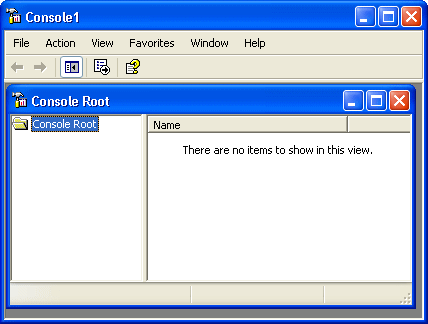
-
Select File>Add/Remove Snap-in
to open the Add/Remove Snap-in dialog box.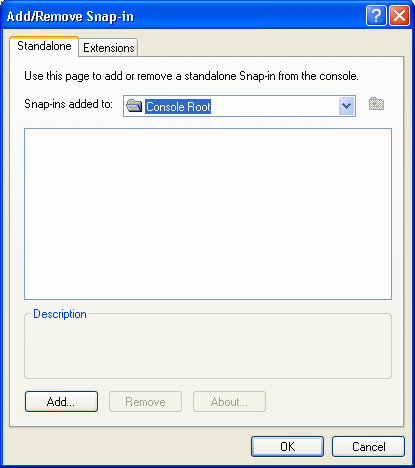
-
Click Add to open the Add Standalone Snap-in dialog
box. -
Select Certificates from the Snap-in list and
click Add to open the Certificates Snap-in dialog box.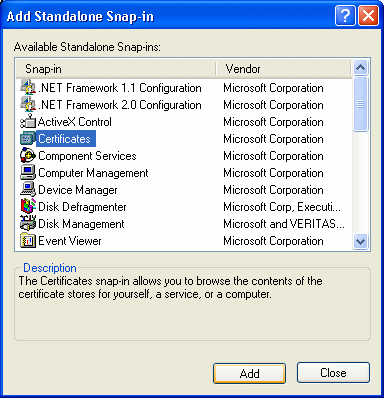
-
Select the Computer account radio button, click
Next, click Finished, and close the Add Standalone Snap-in and Add/Remove
Snap-in dialog boxes.A Certificates node displays in the MMC.
-
Expand the Certificates node in the MMC, right-click
Personal, select All Tasks, and then select Import.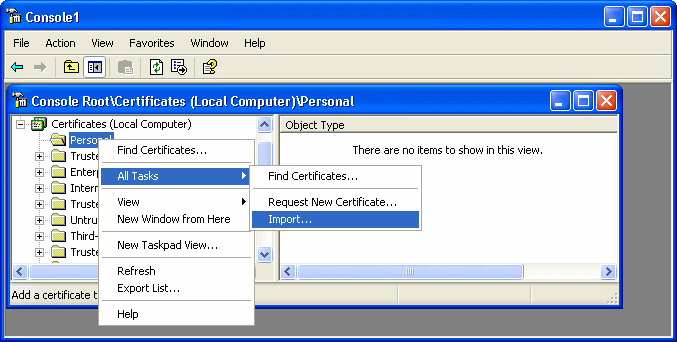
The Certificate Import Wizard opens.
-
Follow the instructions in the Certificate Import
Wizard to import the certificate.The wizard prompts you to provide a certificate file. For
server authentication, this is the certificate file that is configured
as the certificate for EAServer on port 2001 or any other port that
is specified for use in server-only authentication SSL mode. You
may already have such a file from configuring EAServer for SSL connections,
or, if you have access rights to the built-in Java keystore on the
EAServer host, you can export the required certificate from the
keystore.For more information about exporting a certificate, see the EAServer documentation
. Private key not required The server’s certificate file need not include its
private key.
Connection code
In the PowerScript connection code, change the EAServer host’s
address to a URL that begins with “iiops” and
ends with the correct SSL port. All other code is the same as if
the client was connecting to a server without using SSL.
The following sample code connects with EAServer using an
SSL connection:
|
1 |
Connection myconnect<br />int rc<br /> <br />myconnect = create Connection<br />myconnect.Application = "pbtest"<br />myconnect.Driver = "jaguar"<br />myconnect.UserID = "admin@system"<br />myconnect.Password = "abc"<br />myconnect.Location = "iiops://mydesktop:2001"<br /> <br />rc = myconnect.connecttoserver( ) |
Mutual authentication
If mutual authentication is required, the server and client
must authenticate each other to ensure that both can be trusted.
By default, EAServer 6.x uses 2002 as the port for this type of
SSL connection.
Both the server’s certificate and the client’s
certificate must be imported into the Microsoft certificate store
on the client computer as described in “Server authentication”.
Private key required for client certificate file The client’s certificate file must include the private
key for the client’s certificate. The server’s
certificate file need not include its private key.
Different certificate required for mutual certification The server certificate used for mutual authentication cannot
be the same as the certificate used for server-only authentication.
Make sure you obtain the correct certificate file.
For mutual authentication, the client’s certificate
file must be imported into the certificate store on the client computer and it
must be available in the file system on the client computer, because
it is referenced in the PowerScript code required to connect to
EAServer.
Two new key/value pairs in the Options property of
the Connection object are used for mutual authentication:
- ORBclientCertificateFile is used to specify the
file name of the client certificate file. - ORBclientCertificatePassword is used to specify
the password for the certificate if any. There is no need to use
this key if the certificate is not protected by password.
Connection code
In the PowerScript connection code, change the EAServer host’s
address to a URL that begins with “iiops” and
ends with the correct SSL port. The following sample code connects
to an EAServer host that requires mutual authentication:
|
1 |
Connection myconnect<br />int rc<br /> <br />myconnect = create Connection<br /> <br />myconnect.Application = "pbtest"<br />myconnect.Driver = "jaguar"<br />myconnect.UserID = "admin@system"<br />myconnect.Password = "sybase"<br />myconnect.Location = "iiops://mydesktop:2002"<br />myconnect.Options = "ORBclientCertificateFile=<br />'d:worksample1.p12',ORBclientCertificatePassword =abc"<br /> <br />rc = myconnect.connecttoserver( ) |
Configuration step required for Web Forms and
Web services
For mutual authentication, PowerBuilder .NET Web Forms applications
and .NET Web services that are clients for EAServer require that
the ASPNET account on the IIS server have access to the private
key of the client certificate. Access to the private key of the
server certificate is not required.
Use the Windows HTTP Services Certificate Configuration Tool (WinHttpCertCfg.exe)
to configure client certificates. You can download this tool from
the Microsoft Download Center
.
To grant access rights to the private key of the client certificate
for the ASPNET account on the IIS server, type the following commands
at a command prompt:
|
1 |
cd C:Program FilesWindows Resource KitsTools<br />WinHttpCertCfg -g -c LOCAL_MACHINEMY -s "ABC" -a "ASPNET" |
These commands assume that the tool is installed in the default
location at C:Program FilesWindows
Resource KitsTools and that the client certificate’s subject
name is “ABC”. The -s argument
is equivalent to the Issued To field in the MMC. The ASPNET account
is valid for XP computers. You should use the “NetworkService” account
for other Windows platforms. For the -c argument,
always use “LOCAL_MACHINEMY” rather
than the actual name of the local computer.
For more information about the configuration tool’s
options, type WinHttpCertCfg -help at
the command prompt. For more information about installing client
certificates for Web applications and services, see the Microsoft Help and Support site
.