Specify
an icon for the application
Where you are
> Specify an icon
for the application
Change the size of
the main window
Now you specify an icon for the application. The icon appears in the
workspace when you minimize the application during execution. PowerBuilder
includes the icon automatically when you create an executable file. You
specify an icon from the Properties view in the Application
painter.
-
Double-click the pbtutor Application object in the System
Treeor
Right-click the pbtutor Application object in the System Tree
and select Edit from the pop-up menu.The pbtutor Application object is located under the pbtutor
library, which is under the pbtutor target object that you created
with the Template Application wizard. Different views of the
Application object display in the Application painter. -
Make sure the Properties view displays in the Application
painter.If the Properties view is not open, you can open it by selecting
View>Properties from the menu bar. The menu item is grayed out if
the Properties view is already open.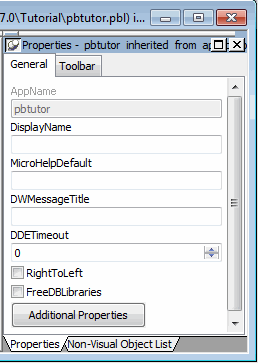
-
Click the Additional Properties button in the Properties
view.A tabbed Application property sheet displays.
-
Select the Icon tab.
-
Click Browse.
Navigate to the Tutorial directory.
-
Select the tutorial.ico file.
Click Open.
If you do not see the ICO file extension
You do not see ICO file extensions if the Hide File Extensions
for Known File Types check box is selected in the Options dialog box
of your Windows Explorer.The tutorial icon displays on the Icon page of the Application
property sheet.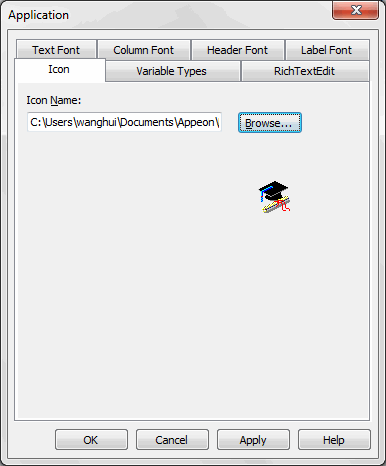
-
Click OK.
Click the Save button in PainterBar1 or select
File>Save.Click the Close button in PainterBar1 or select
File>Close.