Create a
target
Where you are
Specify an icon for
the application
Change the size of
the main window
Now you create a new target using the Template Application wizard.
Based on the choices you make, the Template Application wizard creates
precoded events, menus, windows, and user objects in addition to the
application object.
-
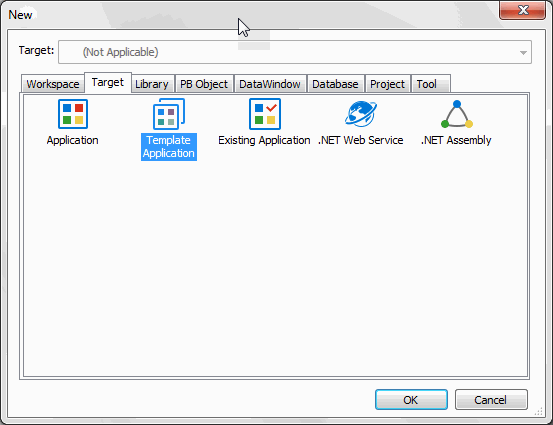
Select New from the File menu and click the Target tab
or
Right-click MyWorkspace in the System Tree, select New from the
pop-up menu, and click the Target tab.The Target page of the New dialog box displays.
-
Select the Template Application icon and click OK.
The Template Application wizard displays. The first page of most
wizards explains what the wizard is used for. As you step through the
wizard, you can press F1 to get Help on most fields. -
Click Next until the Specify New Application and Library page
displays. -
Type pbtutor in the Application Name text box.
The wizard automatically assigns file names to a library and
target that use this application name. It assigns the library a
PBL extension and the target a PBT extension. -
Click Next.
The Specify Template Type page displays. The MDI Application
with Microhelp radio button is selected. You will create an MDI
template application, so you do not need to change this
selection.About MDI
MDI stands for multiple document interface. In an MDI
application, the main window for the application is called the MDI
frame. Using the MDI frame menu bar, you can open additional windows
known as sheet windows that display inside the frame window. -
Click Next 4 times until the Name Individual Sheets page
displays.In this tutorial you accept the default application type,
library search path, frame and frame menu names, sheet menu and
manager service, and MDI base sheet.If you have clicked Next too many times
You can use the wizard’s Back button to navigate back to the
correct wizard page. -
On the Name Individual Sheets page, type w_customers for Sheet
1, w_products for Sheet 2, and clear the Sheet 3 text box.PowerBuilder will generate two windows based on the default
basesheet (w_pbtutor_basesheet), one for customers and one for
products. You will add a third sheet window later in the lesson on
exception handling.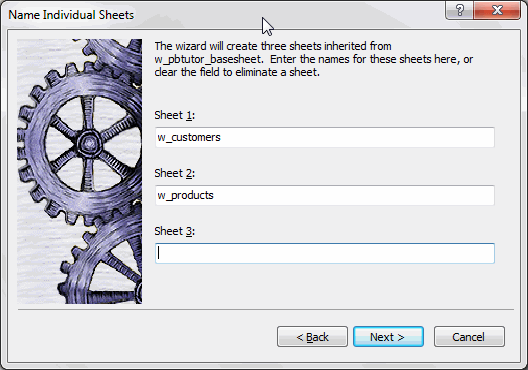
-
Click Next.
Type Maintain Customers as the display name for Sheet 1.
Type Maintain Products as the display name for Sheet 2.
The names you type will display in the title bars of these sheet
windows.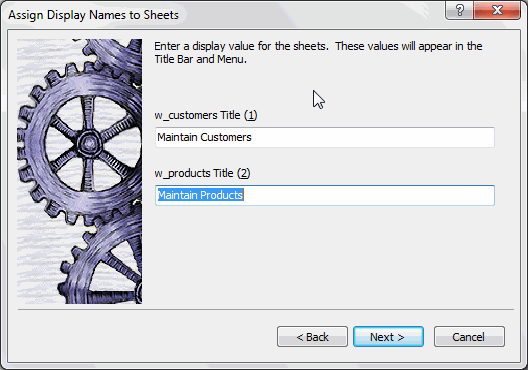
-
Click Next twice.
You do not need to change the names of the About and Toolbar
windows. -
On the Specify Connectivity page, select None.
You will add a Connection object later.
-
Click Next twice to display the Ready To Create Application
page.You will create a project later.
This is the last wizard page. It lists your current selections
so that you can review them and use the Back button to go back and
change them if necessary.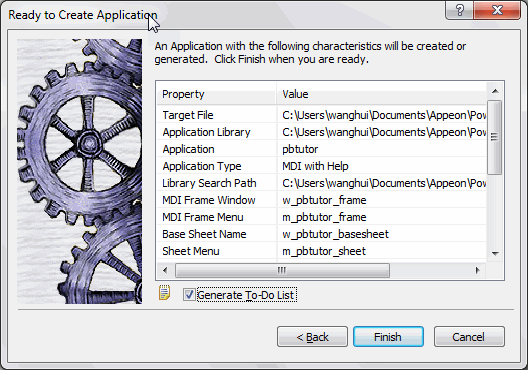
-
Make sure the Generate To-Do List check box is selected.
-
Click Finish.
The Template Application wizard creates the pbtutor.pbt target
and the pbtutor.pbl library, and sets the new pbtutor application as
the default application.
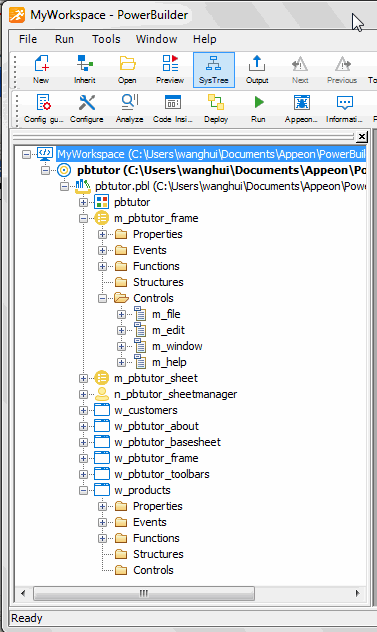
You can expand the System Tree to view all the objects that have
been created by the Template Application wizard. The System Tree does not
display the file extension of the pbtutor target, but it does display the
directory where the target file is saved.
The pbtutor.pbl library displays under the pbtutor target in the
System Tree. It contains the target Application object, which has the same
name as the target object but displays under the library file. Other
objects generated by the wizard also display under the library
file.