Setting Web DataWindow DTC properties
The Web DataWindow DTC property page has six tab pages that
you use for setting DTC properties.
Selecting the source for a DataWindow object
You
create a DataWindow object in PowerBuilder or InfoMaker. If you
use a DataWindow or report (PSR) in a PowerBuilder Library (PBL) or an exported source (SRD)
file as the source for your Web DataWindow, you must make sure that
the file is available to the application (page) server. This means
either that the file containing the DataWindow definition must be
deployed to the system path of the server, or you must specify an
absolute path to the file.
To specify an absolute path, you use the DataWindow page of
the Sybase Web DataWindow DTC Properties dialog box:

 When the source is a Web DataWindow Container component If you use a Web DataWindow Container component as the source
for a Web DataWindow, you must build the project you create with
the Web DataWindow Container Component wizard and deploy the component
directly to the component server for your Web application.
Generating the path in script
PowerBuilder allows you to deploy a DataWindow that you select
in the Web DataWindow DTC as part of your JSP target. The Generate
Path in Script field on the DataWindow page of the Web DataWindow
DTC Properties dialog box contains three radio buttons: Absolute,
Relative, and No Path.
After you add or import a PBL or
PSR to your current target path and select that PBL or PSR as your DataWindow source,
you can select the Relative radio button. If the Relative radio
button is selected when you deploy your target, the PBL or PSR will be deployed with
the target. Typically, you would select the Relative radio button
only if your page server also functions as a DataWindow component
server.
Deploying more than once If EAServer has loaded
a DataWindow from your target and you attempt to deploy the target
a second time while the Relative radio button is selected, your PBL might be locked and the deployment
might fail. To avoid this, you can disable instance pooling for
the component in EAServer Manager (EAServer 5.x) or in
the EAServer Web Administration Console (EAServer 6.0
or later). After you have finished testing and editing the target containing
the DataWindow object, you can enable instance pooling. Instance
pooling provides better performance in a production environment when
a component instance can be reinitialized and reused for multiple
clients.
If you select the Absolute radio button, you must make sure
that the path to the DataWindow source is the same on your development
machine as on the machine that hosts the server. If you intend to
deploy the DataWindow source manually to the system path of the
server machine, you can select the No Path radio button.
Selecting a database profile
On the Connection tab page of the Sybase Web DataWindow DTC
Properties dialog box, you can override the database connection
defined for a DataWindow object in a Web DataWindow Container component.
A default value for the database connection is set when a Web DataWindow
Container is created. The database connection is a container component
property that you can also modify in EAServer Manager
or in the EAServer Web Administration Console.
When you build your DataWindow, you must define a data source
connection. In PowerBuilder,
you must also set up a database profile to define access to the data
source connection. Database profiles that you define in PowerBuilder automatically
populate the Database Connection drop-down list on the Connection
page of the Sybase Web DataWindow DTC Properties dialog box. For
information on defining a database profile, see Connecting
To Your Database
.

Connection information not needed for PSR file You do not need—and cannot select—a database
connection for a report definition that you get from a PSR file.
Report data is embedded in the report with no connection to the
database.
You must make sure that the application server can use the
database connection defined in your database profile to connect
to the data source for the DataWindow object. See your server documentation
for the types of connection and the connection options it supports.
In JSP targets, the deployment controller creates a Database.properties file
that it deploys to the server with your target. The Database.properties file
contains the connection information from all the database profiles
defined in PowerBuilder on the development machine.
If you use a Web DataWindow Container component
If you use a Web DataWindow Container component, you should
make sure that the database connection you define on your local
machine is also defined as a connection cache on the EAServer machine to which you
deploy the component. If you are using a JDBC connection and do
not define a connection cache, you will get a runtime error when
you try to use a DataWindow definition from the container component.
With a Web DataWindow Container component, you also have the
option of overriding the database connection defined in the component.
Controlling the behavior of the DTC
The Control properties page displays name and behavior properties
for the Web DataWindow DTC.

In the Control tab page you can modify specific settings for
the instance of the DataWindow object on your page. You can define
settings on this page to override these values set in the DataWindow
object:
| Values you can override |
Description |
|---|---|
| DataWindow name | The name identifies the client-side Web DataWindow control. You can use this name in client-side scripts that you write. The Override check box lets you change the name of this instance of the Web DataWindow control. |
| Weight | The weight identifies the type of functionality included on your HTML page, including whether you allow client data entry, client-side events, and client-side scripting. As you include more functionality on your page, the size of the control increases. The largest (heaviest) but most feature-rich objects support both client-side formatting and client-side scripting. |
| Number of rows per page | The Rows Per Page property shows the number of rows displayed on each page. Override lets you change the number of rows that are displayed. With Override selected, you can specify that the Web DataWindow DTC display fewer rows than the number defined in the DataWindow object. |
Instead of using overrides
Instead of using the Control tab page overrides, you can change
the original (default) values for these settings in the DataWindow
painter. You do this on the HTML Generation page of the Properties
view for the DataWindow object that you selected in the Web DataWindow
DTC.
Setting the bind type and values for retrieval arguments
If the Web DataWindow object has one or more retrieval arguments,
then the Retrieval tab page displays the names of the retrieval
arguments defined for the Web DataWindow object. You can specify
retrieval argument bind type and bind values for the Web DataWindow
DTC.

Specifying the bind type
The bind type is the type of data that will be passed to the
Web DataWindow. The Bind Type column has a drop-down list box that
allows you to specify how the Web DataWindow DTC will get a value
for each retrieval argument:
- Control For 4GL JSP pages only, the value property of a server object.
- Constant A fixed value.
- Page Parameter A parameter whose value is set on the server, either as a
value passed from one page to another or as a default value set
for the page if no value is passed. If you type in a parameter name for a 4GL JSP page If you type in a parameter name for a 4GL JSP page (instead
of selecting it from the drop-down list box), make sure to add the
parameter to the list on the Parameters tab of the Page Properties
dialog box.
- Page Variable A variable whose value is set on the server. This selection is
available only on 4GL JSP pages.
Specifying bind values
Bind values are the data values that will be passed to the
DataWindow as retrieval arguments. The value you specify depends
on the option you select in the Bind Type drop-down list box. Available
page parameters, page variables, and control values automatically
populate the Bind Value list when you select these types in Bind
Type.
For more information about binding data to retrieval arguments,
see “Binding data to DataWindow
retrieval arguments”.
Defining links
The Link To property page displays a list of the columns,
text, computed fields, and graphical elements for your DataWindow
object, and lets you define links for them for the Web DataWindow
DTC.The properties on the Link To tab apply when you use a DataWindow
object that has a Tabular or Grid presentation style.
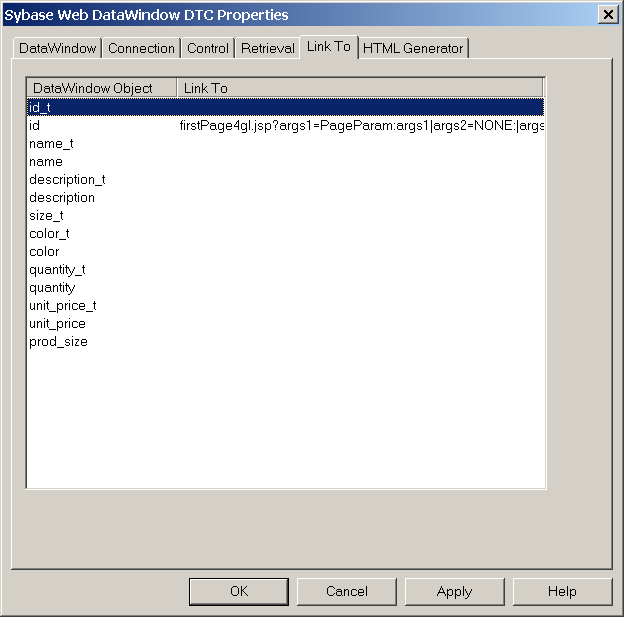
DataWindow object column
List of the columns, text, computed fields, and graphical
elements available for linking from the DataWindow object. Links
on columns work only when the columns are read-only. You can change
a column to read-only by setting its tab order to 0 in the DataWindow
painter. (In the DataWindow painter, you can also replace the column
with a text field that uses a DataWindow expression for the column.
You can then define links for the text field that contains the column
data.)
Link To column
The URL of the target page that gets displayed when a user
clicks on the specified object. To add a target with defined parameters,
click in the box under Link To in the row that specifies the column
name. You define the link in the Link Definition dialog box.
For information about defining hyperlinks on an object in
a DataWindow, see “Defining hyperlinks on objects
in a DataWindow”.
Selecting a Web DataWindow generator
EAServer hosting
If your Web DataWindow generator component is hosted in EAServer,
you select the particular Web DataWindow generator that you want
to use in the HTML Generator page of the Web DataWindow DTC Properties
dialog box:
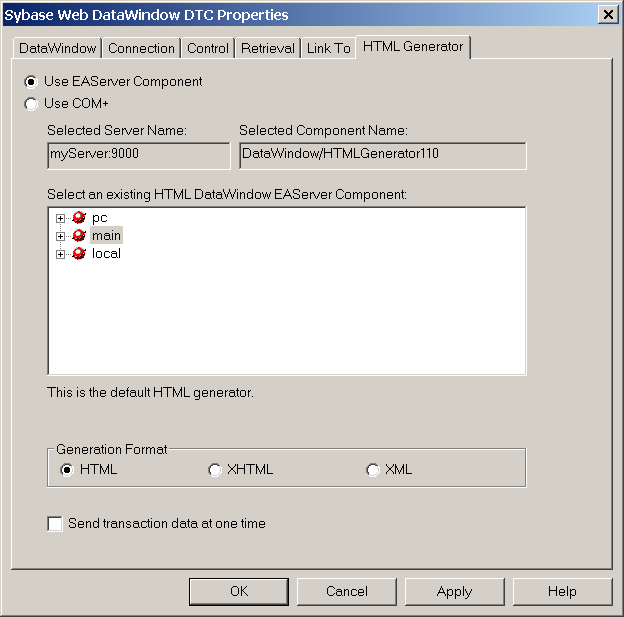
You must first define a profile for the EAServer machine you want to
use. For information on defining an EAServer profile,
see “Accessing components”.
In JSP targets, the deployment controller creates a Jaguar.properties file
that it deploys to the server with your target. The Jaguar.properties file contains
the EAServer information
from all the EAServer profiles
defined in PowerBuilder on the development machine.
From the Sybase Web DataWindow DTC Properties dialog box,
you can select a custom component that implements the default generator
or a Web DataWindow Container component that you want to use for
the generation.
Using a Web DataWindow Container component If you select a Web DataWindow Container component as the
source for your DataWindow, you cannot select a different component
for the generation.
By default, a DataWindow that you add to a Web page in the
HTML Editor uses the HTMLGenerator110 component on an EAServer machine to generate
the DataWindow as HTML. It is likely, though, that you might want
to generate your Web DataWindow as XML (with subsequent transformation
to XHTML and CSS) or as XHTML directly. The GenerateXMLWeb and GenerateXHTML methods
that enable you to do that are in the PSDataWindowClass and PSWebDataWindowClass of
the Web target object model. For information about the Web DataWindow
implementations, see the DataWindow Programmer’s
Guide
.
COM+ hosting
You cannot select a generator component on COM+ from
the Web DataWindow DTC. However, if you are using such a component
for generating a DataWindow, you must select the Use COM+ radio
button on the HTML Generator page of the Sybase Web DataWindow DTC
Properties dialog box.
To access a COM component from a JSP page, you must use a
Java-COM bridge. For more information, see the white paper How
to set up a JSP that uses a DW DTC to access the Web DW on MTS via
Tomcat
on the Sybase Web site
.