Setting Use Extended Attributes or Read Only to control access
 To control system table access by setting Use
Extended Attributes or Read Only:
-
Select Design>Options from the
menu bar to display the Database Preferences dialog box.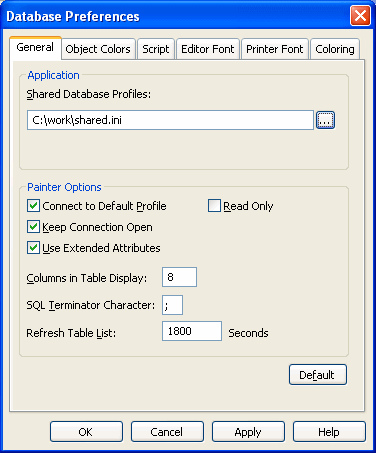
-
On the General page, set values for Use Extended
Attributes or Read Only as follows:Preference
What you do
Effect
Use Extended Attributes
Clear the check box
Does not create the PowerBuilder system
tables if they do not exist. Instead, the painter uses the appropriate
default values for extended attributes (such as headers, labels,
and text color).If the PowerBuilder system tables already exist, PowerBuilder does
not use them when you create a new DataWindow object.Read Only
Select the check box
If the PowerBuilder system tables already
exist, PowerBuilder uses them when you create a new DataWindow object, but does
not update them.You cannot modify (update) information
in the system tables or any other database tables in the DataWindow painter when
the Read Only check box is selected. -
Click OK.
PowerBuilder applies the preference settings to the current
connection and all future connections and saves them in the registry.