Setting TreeView level properties
In the Properties view for a band, you can specify expanded and
collapsed icons for each TreeView level. You access the Properties
view by clicking the bar identifying the band for that level in the
Design view in the DataWindow painter. You can also access the
Properties view from the Rows menu, or by clicking any of the icons in
the Design view that represent the locations of nodes, icons, and
connecting lines. (See Icons in the Design
view.)
To modify properties for a level in a TreeView
DataWindow
-
Select Rows>Edit TreeView Level from the menu bar and
then select the number of the level from the list of levels, or
click the bar identifying the band for that level or any of the
icons in that band. -
Use the DataWindow TreeView Level properties view that
displays to edit the properties for the level you selected.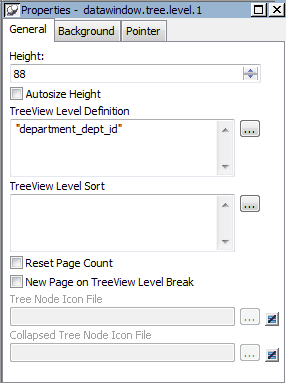
The properties that are specific to a TreeView level band
are at the bottom of the Properties view:Property
Description
Tree Node Icon File
The file name of the tree node icon in a
TreeView level band when it is in the expanded
state.Collapsed Tree Node Icon File
The file name of the tree node icon in a
TreeView level band when it is in the collapsed
state.You set the tree node icon file name separately for each
TreeView level band. You can use a quoted expression for the tree
node icon file.