Using the AutoScript pop-up window
If there is more than one property, variable, method, or
statement that could be inserted, AutoScript pops up an alphabetical
list of possible completions or insertions. An icon next to each item
indicates its type. The following screen includes an instance
variable, events, properties, statements, and a function:
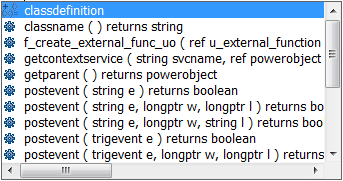
If a function is overloaded, each version displays on a
different line in the AutoScript pop-up window.
If you have started typing a word, only completions that begin
with the string you have already typed display in the list.
Case sensitivity
If you have set the PasteLowerCase PB.INI variable to 0 as
described in Pasting statements,
AutoScript always pastes uppercase characters. Otherwise, AutoScript
always pastes lowercase characters.
The case of any characters you have already typed is preserved.
For example, if you are using AutoScript to complete a function name
and you want to use mixed case, you can type up to the last uppercase
letter before invoking AutoScript. AutoScript completes the function
name in lowercase characters and pastes an argument template.
Pasting an item into the
script
To paste an item into the script, press Tab or Enter or
double-click the item. Use the arrow and page up and page down keys to
scroll through the list. If the item is a function, event, or
statement, the template that is pasted includes descriptive comments
that you replace with argument names, conditions, and so forth. The
first commented argument or statement is selected so that it is easy
to replace. You can jump to the next comment by selecting Edit>Go
To>Next Marker.
Go to next marker
You can use Edit>Go To>Next Marker to jump to the next
comment enclosed by /* and */ anywhere in the Script view, not just
in AutoScript templates. For the steps to create a shortcut for this
menu item, see Customizing
AutoScript.
If you do not want to paste from the
list
Press the Backspace key or click anywhere outside the pop-up
window to dismiss it without pasting into the script.
If nothing displays
AutoScript does not pop up a list if the cursor is in a comment
or string literal or if an identifier is complete. If neither of these
conditions applies and nothing displays when you select
Edit>Activate AutoScript, there may be no appropriate completions
in the current context. Check that the options you need are selected
on the AutoScript options page as described in Customizing AutoScript.