Setting properties for the TreeView DataWindow
You can set three types of properties for the TreeView DataWindow:
- General
properties - TreeView level properties
- Detail band properties
Specifying images for tree node icons
In the sample DataWindow shown in “Creating a new TreeView DataWindow”, different tree node icons display
for collapsed and expanded levels. The icons are also different
for each level. You specify images for these icons as TreeView level
band properties.
The sample DataWindow also displays a tree node icon next
to every row in the detail band. You specify an image for this icon
as a detail band property.
Tree node icons do not display by default. After specifying
images for icons, select the Use Tree Node Icon general property.
Setting general TreeView properties
You set most TreeView DataWindow properties on the General page in
the Properties view for the DataWindow object.
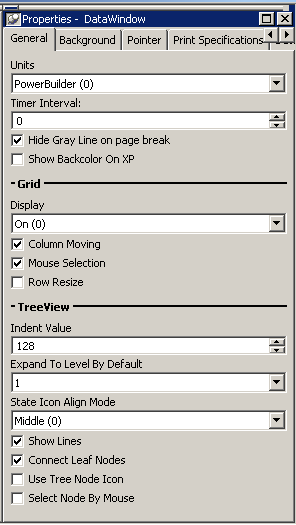
The properties that are specific to a TreeView DataWindow are
the TreeView properties and the Grid properties. The grid-related
properties display only if you select the Grid Style check box when
you define the TreeView DataWindow.
| Property | Description |
|---|---|
| Display | On – Grid lines always display. Off – Grid lines never display Display Only – Grid lines display Print Only – Grid lines display |
| Column Moving | Columns can be moved at runtime. |
| Mouse Selection | Data can be selected at runtime and, for example, copied to the clipboard. |
| Row Resize | Rows can be resized at runtime. |
| Indent Value | The indent value of the child node from its parent in the units specified for the DataWindow. The indent value defines the position of the state icon. The X position of the state icon is the X position of its parent plus the indent value. |
| Expand To Level By Default | Expand to TreeView level 1, 2, or 3. |
| State Icon Align Mode | Align the state icon in the middle (0), at the top (1), or at the bottom (2). |
| Show Lines | Whether lines display that connect parent nodes and child nodes. If you want to display lines that connect the rows in the detail band to their parent, select Connect Leaf Nodes. |
| Connect Leaf Nodes | Whether lines display that connect the leaf nodes in the detail band rows. |
| Use Tree Node Icon | Whether an icon for the tree node displays. This applies to icons in the level and detail bands. For how to specify icon images, see “Setting TreeView level properties” and “Setting detail band properties”. |
| Select Node By Mouse | Whether a Tree node is selected by clicking the Tree node with the mouse. |
Setting TreeView level properties
In the Properties view for a band, you can specify expanded
and collapsed icons for each TreeView level. You access the Properties view by
clicking the bar identifying the band for that level in the Design
view in the DataWindow painter. You can also access the Properties view from
the Rows menu, or by clicking any of the icons in the Design view
that represent the locations of nodes, icons, and connecting lines.
(See “Icons in the Design view”.)
 To modify properties for a level in a TreeView DataWindow:
-
Select Rows>Edit TreeView Level from
the menu bar and then select the number of the level from the list
of levels, or click the bar identifying the band for that level
or any of the icons in that band. -
Use the DataWindow TreeView Level properties view
that displays to edit the properties for the level you selected.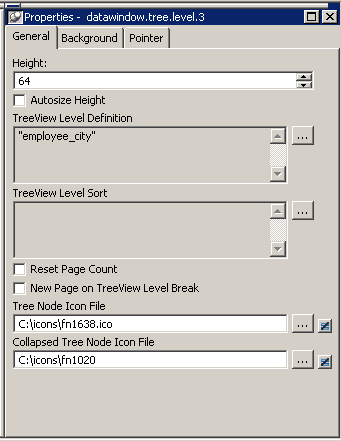
The properties that are specific to a TreeView level band
are at the bottom of the Properties view:
| Property | Description |
|---|---|
| Tree Node Icon File | The file name of the tree node icon in a TreeView level band when it is in the expanded state. |
| Collapsed Tree Node Icon File | The file name of the tree node icon in a TreeView level band when it is in the collapsed state. |
You set the tree node icon file name separately for each TreeView
level band. You can use a quoted expression for the tree node icon
file.
Setting detail band properties
You can specify an icon for the rows in the detail band by
clicking the detail band in the DataWindow painter to display the Properties view.
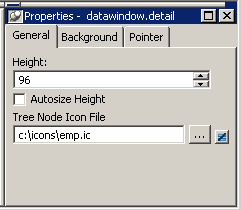
If you want to hide tree nodes in the detail band, set the
Height property to 0. The only property that is specific to the
TreeView DataWindow is located at the bottom of the Properties view:
| Property | Description |
|---|---|
| Tree Node Icon File | The file name of the tree node icon in the detail band. You can use a quoted expression. |
For more information
For reference information about TreeView DataWindow properties,
methods and events, see the DataWindow Reference
or
the online Help.